Student Training Center Website Template



Edit Template Offline
2. Create new page and search for id 1278233
Edit Template Online
Create Awesome Websites


Free Nicepage Builder
Keywords
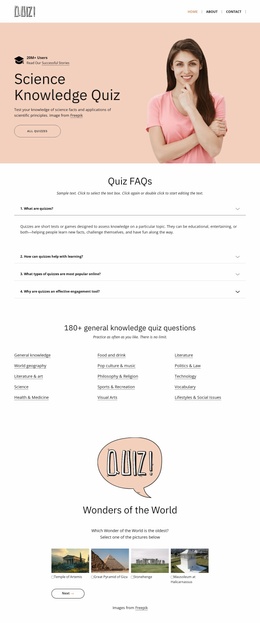
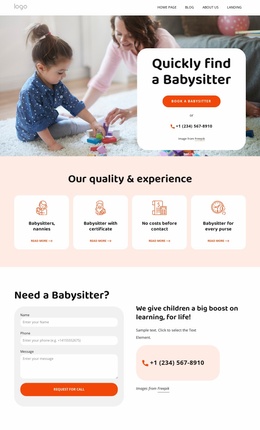
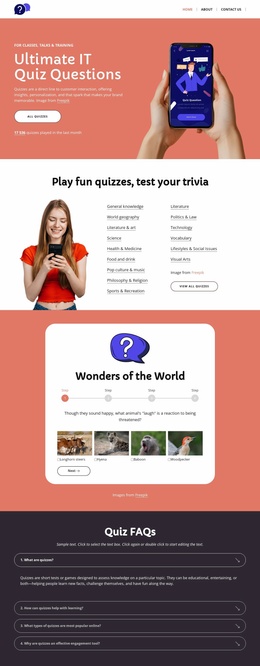
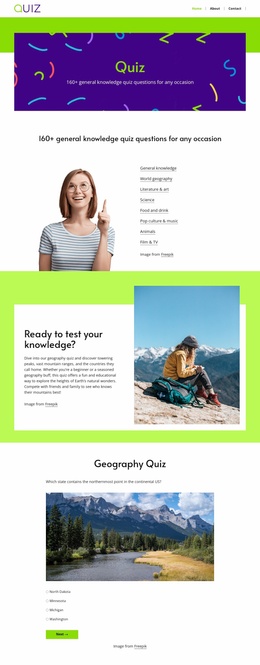
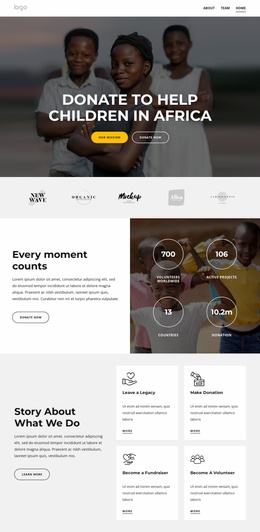
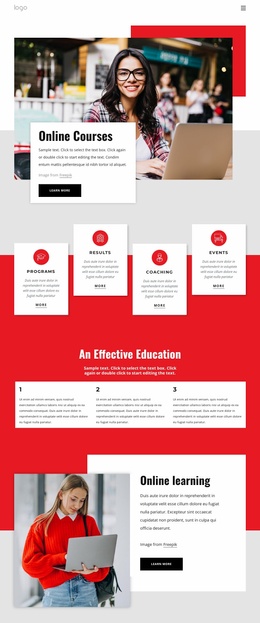
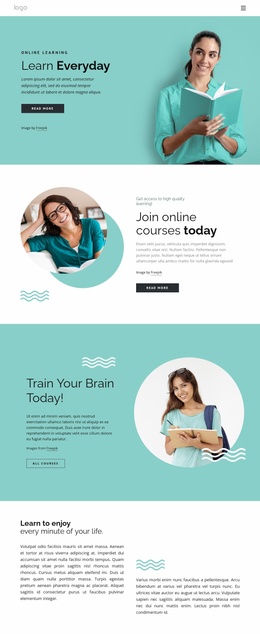
Course, People, and Contact Areas Form a Broader Site Foundation
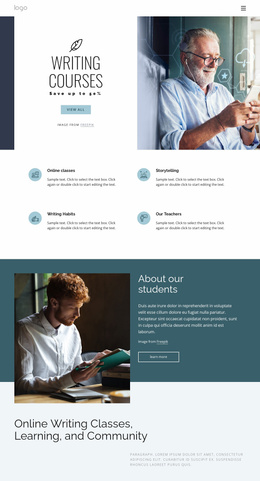
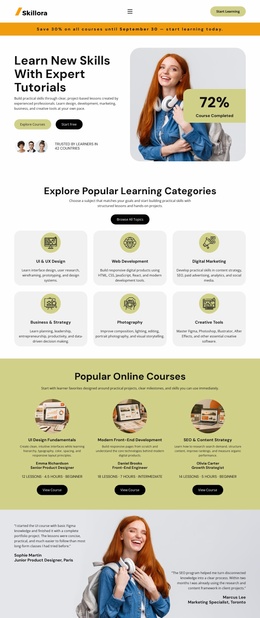
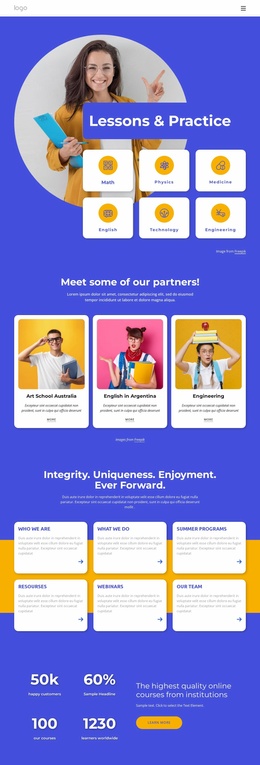
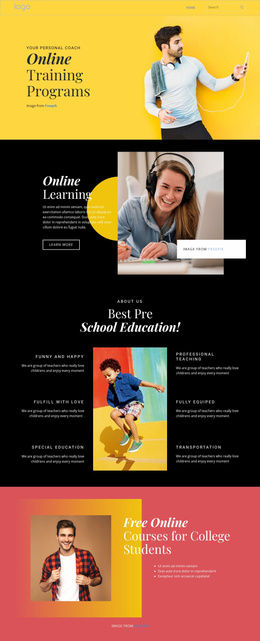
The design already identifies several major content areas that an education website can build around. The hero introduces online learning and provides category buttons, while the about section offers space for institutional explanation. Three benefit cards and six English-learning cards create reusable patterns for describing educational value and topics. The three course category panels then give the project a more detailed information structure, separating Web development, Information technology, and Web design instead of placing every course in one list.
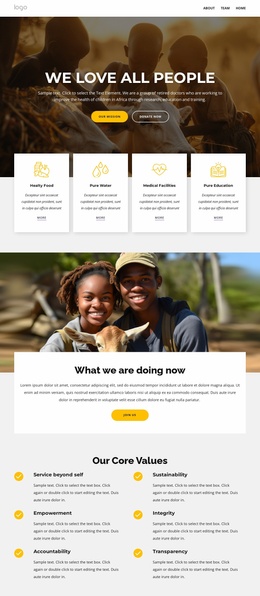
The people-oriented sections broaden the foundation beyond course data. Four team profile cards can represent staff or instructors as a recurring content area, while the two-slide testimonial presentation supplies a separate feedback region with portraits, attributed speakers, quotations, and controls. The four metric blocks and highlighted mission panel add an overview section that can support the site’s institutional message without replacing the more specific course categories.
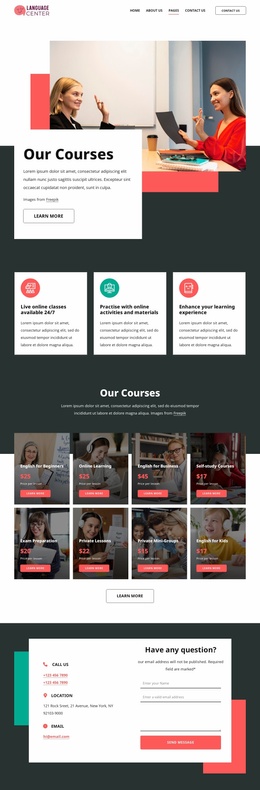
The final contact area gives the project a practical closing region, combining a form for name, email, phone, and message with phone, location, service labels, and photography. Along with the visible navigation and dark footer, these areas establish a starting information architecture for related pages or expanded content. The analysis confirms one detailed page, not a prebuilt multi-page site, so broader expansion should be treated as a project direction rather than an existing template fact.
Customize with Nicepage
Open this ready-made template in the Website Template Builder and customize it visually in the Nicepage editor. Replace demo content, edit page sections, and adapt the design to your project without rebuilding the template from scratch.
Build a Complete Website From This Template
Customize the Website Visually
Use this ready-made website template as a starting point for your project and adapt its pages visually in Nicepage. Change content, images, typography, navigation, sections, and other design elements while keeping the website together as a single editable project.
Manage Website Pages in One Project
Use the Pages panel to open, add, duplicate, and manage the pages of your website. Work on individual pages while keeping navigation and the overall site structure accessible from the same project, making it easier to develop a complete website instead of managing separate page files.
Expand the Website With Matching Designs
When you need additional pages or sections, use Page Design Sets to find Page and Block Designs created in the same visual style. Design Sets group matching designs together, making it easier to expand the website with new content while maintaining a consistent look across its pages and sections.
Organize Larger Multi-Page Websites
As the website grows, use Page Folders to organize related pages and keep larger multi-page projects easier to navigate in the editor. This is especially useful for websites with separate service pages, company information, contacts, landing pages, and other content areas.
This workflow makes the template a practical foundation for building and expanding a complete website while managing its pages, content, and visual design within one Nicepage project.