FAQ Website Builder
-
-

-
-
-
-
-
-
-
-
-
Build Website with no CodingDownload
-
-
-
-
-
-
-
-
-
-
-
-
-
-
-
-
-
-
-
-
-
-
-
-
-
-
-
-
-
-
-
-
-
-
-
-
-
-
-
-
-





Start building your website for free
Design and build your own high-quality website or choose from 15,000+ customizable website templates that are built to meet your business needs.
Easy-To-Use FAQ Website Builder Templates for Editing Questions and Answers Visually
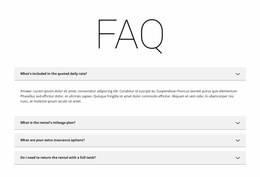
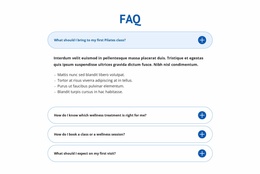
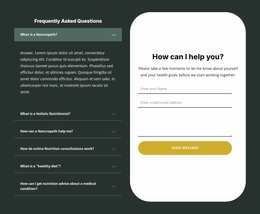
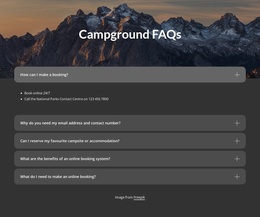
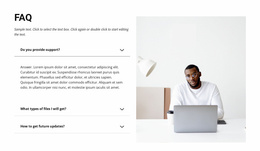
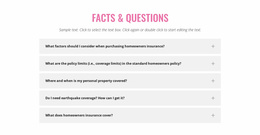
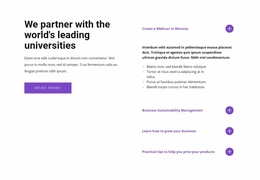
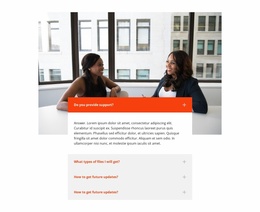
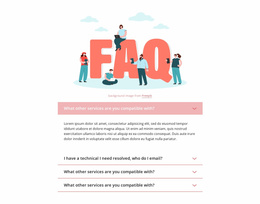
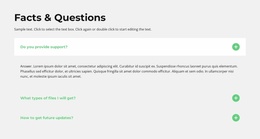
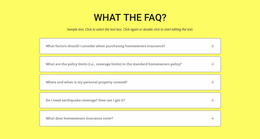
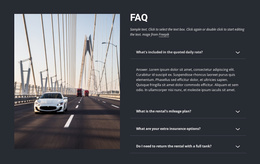
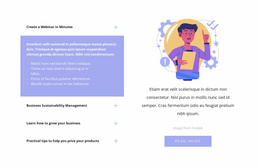
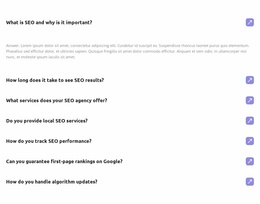
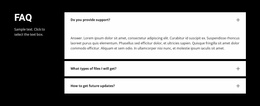
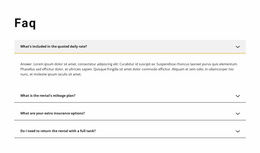
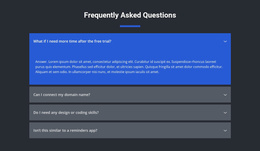
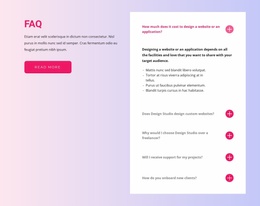
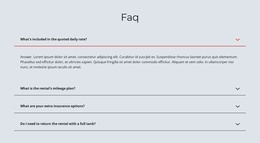
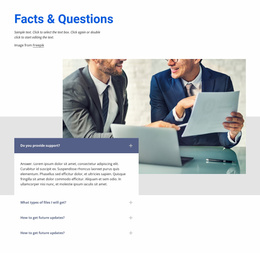
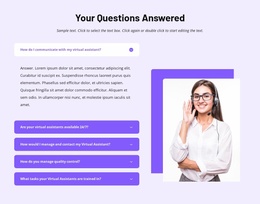
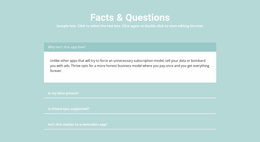
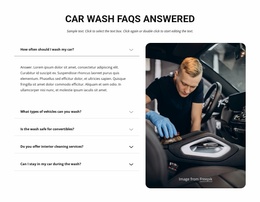
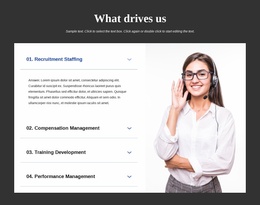
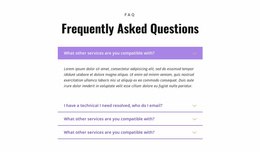
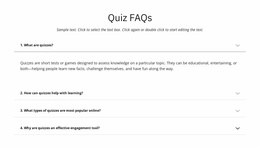
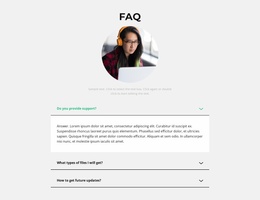
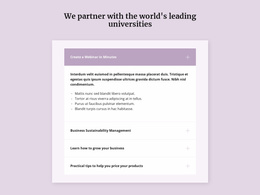
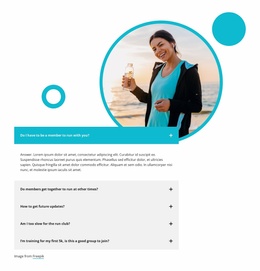
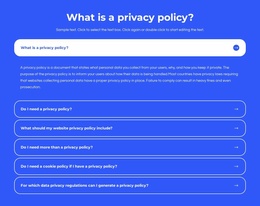
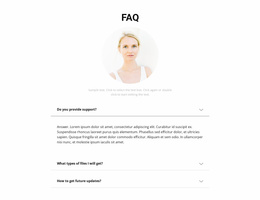
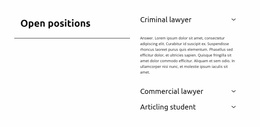
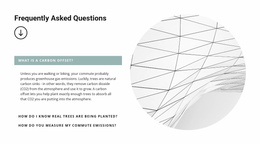
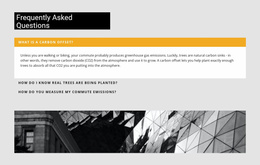
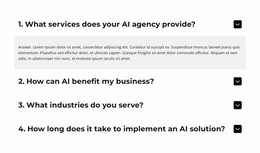
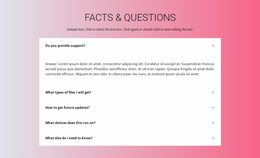
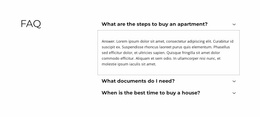
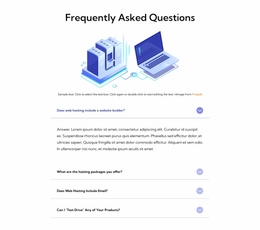
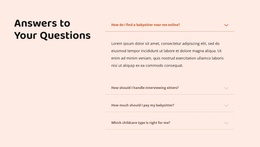
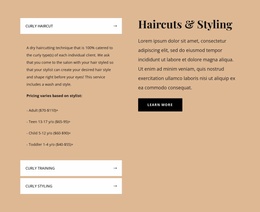
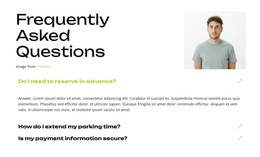
You have questions to publish on your website. In Nicepage, the practical task is to add an FAQ section, enter the answers, check that each row opens correctly, and publish the page. The website builder supports that full process; the FAQ Element provides the expandable Q&A interaction.
Start with a prepared FAQ block instead of creating every row from scratch. From there, focus on editable content, Rich Text answers, appearance settings, responsive preview, and the final published result—not on comparing an entire catalog of FAQ designs.
Add a FAQ Section and Enter Your Questions
Open the page in the Nicepage editor and choose a suitable ready-made FAQ block. Use the built-in FAQ Element to organize questions with their corresponding expandable answers.
Replace each placeholder question with a real visitor concern. Enter the answer beneath the correct row and keep its opening sentence direct. For example, a service FAQ might explain booking requirements or cancellation terms, while a product FAQ could clarify delivery or returns.
The builder task is creating a working question-and-answer section. You do not need an elaborate layout comparison before entering useful content.
Edit Answers and Configure FAQ Appearance
The FAQ Element supports Rich Text-based answers, so longer explanations can use headings and text formatting when appropriate. Review each answer in the editor and confirm that supporting links lead to relevant pages.
Use Nicepage's available styling settings to adjust fonts, colors, and spacing. Keep question labels identifiable and avoid crowding expanded explanations. If several questions address the same topic, arrange them consecutively so visitors can find them without searching the whole page.
Separate FAQ blocks on different pages should be reviewed individually when information changes; do not assume updates automatically synchronize between them.
Preview FAQ Interaction and Mobile Layout
Before publishing, interact with the section rather than judging a static preview. Click several question rows and verify that their answers open and close. Check a particularly long answer to see whether its formatting remains readable.
- Expandable behavior: confirm each question reveals the intended answer.
- Rich Text content: review headings, links, and paragraphs inside longer answers.
- Mobile presentation: inspect wrapped question labels, disclosure icons, and answer spacing.
- Page context: check that the FAQ is positioned near the information it explains.
Use responsive previews for tablet and phone layouts, then correct any cramped rows in the editor. These checks concern the actual functionality of the FAQ, not just template appearance.
Publish and Check the Live FAQ
Once the questions and answers are accurate, publish through the supported Nicepage website workflow. Open the published page and test the FAQ again, including expanding answers, reading on a phone, and following supporting links.
When a policy or service detail changes, return to the relevant page and update its FAQ. Republish as required by your workflow and verify the new wording on the live site. This keeps the questions useful after initial setup.
FAQ Website Builder FAQ
Does Nicepage provide ready-made elements for building FAQ sections?
Yes. Nicepage provides pre-designed Elements and Blocks. You can add a FAQ section to a page, replace its sample questions and answers, and edit it within the website-building workflow.
Can Nicepage AI generate a FAQ block for my project?
Nicepage AI Services can generate sites, pages, and blocks. Treat generated FAQ content as a starting point and verify the answers before publishing them.
Can I format a longer answer in the FAQ Element?
Yes. The Nicepage FAQ Element uses Rich Text-based answers, allowing text formatting and headings when a question needs a more detailed explanation.
What should I test before publishing my FAQ page?
Open and close several questions, review long answers, inspect the phone layout, and test links. After publishing, repeat the essential checks on the live page.
Build, Check, and Publish Your FAQ
Add a prepared FAQ block in Nicepage, write accurate questions and answers, configure their appearance, and test the expandable rows. Preview mobile layouts, publish through your supported workflow, and confirm the live FAQ behaves as expected.