Table Website Builder
-
-

-
-
-
-
-
-
-
-
-
Build Website with no CodingDownload
-
-
-
-
-
-
-
-
-
-
-
-
-
-
-
-
-
-
-
-
-
-
-
-
-
-
-
-
-
-
-
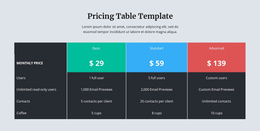
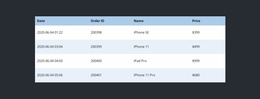
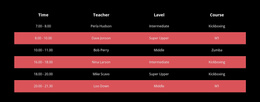
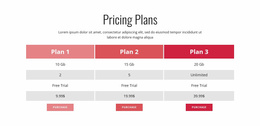
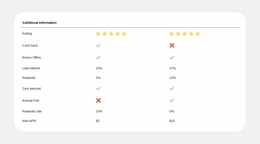
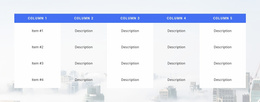

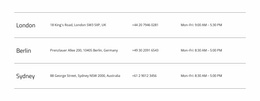

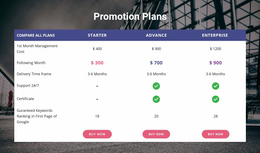
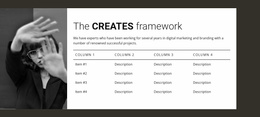

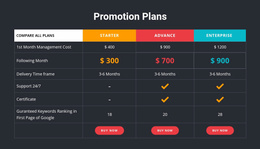
Start building your website for free
Design and build your own high-quality website or choose from 15,000+ customizable website templates that are built to meet your business needs.
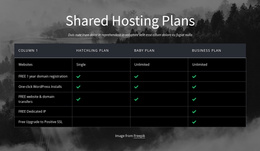
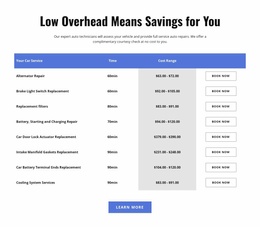
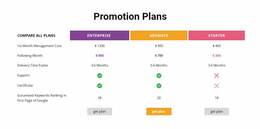
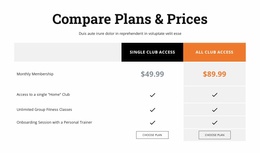
Customizable Table Website Builder for Editing Structured Data Sections
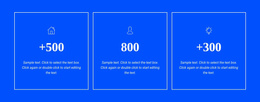
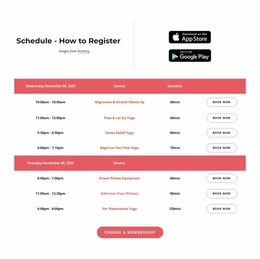
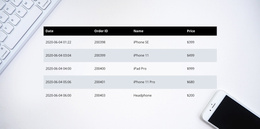
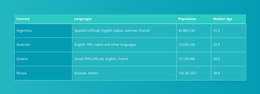
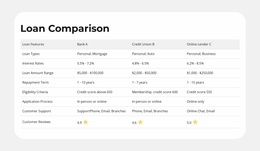
A Table Website Builder approach lets you start with a ready-made Table design and tailor it inside Nicepage's visual editor. It is suited to websites that need specifications, schedules, or comparisons presented with the same typography and colors as their other sections.
You can select a compact or wide layout, adapt the labels and values, and refine its appearance without writing code. The table becomes one coordinated part of a larger website design rather than a standalone data interface.
Browse Table Blocks in the Visual Website Builder
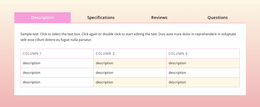
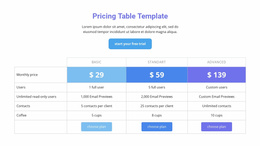
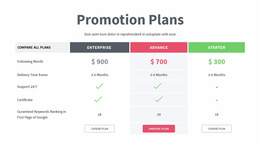
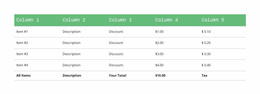
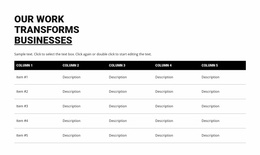
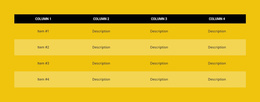
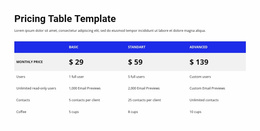
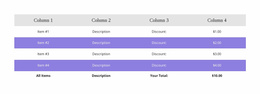
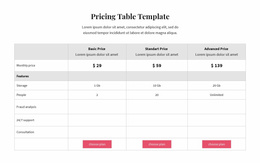
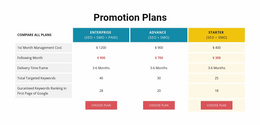
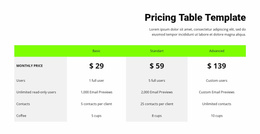
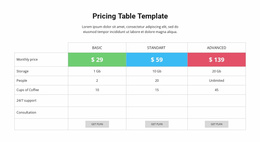
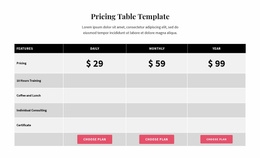
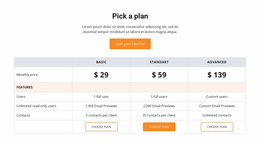
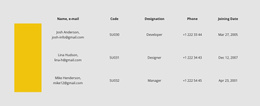
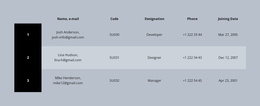
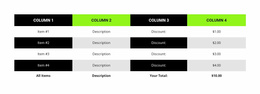
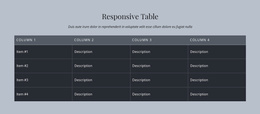
Begin with a ready-made Table block that needs minimal visual adjustment. A compact reference block works for short facts within a narrow section; a wider comparison provides more room for several options. Designs with stronger headers make column labels prominent, while alternating row backgrounds help readers scan longer records.
Compare prepared blocks by:
- The amount of space they need on the page.
- The number and length of values they can show clearly.
- Their existing header and row treatment before customization.
In a visual website builder, a well-matched starting block is quicker to personalize than a table whose structure needs to be rebuilt.
Choose a Design That Needs Less Reworking
Before using the visual controls, compare the ready-made options for compactness, column proportions, and header emphasis. A lightly divided reference table may be ready for a simple services page; an alternating-row layout may already provide the guidance a longer schedule needs.
The Table Element allows visual changes to the selected design. Choose for the finished appearance first, then reserve personalization for the details that need to match the project.
Adapt a Table Block in the Visual Builder
Once the ready-made block is selected, Nicepage Website Builder lets you change labels, values, column dimensions, backgrounds, and spacing without writing code. These direct adjustments can align a compact specification table or a broad comparison with its page.
Preview the result alongside surrounding content and at narrower screen sizes. The builder's advantage is the ability to personalize a prepared Table block immediately, without creating its structure from scratch.
Match the Ready-Made Block to the Information
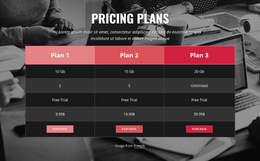
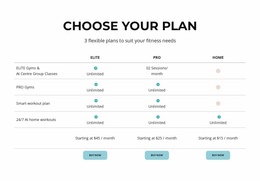
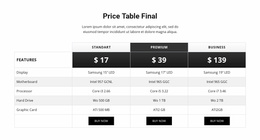
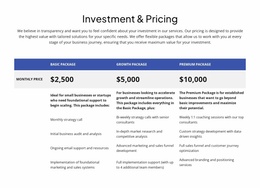
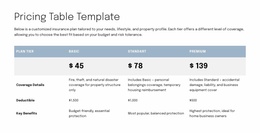
Choose a Table block when visitors need to compare facts within rows and columns. Grids serve independent content cards, and Pricing blocks support paid package choices. Select the prepared block that best fits the information, then fine-tune it visually in Nicepage Website Builder.
Table Website Builder FAQ
Can I create a table without writing HTML code?
Yes. Nicepage provides a Table Element with visual controls for rows, columns, cell content, dimensions, and formatting. You can construct and adjust a standard table in the Nicepage editor without manually writing its HTML markup.
Can I add more rows and columns after creating a table?
Yes. The Nicepage Table Element supports adding, removing, resizing, and moving rows and columns. This allows you to revise the structure as the information changes.
Does Nicepage support table layouts on mobile devices?
Nicepage supports horizontal scrolling when a table extends beyond the available screen width in responsive modes. This helps maintain the relationship between rows and columns when a large table cannot fit within a narrow display.
Can I use a Table block as part of a website created with Nicepage?
Yes. A Table block can be included as one section within a broader Nicepage website project. It provides structured information such as schedules, specifications, or comparison data, while the surrounding page contains the other content and elements needed for the website.
Can I reuse a table design on another page?
A ready-made Table block can be selected and adapted within other Nicepage pages. Check that its proportions and styling suit each new context.
Create and Customize a Table Section in Nicepage
Start with the information visitors need to compare, then select a Table block with a suitable arrangement of rows and columns. Open it in the Nicepage editor, replace the sample content, and adjust headings, cell dimensions, and formatting to match your page.
A carefully configured table provides a practical, editable structure for factual information, keeping comparison and lookup straightforward within your website project.