370 Contacts Website Builder


























Start building your website for free
Design and build your own high-quality website or choose from 15,000+ customizable website templates that are built to meet your business needs.
Contacts Website Builder With Ready-Made Contact Section Designs
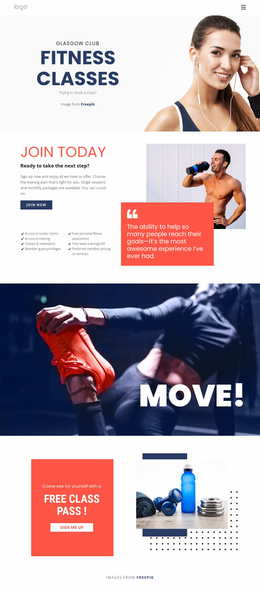
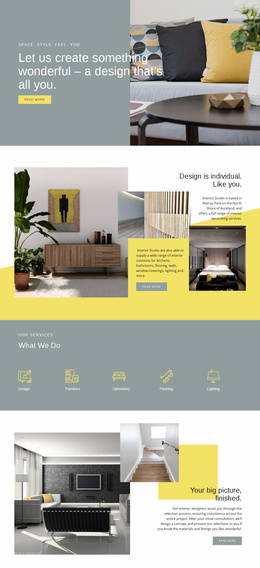
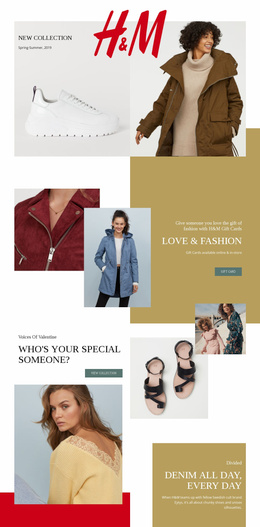
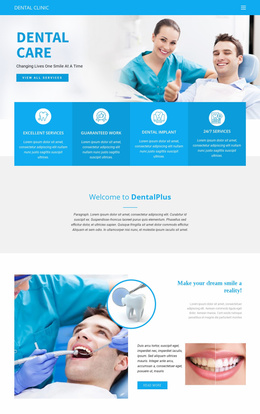
Contacts Website Builder helps you choose a ready-made contact section visually. Browse prepared designs with the communication details and proportions your page needs, then assess the amount of editing each requires. Nicepage lets you adapt the chosen design without assembling the section from scratch.
The editor makes it easier to assess and refine a prepared composition, but the main choice is which design already suits the page.
Compare Ready-Made Contacts Blocks by Editing Needs
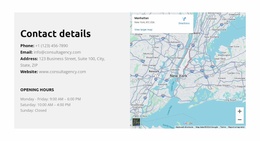
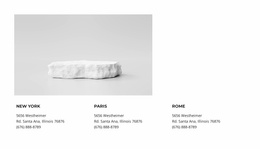
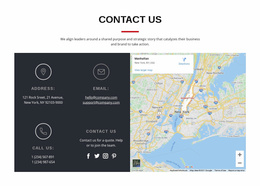
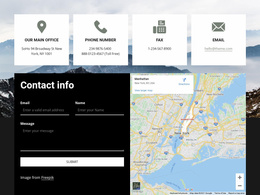
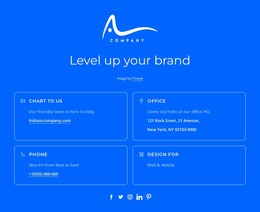
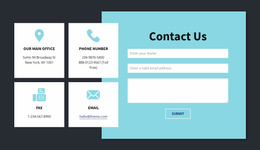
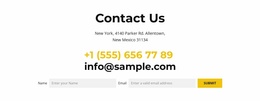
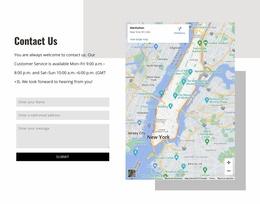
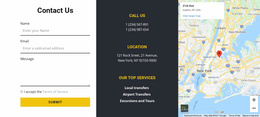
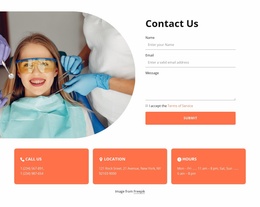
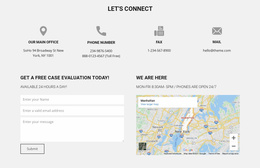
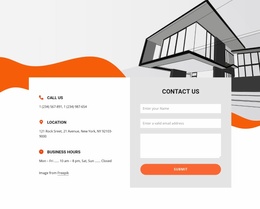
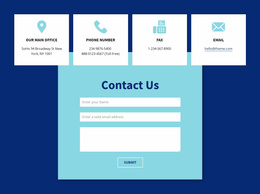
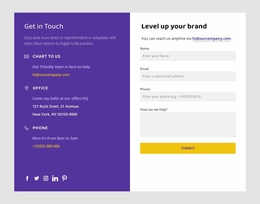
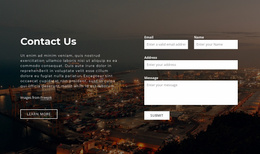
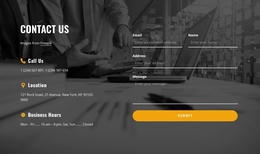
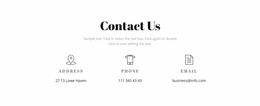
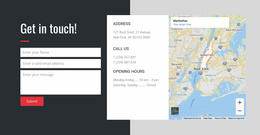
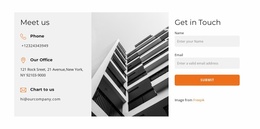
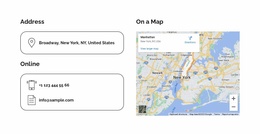
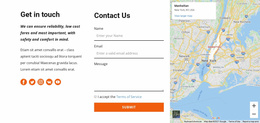
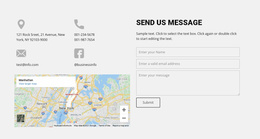
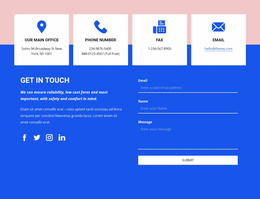
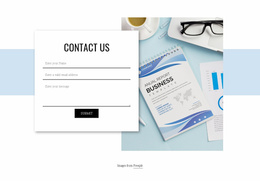
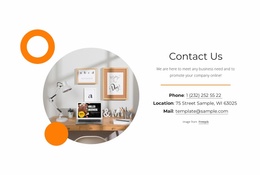
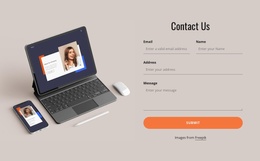
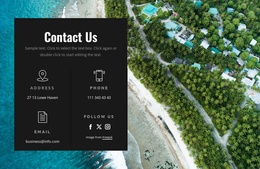
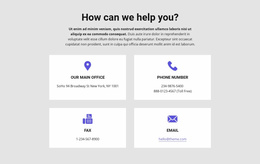
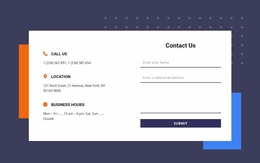
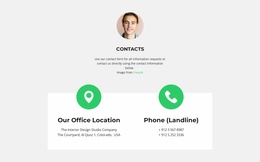
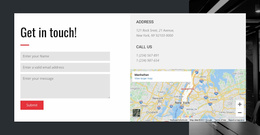
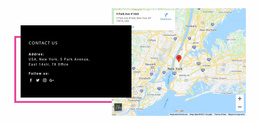
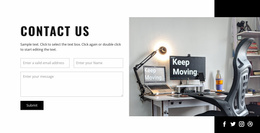
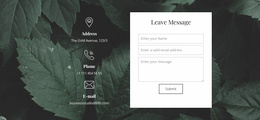
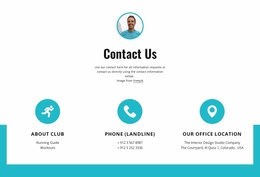
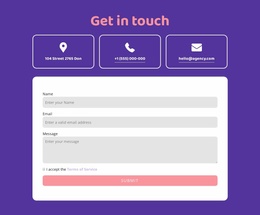
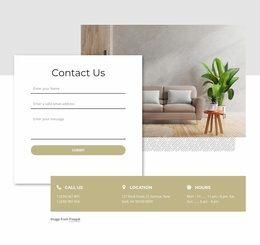
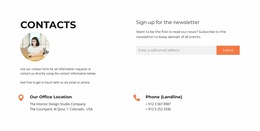
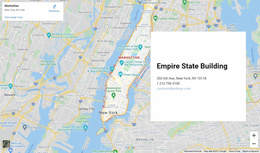
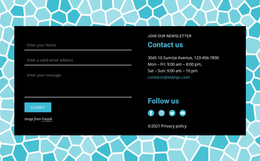
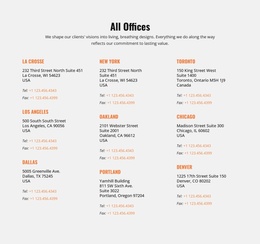
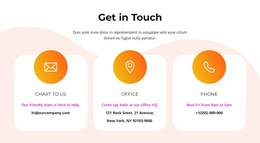
In the builder, compare two prepared Contacts blocks with your actual phone, email, and address in mind. One may need only text replacement; another may require resizing a map or removing an unused office card to fit the current page.
The main differences between these designs are their scale, density, and balance between contact text and visual elements.
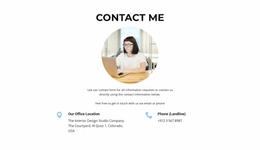
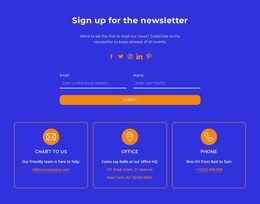
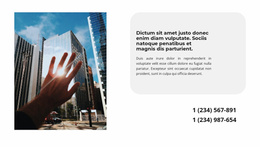
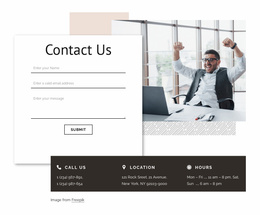
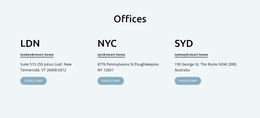
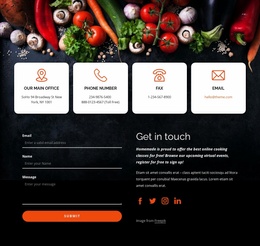
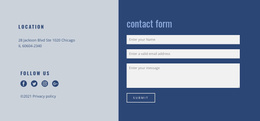
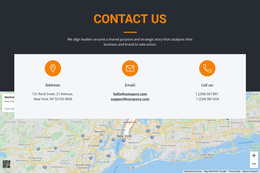
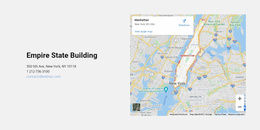
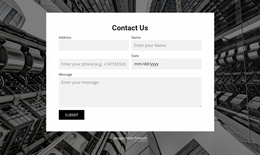
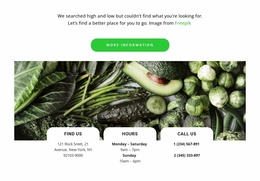
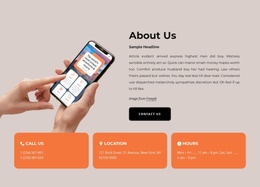
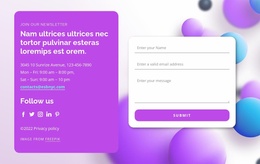
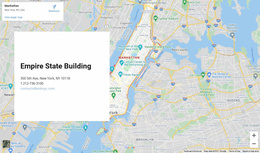
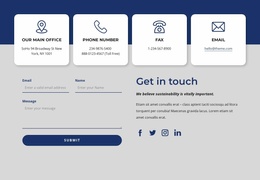
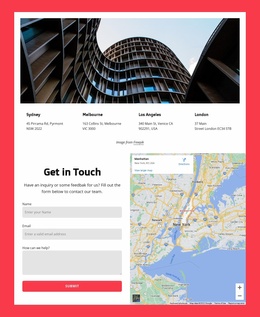
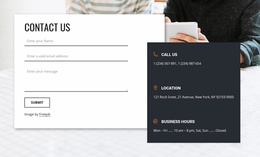
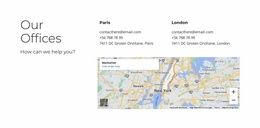
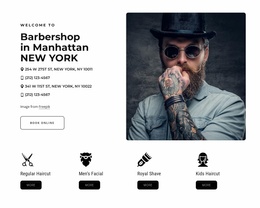
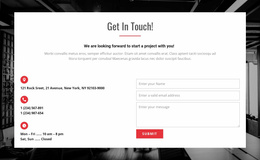
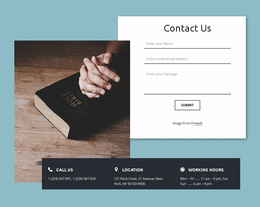
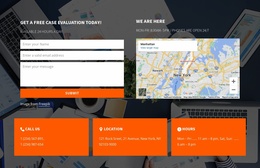
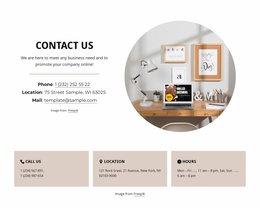
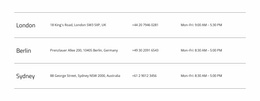
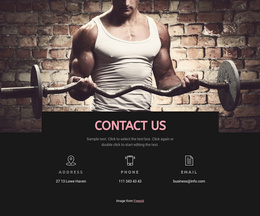
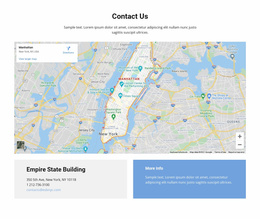
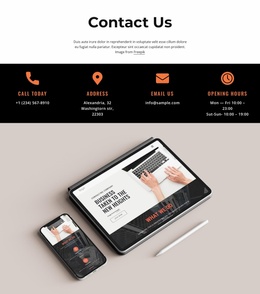
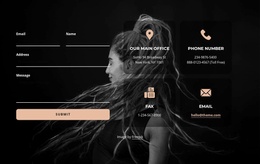
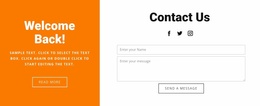
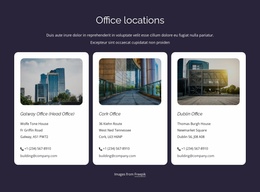
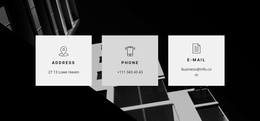
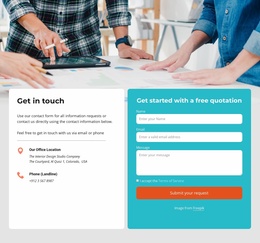
A shortlist can include a nearly complete contact panel, a wider block with a map to resize, or a multi-office design with extra cards to remove. These are different adaptation needs, not exclusive Builder template types.
Choose for the actual amount of content rather than assuming every design needs all possible contact elements.
Edit the Selected Contacts Block Visually
Once a Contacts block is selected, use the builder to refine its actual appearance on the page. Replace placeholder numbers and addresses, adjust spacing between contact groups, and make sure the primary communication channel has the strongest visual emphasis.
Edit the prepared composition in page context. Align labels with their phone or email values, balance map width against written directions, and check whether department headings remain distinct after you enter real content.
Use the visual preview to catch awkward wrapping, uneven card heights, or a map that draws attention away from contact details.
Nicepage's Grid Element can help adapt a selected multi-column arrangement when necessary.
The Builder-specific advantage here is seeing these visual changes directly in the surrounding page, rather than judging the contact block only from its catalog thumbnail.
Customize and Preview Your Contact Section in Nicepage
After choosing a layout, replace sample contact details, keep related office information grouped, and set the map location when the block includes one. Then compare the edited composition in different screen views; broad map areas may make the mobile section taller.
This comparison helps you choose between two prepared designs before you spend time adjusting individual details.
Nicepage's Responsive Modes let you examine those differences while evaluating the selected composition.
The builder provides flexibility for refining the contact section once a suitable prepared layout is selected.
Choose a Design That Fits the Wider Page
Look at the Contacts design beside the sections already on your page. An oversized map may be right for a venue but unnecessary for a short service contact strip.
When two designs offer the same information, compare their visual weight and the room available for your content rather than the number of editing steps.
Choose the prepared layout whose composition already feels appropriate.
Contacts Website Builder FAQ
Can I start with a ready-made Contacts block?
Yes. Nicepage provides prepared Contacts blocks that you can select visually and adapt without creating the whole section from a blank canvas.
Which ready-made composition works better on mobile?
Compare a compact panel with broader split or card-based designs in responsive views. Wider compositions may occupy more vertical space when stacked.
Can I edit the selected block without coding?
Yes. The Nicepage visual editor supports changes to text and standard design properties. The required adjustments depend on the block.
Select a Contacts Design in Nicepage
Compare prepared Contacts sections by how closely they match your content and how little visual editing they require. Choose the block you can adapt efficiently in the builder.
The visual builder helps refine that choice; the ready-made design remains the starting point.