100 Pricing Website Builder


















Start building your website for free
Design and build your own high-quality website or choose from 15,000+ customizable website templates that are built to meet your business needs.
Pricing Website Builder for Creating and Updating Plan Sections
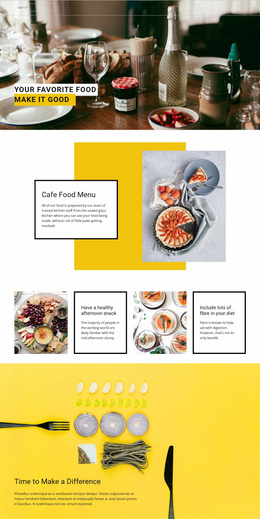
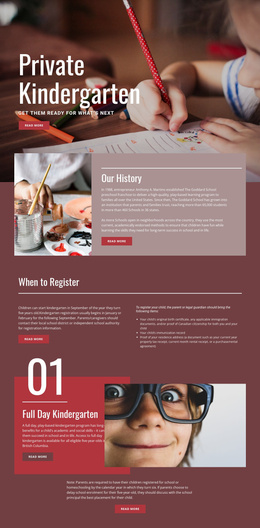
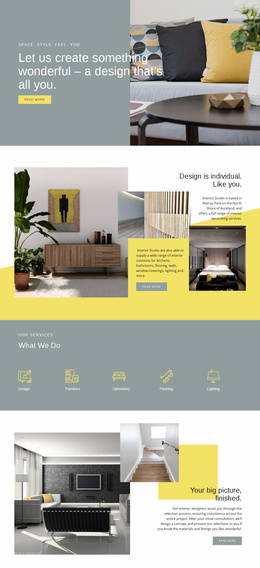
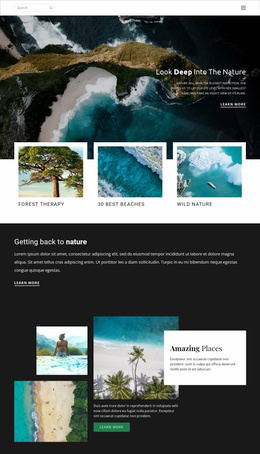
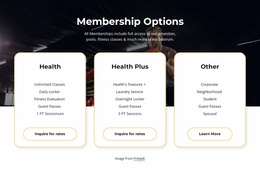
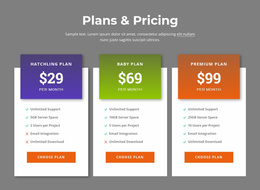
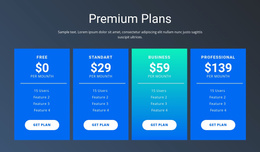
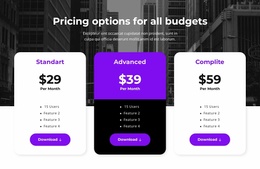
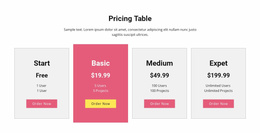
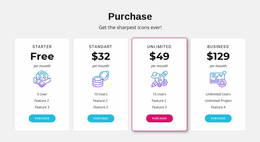
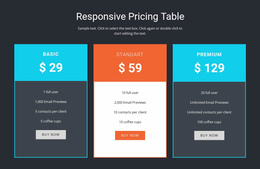
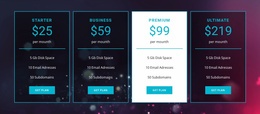
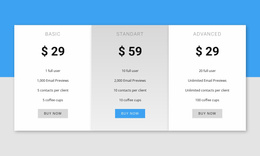
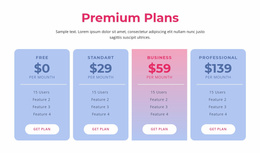
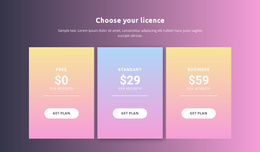
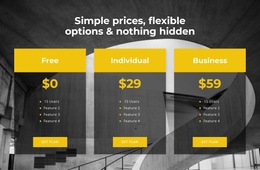
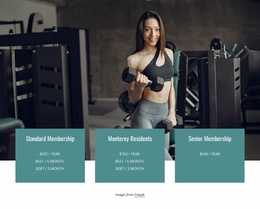
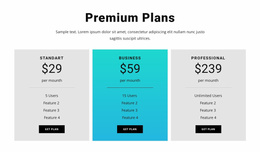
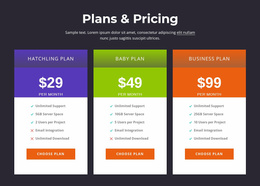
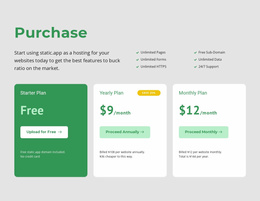
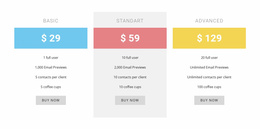
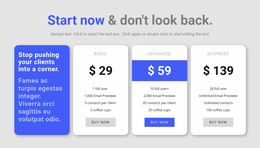
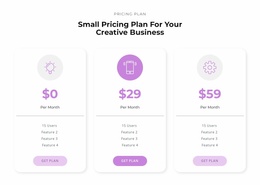
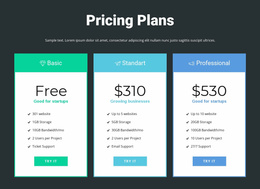
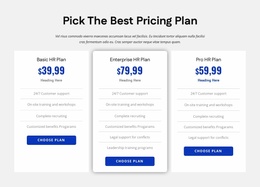
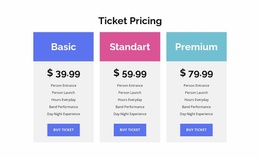
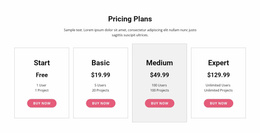
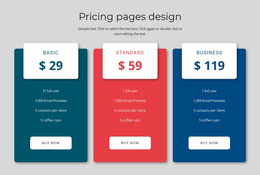
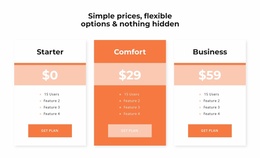
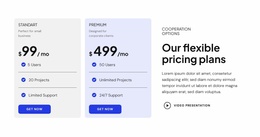
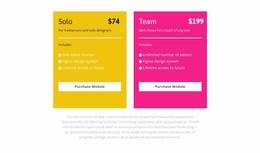
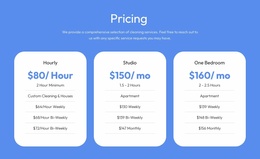
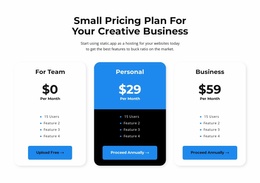
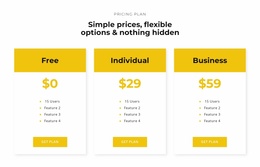
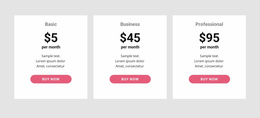
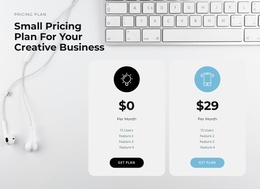
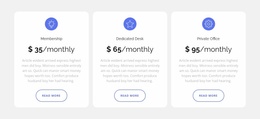
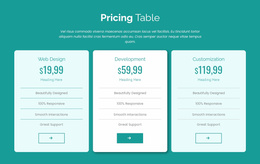
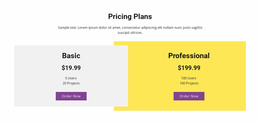
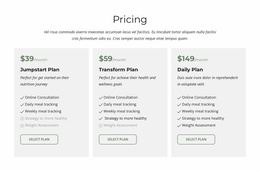
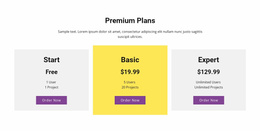
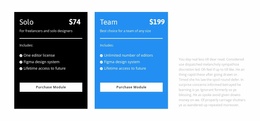
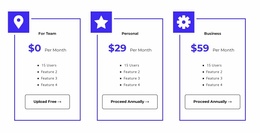
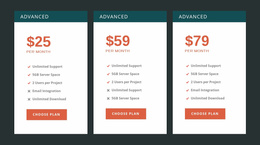
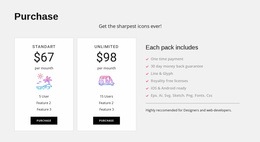
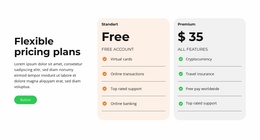
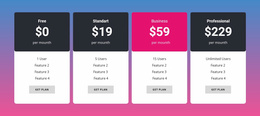
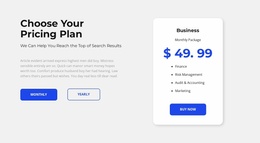
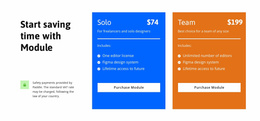
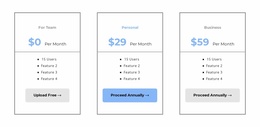
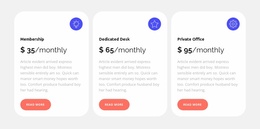
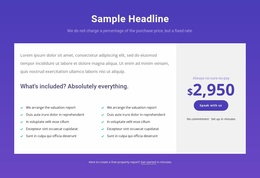
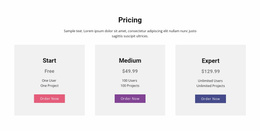
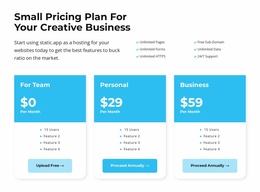
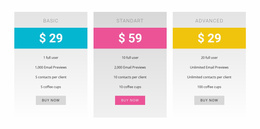
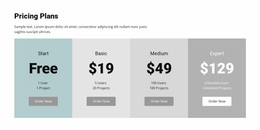
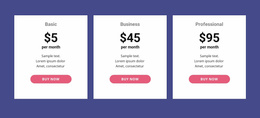
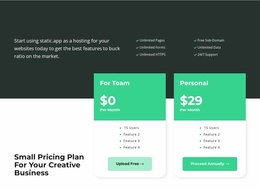
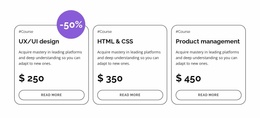
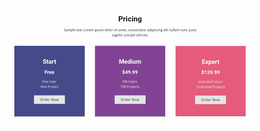
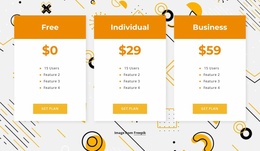
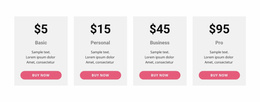
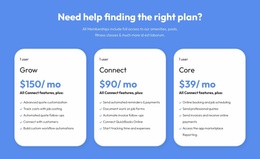
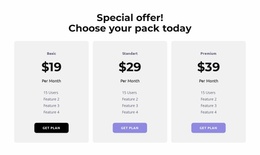
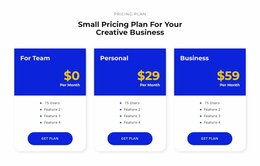
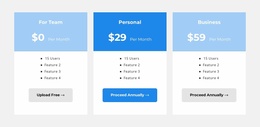
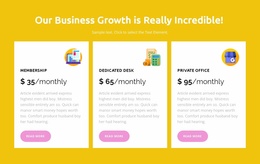
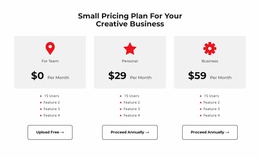
A Pricing Website Builder helps create and maintain editable plan comparisons inside a website. With Nicepage, you can start from a prepared Pricing Block, change the number of offers, update plan details, connect buttons, and review the responsive result. The emphasis is the hands-on visual creation and editing process, rather than browsing a catalog of designs.
When offers change, the section can be revised without rebuilding an entire page. This is useful for subscriptions with new limits, service packages with updated deliverables, or seasonal membership plans.
Build and Maintain a Pricing Block Visually
Choose a layout that roughly matches the offers, then use Nicepage's Blocks workflow to adapt the section's individual elements. Focus on the work you actually need to perform:
- Set up the plans: edit the names, prices, currencies, billing periods, and feature descriptions.
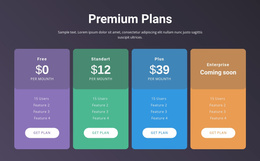
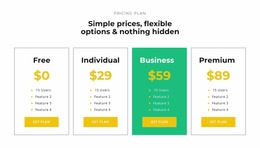
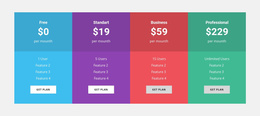
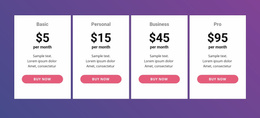
- Adjust the plan count: if an additional tier is introduced, reorganize the card layout and available space so no offer is squeezed into an unsuitable column.
- Connect each CTA: change the button label and destination to match registration, inquiry, or another real next step.
- Handle unequal content: accommodate a longer feature list without hiding conditions or pushing its button out of context.
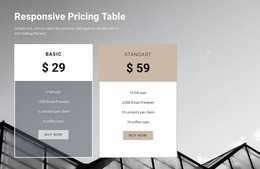
- Check responsive modes: review stacked cards and selection actions at desktop, tablet, and phone widths.
Updating a price involves more than changing its number. Check the billing interval, included limits, any accompanying notes, and the destination of the plan's button.
Choose Editing Controls for the Comparison You Need
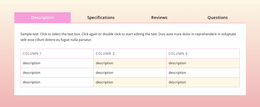
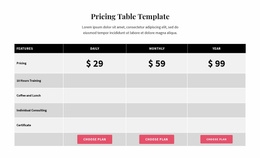
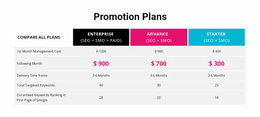
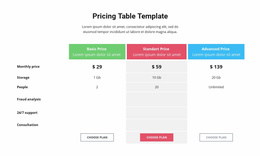
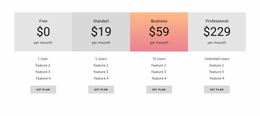
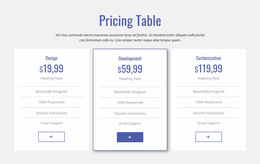
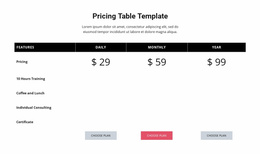
Cards are convenient for concise packages, but a longer feature comparison may need shared rows and columns. The Table Element offers an editable arrangement for that situation. When another plan is added, review not just its width but whether visitors can still recognize differences across the offers.
Once a starting block is in place, concentrate on editing and maintaining the pricing section: adjust the plan count, revise content, configure button links, and review responsive behavior. Browsing and comparing ready-made template styles belongs to the Templates pages, rather than this builder workflow.
Preview Plan Selection Before Publishing
Check prices, included services, and the visual relationship between each action and its plan. A link labeled “Start Trial” should point to a trial destination; a quote request should take visitors to an appropriate inquiry path. Nicepage lets you build the visual section and links, but does not automatically supply account management, recurring billing, or payment processing. Those capabilities need their own setup.
Pricing Website Builder FAQ
Can I create a pricing section without coding?
Yes. Nicepage provides a visual editor with predesigned Blocks and editable elements. You can start with a pricing layout, replace the example content, and adjust its appearance without writing the section's HTML or CSS. manually
Can I add more pricing options to a comparison table?
Yes. The Nicepage Table Element allows you to add and adjust rows and columns. This is useful when a pricing comparison needs more plans, additional feature details, or a different arrangement of information.
How should I choose a pricing block if I am not a professional designer?
Start with the number of plans and the details visitors need to compare. Choose a ready-made Nicepage design with a suitable card or table structure, then refine the content, spacing, and emphasis. A layout that already matches the comparison task usually requires fewer adjustments.
Create a Pricing Section With Nicepage
Open a pricing block in the Nicepage visual builder, then update prices, benefits, buttons, and the number of plans as your offers change. Check the edited section in responsive views before publishing.
The finished block should make each plan's price, included benefits, and selection action immediately understandable, giving visitors a clear basis for their next decision.