Tabs Website Builder
-

-

-
-
-
-
-
-
-
-
-
Build Website with no CodingDownload
-
-
-
-
-
-
-
-
-
-
-
-
-
-
-
-
-
-
-
-
-
-
-
-
-






Start building your website for free
Design and build your own high-quality website or choose from 15,000+ customizable website templates that are built to meet your business needs.
Drag-And-Drop Tabs Website Builder Blocks for Visual Editing
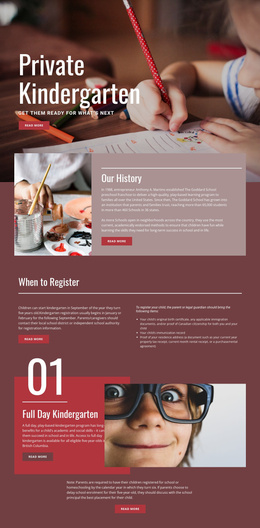
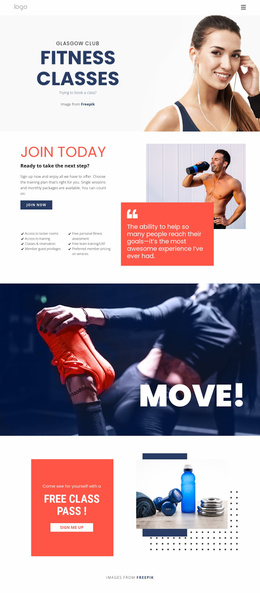
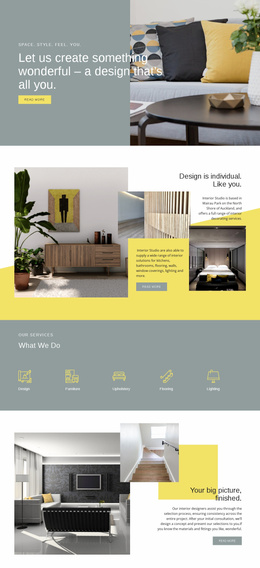
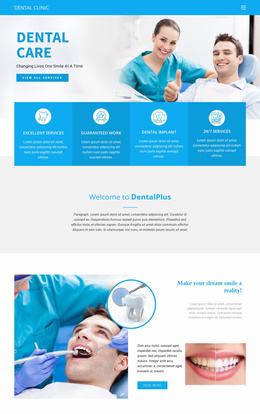
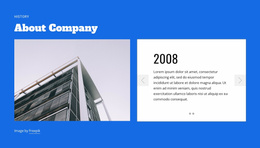
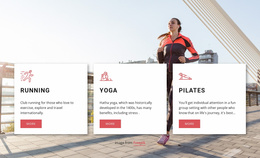
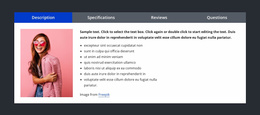
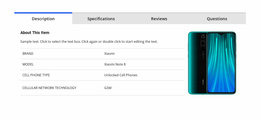
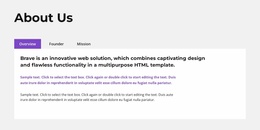
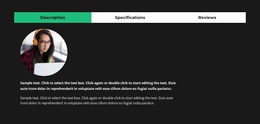
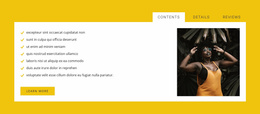
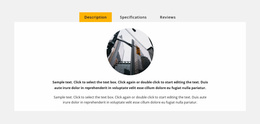
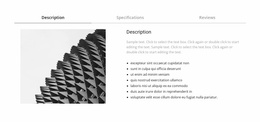
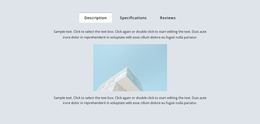
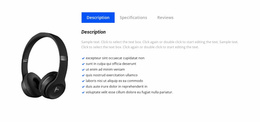
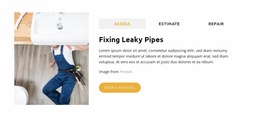
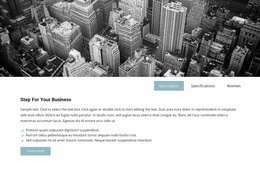
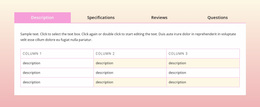
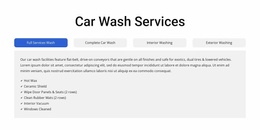
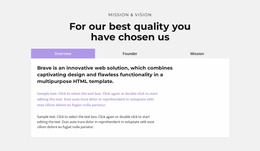
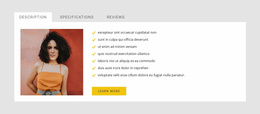
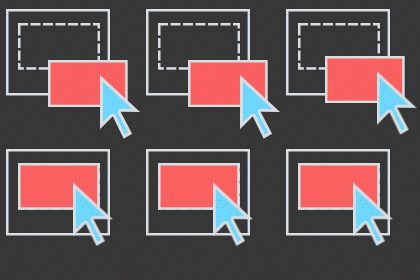
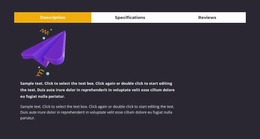
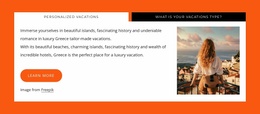
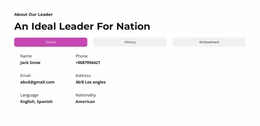
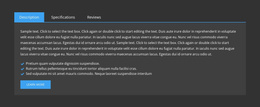
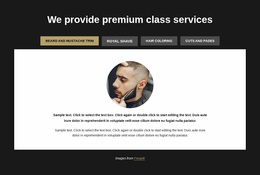
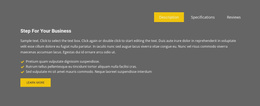
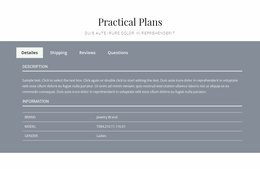
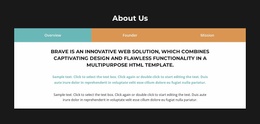
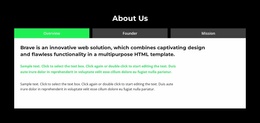
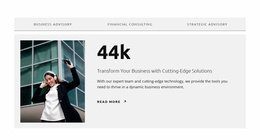
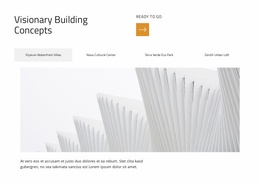
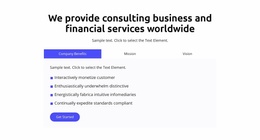
A Tabs Website Builder workflow is about building and adjusting the section directly in the editor. Start from a ready-made Tabs design, change the number and order of tabs, replace the example content, and refine the active and inactive states until the block fits the page.
Nicepage Tabs block designs provide a practical starting point for that process.
Build the Tabs Section Step by Step
A straightforward builder workflow can look like this:
- Add a Tabs design that is close to the structure you need.
- Duplicate or remove tabs to match the number of content views.
- Reorder controls so the sequence is logical.
- Replace panel content with real text, images, products, or other elements.
- Adjust colors and spacing to make the active state easy to recognize.
- Review responsive views before integrating the block into the full page.
A visual builder lets you make these changes around the section itself, rather than in a separate coding workflow.
Edit Panels Without Losing the Section Structure
Each tab can carry a different set of content while remaining part of the same section. This lets you create a text-heavy first panel, a media-focused second panel, and a more compact third panel, as long as they still represent related views.
When editing, pay attention to:
- tab count;
- label length;
- panel height;
- media scale;
- spacing between controls and content;
- active versus inactive styling.
If the section becomes hard to manage, simplify the content before adding more visual treatment.
Check Responsive Behavior While You Build
A builder workflow should include responsive editing, not treating mobile as a final check. Nicepage Responsive Modes lets you compare the block across screen sizes and adjust the layout where needed.
Long labels, wide media, or many tabs can change the section significantly on a phone. Review those constraints early so the final panel does not require emergency fixes after the page is otherwise complete.
Tabs Website Builder FAQ
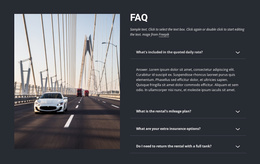
Can I Start With a Pre-Designed Tabs Block in Nicepage?
Yes. Nicepage provides Tabs block designs that can be added and then customized for the project.
Can I Change the Order or Number of Tabs?
Yes. Tabs can be reorganized, and additional tabs can be created by duplicating existing ones where the design needs more views.
Should I Check Mobile Layouts Before Finishing the Block?
Yes. Review the section in responsive views while you build it, especially when labels are long, panels contain large media, or the control set becomes crowded.
Build the Section Around Real Content
Use the builder to create the structure around the content the page actually needs. Add the right number of tabs, set their order, edit the panels, style the states, and verify responsive behavior before the block is treated as finished.