320 Text & Button Website Builder












Start building your website for free
Design and build your own high-quality website or choose from 15,000+ customizable website templates that are built to meet your business needs.
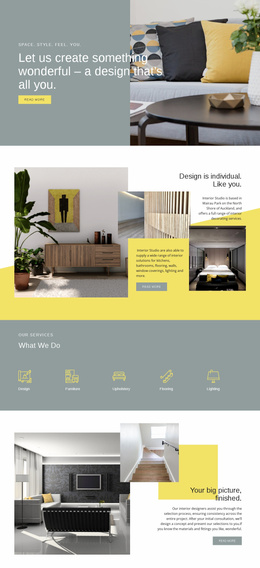
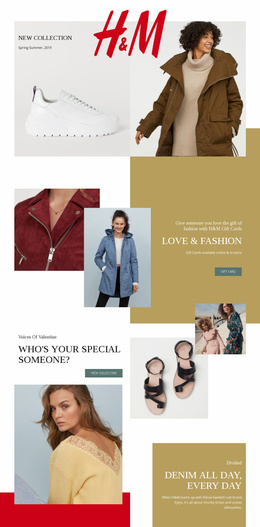
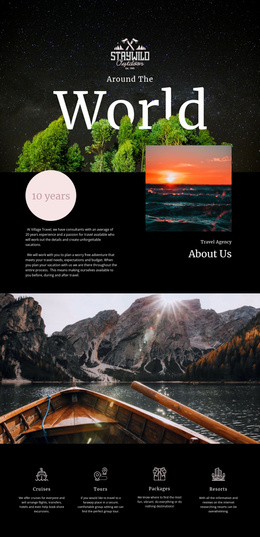
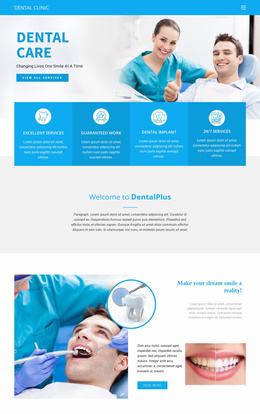
Professional Text & Button Website Builder for Visual Section Editing
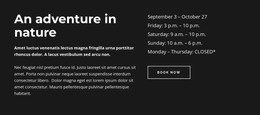
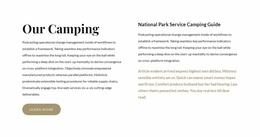
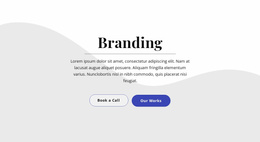
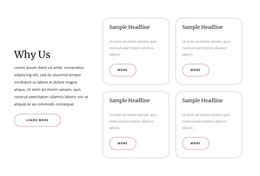
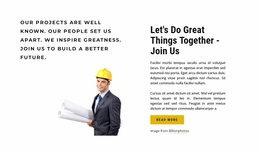
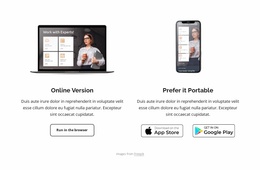
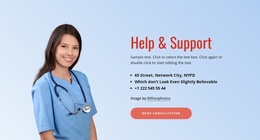
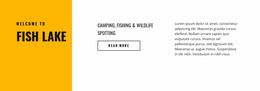
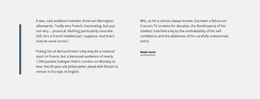
A Text & Button Website Builder gives you a practical way to browse a ready section, add it to a page, customize its content, and integrate it into the wider site. Instead of building every CTA area from scratch, you can start with a prepared block and adapt the headline, supporting text, Button Element, spacing, and destination to the page you are creating.
Build a Text & Button Section From a Ready Block
The builder workflow is easiest to approach as a short sequence:
- Browse Text & Button block designs that fit the amount of copy you need.
- Add a suitable block to the page instead of rebuilding the structure from scratch.
- Customize the headline, supporting text, button label, link, and optional imagery.
- Integrate the finished section where the page needs a clear next step.
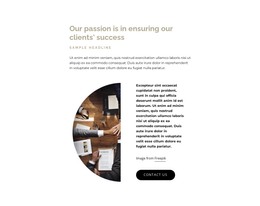
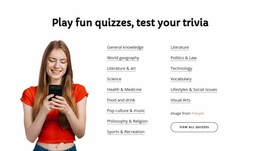
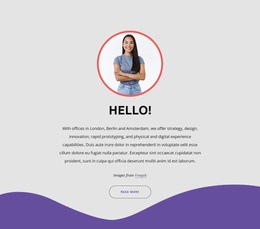
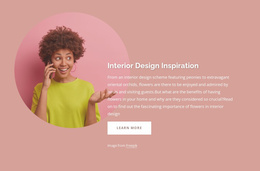
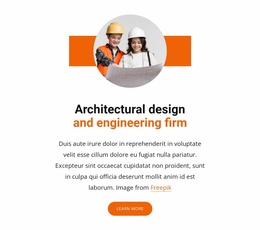
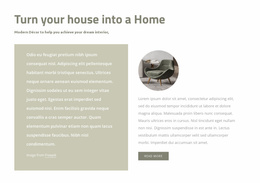
An optional image can support the message, but the action should remain easy to identify.
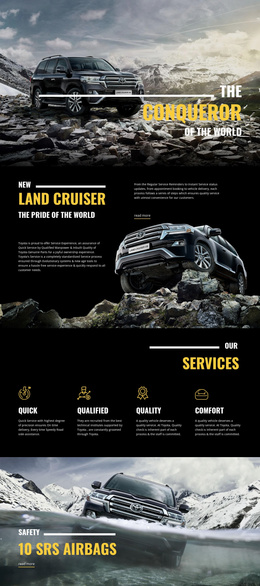
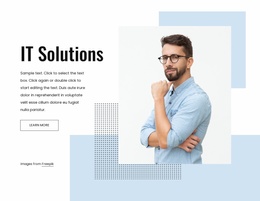
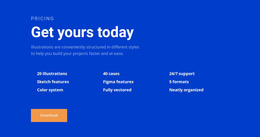
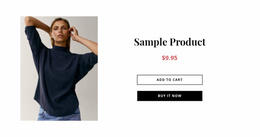
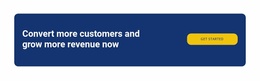
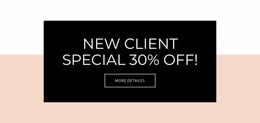
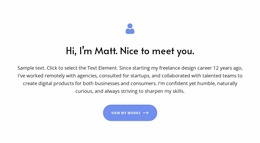
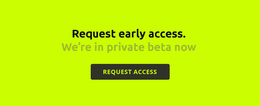
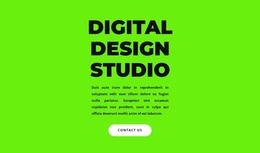
The button is what separates this block from an ordinary Text section. Its label, prominence, and position should make sense after reading the surrounding copy. A simple button-focused design direction can provide useful visual context when the action itself needs stronger emphasis.
Ready-To-Use Message and CTA Layouts for Clearer Actions
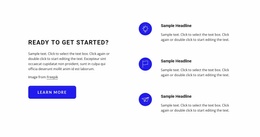
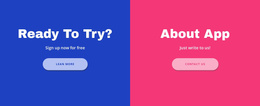
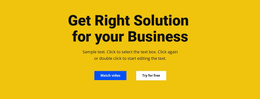
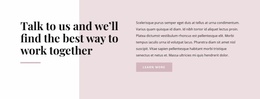
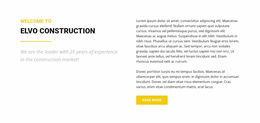
A useful Text & Button block keeps its content hierarchy economical. The headline establishes the point, the supporting sentence explains why the visitor should continue, and the CTA turns that message into an explicit action. This structure works for offer prompts, editorial continuations, sign-up directions, product transitions, and other moments where a page needs to move forward.
Nicepage provides a dedicated Button Element for the action itself. Treat the surrounding text and button as one functional composition rather than unrelated page elements.
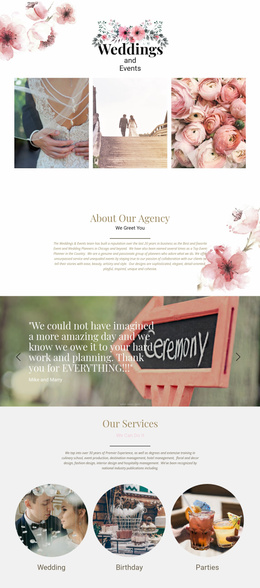
A conversation-oriented page can use the same section pattern to introduce a chat-related next step: the copy explains why starting a conversation is useful. At the same time, the button gives visitors the direct action.
Edit the Message-to-Action Relationship Visually
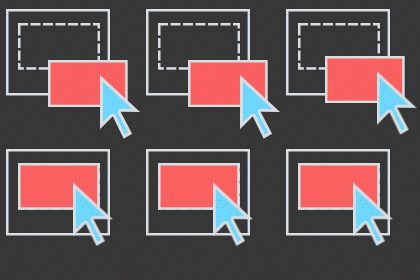
The website-builder angle focuses on this functional section within the broader creation process, not on treating the block as a complete website. In the Nicepage editor, you can add, edit, move, resize, align, and arrange elements. The documented element editing workflow therefore supports practical control over the text-and-button composition.
Keep the action close enough to the message that visitors understand what the button refers to. If the section becomes mostly long-form copy with a minor inline link, it moves toward the Text category. If it starts collecting names, email addresses, or other structured input, that task belongs to a Contact Form instead.
Text & Button Website Builder FAQ
Can I use pre-designed elements when creating this section?
Yes. Nicepage provides pre-designed Elements and Blocks you can use as starting points. For a Text & Button section, keep the headline, supporting copy, and action focused on the same next step.
Can I adjust a Text & Button layout for different screen sizes?
Yes. Nicepage supports Responsive Modes for Large Screens, Desktops, Laptops, Tablets, and horizontal and vertical phones, so that you can adjust layouts for different screen sizes.
When should I choose Text & Button instead of a plain Text section?
Choose Text & Button when the copy is meant to lead directly to an explicit action. If the main purpose is to explain or present written information without a prominent next step, a Text section is the closer functional match.
How do I start from a ready Text & Button design?
Browse the available blocks, add a suitable design to the page, then replace the sample content and refine the Button Element before placing the section in the wider page flow.
Turn a Short Message Into a Clear Next Step
Choose a ready Text & Button block that fits the page, adapt its content and action, and place it where visitors need a clear next step. The builder value is practical: selection, editing, and placement stay central throughout the workflow.