Social Website Builder
















































Start building your website for free
Design and build your own high-quality website or choose from 15,000+ customizable website templates that are built to meet your business needs.
Social Website Builder for Community-Focused Website Design
A Social Website Builder project can do more than link visitors to external profiles. When the goal is a social or community website, the design needs to account for member identity, shared content, groups, conversations, and repeated interaction across multiple page types.
Nicepage can be used to shape the public-facing layouts and visual system for that experience: community introductions, profile-style pages, content feeds, group presentations, calls to join, and supporting social links. Features that require accounts, live feeds, messaging, or member data also need the appropriate platform or backend functionality; the visual builder defines the interface rather than inventing those systems automatically.
Map the Community Experience Before Styling It
Before adjusting icon colors or spacing, decide which member journeys the site must support. A community-oriented design may include:
- profile layouts for members, creators, or contributors;
- feed-style content areas for posts and updates;
- group or interest pages that organize community topics;
- conversation and messaging entry points where the chosen platform supports them;
- join, sign-in, and account calls to action;
- external social links that extend the community to other networks.
External social channels can be added after the main community journeys are defined. Nicepage's Social Icons Element supports those secondary connections when a profile, public page, or footer needs links to outside networks.
Build Consistent Community Screens in Nicepage
The Website Builder angle is strongest when the editor shapes a consistent visual system across different community-facing screens. Profile cards, feed-style content, group introductions, calls to join, and public landing sections should feel related even when their content density differs.
Supporting external links can then be customized through the Social Icons Element by platform, link, icon, size, spacing, and color. Those controls are useful, but they remain one part of the wider community interface rather than the builder's defining social feature.
Keep Member Actions Easy to Recognize
A community interface may include many compact actions, so visual consistency shouldn't make every control look equally important. Joining, signing in, opening a profile, entering a group, or continuing a conversation should remain distinct from secondary external links. A Pinterest-focused section can still provide a platform-specific direction when that external destination is relevant to the content and audience.
Adapt the Social Block to Its Page Role
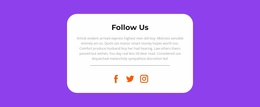
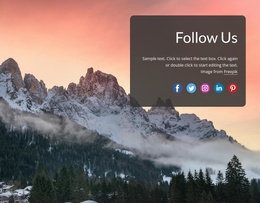
The same Social Icons Element can appear in different section arrangements depending on how prominent social engagement should be. A compact icon group may be enough when social channels are secondary, while a dedicated callout can provide additional context when following the project is an important next action.
When editing the section, consider:
- how many social platforms visitors actually need;
- whether handles add useful identification;
- whether a follow prompt clarifies the next action;
- how much visual emphasis the icon group requires;
- whether spacing keeps individual platforms easy to recognize;
- where the Social block belongs relative to surrounding content.
The aim is to match the presentation to the section's role rather than adding every available social network. A smaller, clearly organized group can communicate the intended external connections more directly.
Social Website Builder Questions
What can I add to a Social section?
A Social section can include social icons, external profile links, handles, follow prompts, share actions, and concise supporting text. These elements work together to give visitors a clear way to continue engaging through relevant social platforms.
Can I add a custom social icon in Nicepage?
Yes. You can add an icon to the Social Icons Element and replace it with an uploaded custom social icon when the required network is not available. The appropriate social link can then be assigned to that icon.
Can I change the spacing and size of Social Icons?
Yes. Nicepage allows you to change the size of the Social Icons Element and adjust the spacing between individual icons, helping the icon group fit the surrounding section layout.
Can a Website Builder Alone Create Live Member Messaging and Feeds?
A builder can define the visual interface, but live accounts, stored member data, messaging, and dynamic feeds require the appropriate platform or backend functionality.
What Should I Design First for a Community Website?
Start with the main member journey: joining, discovering people or content, viewing a profile, participating in a group, or returning to a feed. Build the page structure around those repeated tasks.
Build the Community Experience in the Nicepage Editor
Start with the member journey rather than the icon group. Then:
- define the public, profile, feed, group, and account-oriented screens the design needs;
- keep repeated member actions visually consistent;
- adapt content density for different page roles and screen widths;
- add external social links only where they support discovery or continued engagement;
- use the editor to keep the public-facing experience visually coherent.
The result is a community-focused website design direction. Social Icons can extend that experience to outside networks, but profiles, shared content, groups, and member interaction remain the central design problem.