Our Business Skill WordPress Theme


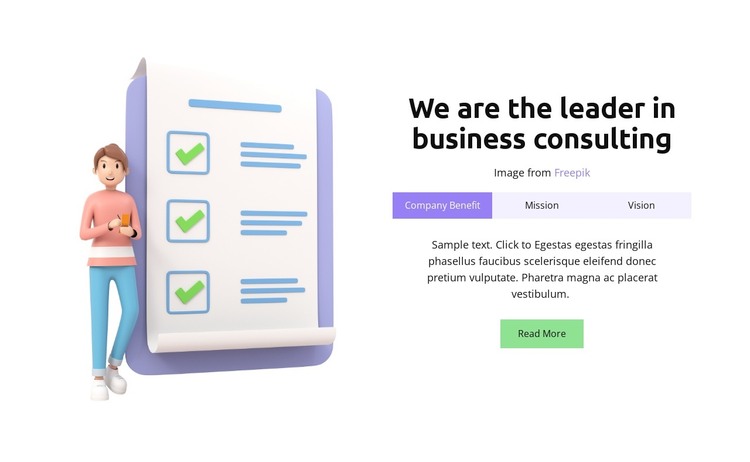
Tabbed Organizational Content Fits a WordPress Page Section
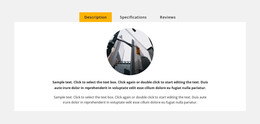
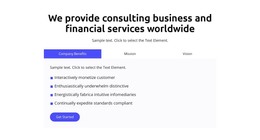
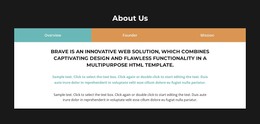
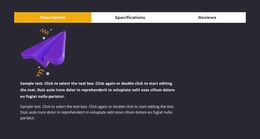
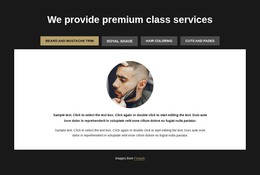
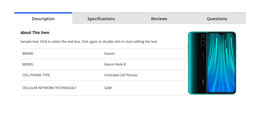
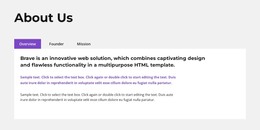
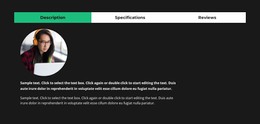
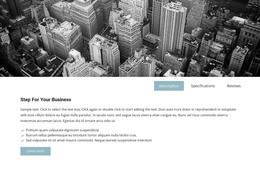
The heading and illustration establish a durable page-content unit, while the three tabs let related organizational information remain together. Company Benefit, Mission, and Vision can be understood as separate views of the same consulting introduction rather than as unrelated posts or time-sensitive updates. This makes the block suitable for a stable About or values section within a WordPress-managed page, where the surrounding project can handle additional content independently.
The content model also supports a clear editorial distinction. The active Company Benefit panel uses a paragraph and Read More button, giving the section a concise explanatory entry point. The Vision panel uses a four-item list and another Read More action, creating a more structured presentation for that topic. The left illustration provides the visual identity for both panels, so changing the selected tab does not break the relationship between image and information.
A WordPress-oriented project can preserve this block as a reusable visual section while page content around it develops through the wider CMS environment. The block itself remains focused on business consulting, company benefit, mission, and vision; it does not need to carry blog, navigation, or site-wide responsibilities. If the visual section is edited through Nicepage’s WordPress workflow, the useful goal is to maintain the established split composition and tab relationships while updating the surrounding page as needed.
Customize with Nicepage
Open this ready-made template in the WordPress Website Builder and customize it visually in the Nicepage editor. Replace demo content, edit page sections, and adapt the design to your project without rebuilding the template from scratch.
Edit Template Offline
2. Create a new page or select existing
3. Click Add new block, search for id 4603854 and click enter
Edit Template Online
Create Awesome Websites


Free Nicepage Builder
Keywords
Manage and Edit This Theme in WordPress
Customize and Install the WordPress Theme
Start with this ready-made theme instead of building the WordPress design from scratch. Customize its layout, content, typography, images, sections, and other design elements visually in Nicepage editor, then export and install the WordPress Theme, Plugin, and Pages on your WordPress site. The Nicepage WordPress Plugin lets you continue working with the site after installation.
Edit the Theme Directly in WordPress
After installation, you can edit the WordPress Theme directly in WordPress with the Nicepage WordPress Plugin. Use Site Style to customize site Colors, Fonts, Header, Footer, Blog, and Post Page Templates while working within your WordPress website.
Edit WordPress Pages Visually
Use the Nicepage WordPress Plugin to edit page content directly from the WordPress admin area. Open a WordPress Page with Nicepage and visually change its text, images, sections, and other page elements while continuing to manage the Page through WordPress.
WordPress Content and Theme Integration
Use the customized theme with WordPress Pages, Posts, Blog and Post Templates, menus, widgets, and other CMS-managed content. Shared theme elements such as Colors, Fonts, Header, Footer, Blog, and Post Page Templates can be managed as part of the overall site design, while WordPress provides the CMS environment for managing site content.
This workflow combines a ready-made WordPress Theme with visual customization, direct theme editing in WordPress, and continued content management through the Nicepage WordPress Plugin.