Our opinion WordPress Theme


A Stable Quote Area for WordPress-Managed Page Content
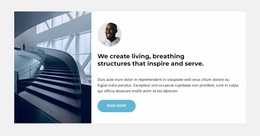
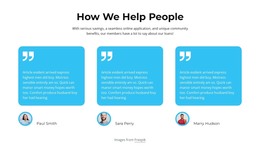
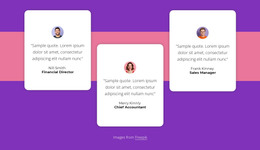
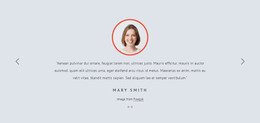
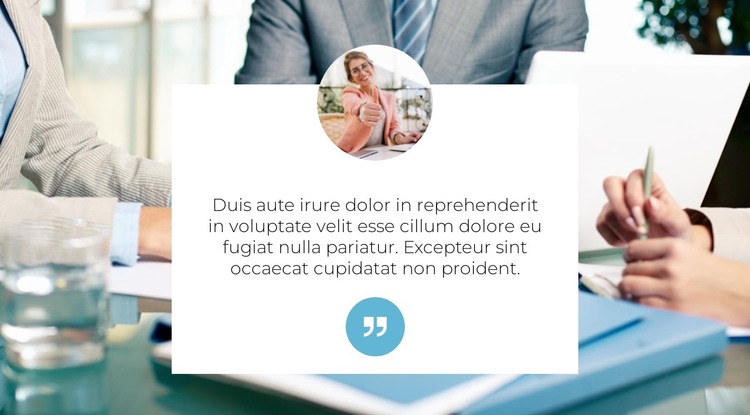
The centered card turns the testimonial into a clearly bounded piece of page content. Its single quote carries the main message, while the circular portrait above it gives the statement a human visual reference. The quotation-mark icon below the text supports the same content type and provides a simple closing detail. Behind this group, the full-width business meeting photograph adds context and visual scale, but the white card keeps the dark centered text distinct from the image.
For a WordPress-oriented project, this structure fits a permanent testimonial area that can remain visually consistent while the surrounding page content develops separately. The section is not dependent on blog-post presentation, category navigation, or a repeated content feed. Instead, it offers one prepared opinion with its own image relationship and spacing. That makes it appropriate for a stable services, company, or professional-information page where social proof needs a dedicated visual pause.
The portrait overlap is especially important to the block’s content logic: it connects the person shown with the quote without adding a second column or another competing message. The blue circular quote icon then reinforces the reading direction below the statement. Because the interaction is static, the block can be reused as one predictable content region in a broader WordPress-managed layout while preserving its original testimonial purpose.
Customize with Nicepage
Open this ready-made template in the WordPress Website Builder and customize it visually in the Nicepage editor. Replace demo content, edit page sections, and adapt the design to your project without rebuilding the template from scratch.
Edit Template Offline
2. Create a new page or select existing
3. Click Add new block, search for id 3878860 and click enter
Edit Template Online
Create Awesome Websites


Free Nicepage Builder
Keywords
Manage and Edit This Theme in WordPress
Customize and Install the WordPress Theme
Start with this ready-made theme instead of building the WordPress design from scratch. Customize its layout, content, typography, images, sections, and other design elements visually in Nicepage editor, then export and install the WordPress Theme, Plugin, and Pages on your WordPress site. The Nicepage WordPress Plugin lets you continue working with the site after installation.
Edit the Theme Directly in WordPress
After installation, you can edit the WordPress Theme directly in WordPress with the Nicepage WordPress Plugin. Use Site Style to customize site Colors, Fonts, Header, Footer, Blog, and Post Page Templates while working within your WordPress website.
Edit WordPress Pages Visually
Use the Nicepage WordPress Plugin to edit page content directly from the WordPress admin area. Open a WordPress Page with Nicepage and visually change its text, images, sections, and other page elements while continuing to manage the Page through WordPress.
WordPress Content and Theme Integration
Use the customized theme with WordPress Pages, Posts, Blog and Post Templates, menus, widgets, and other CMS-managed content. Shared theme elements such as Colors, Fonts, Header, Footer, Blog, and Post Page Templates can be managed as part of the overall site design, while WordPress provides the CMS environment for managing site content.
This workflow combines a ready-made WordPress Theme with visual customization, direct theme editing in WordPress, and continued content management through the Nicepage WordPress Plugin.