City planning architecture WordPress Theme


Future-Cities Content Fits a Structured WordPress Page Section
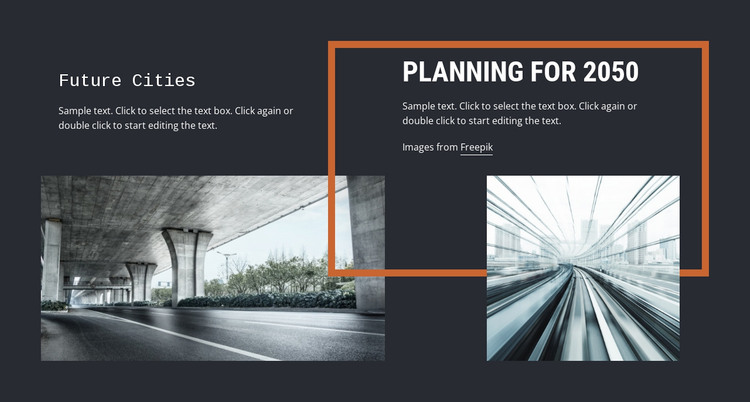
The two headings give this section a clear page-content sequence: “Future Cities” introduces the subject, and “Planning for 2050” narrows it toward a forward-looking planning perspective. The accompanying text areas can hold the section's editorial explanation, while the concrete bridge and motion-blur train photographs connect that explanation to visible examples of infrastructure and transit. This makes the block suited to stable informational content rather than requiring a constantly changing interaction pattern.
Within a WordPress-managed project, the section can function as a reusable visual region on a page about architecture, urban development, planning, or related editorial material. Its dark charcoal background and light text establish a readable content surface, and the orange outline around the upper-right area can distinguish a featured text group without changing the section's underlying structure. The asymmetrical arrangement separates the two upper text areas from the two lower images, giving the content a deliberate progression from theme to visual context. The block remains one section within the surrounding page, where other content areas can provide navigation, additional articles, project information, or contact details. If the wider project uses Nicepage's WordPress workflow, the block's page-oriented content can be kept visually consistent while the surrounding site manages its broader publishable content.
Customize with Nicepage
Open this ready-made template in the WordPress Website Builder and customize it visually in the Nicepage editor. Replace demo content, edit page sections, and adapt the design to your project without rebuilding the template from scratch.
Edit Template Offline
2. Create a new page or select existing
3. Click Add new block, search for id 108803 and click enter
Edit Template Online
Create Awesome Websites


Free Nicepage Builder
Keywords
Manage and Edit This Theme in WordPress
Customize and Install the WordPress Theme
Start with this ready-made theme instead of building the WordPress design from scratch. Customize its layout, content, typography, images, sections, and other design elements visually in Nicepage editor, then export and install the WordPress Theme, Plugin, and Pages on your WordPress site. The Nicepage WordPress Plugin lets you continue working with the site after installation.
Edit the Theme Directly in WordPress
After installation, you can edit the WordPress Theme directly in WordPress with the Nicepage WordPress Plugin. Use Site Style to customize site Colors, Fonts, Header, Footer, Blog, and Post Page Templates while working within your WordPress website.
Edit WordPress Pages Visually
Use the Nicepage WordPress Plugin to edit page content directly from the WordPress admin area. Open a WordPress Page with Nicepage and visually change its text, images, sections, and other page elements while continuing to manage the Page through WordPress.
WordPress Content and Theme Integration
Use the customized theme with WordPress Pages, Posts, Blog and Post Templates, menus, widgets, and other CMS-managed content. Shared theme elements such as Colors, Fonts, Header, Footer, Blog, and Post Page Templates can be managed as part of the overall site design, while WordPress provides the CMS environment for managing site content.
This workflow combines a ready-made WordPress Theme with visual customization, direct theme editing in WordPress, and continued content management through the Nicepage WordPress Plugin.