
270+ Counter Joomla Templates
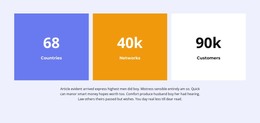
Give important numbers their own space with Counter sections that pair prominent values with short, readable labels. Nicepage supports counter animation and visual customization, while its Joomla Extension provides a workflow for incorporating these sections into CMS articles.
-
-

-
-
-
-
-
-
-
-
-
-
-
-
-
-
-
-
-
-
-
-
-
-
-
-
-
-
-
-
-
-
-
-
-
-
-
-
-
-
Free Website Builder SoftwareDownload
-
-
-
-
-
-
-
-
-
-
-
-
-
-
-
-
-
-
-
-
-
-
-
-
-
-
-
-
-
-
-
-
-











































Other Counter Joomla Templates
Professional Counter Joomla Templates for CMS Article Metrics
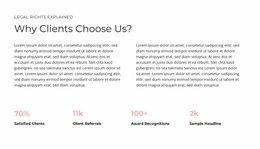
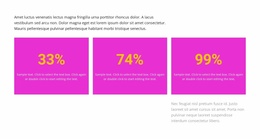
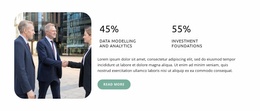
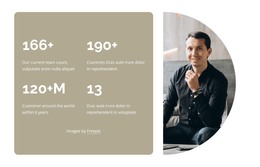
Counter Joomla Templates help present numerical highlights within Joomla-powered content, but a Counter block is not a complete Joomla theme or template. It is a reusable statistics section that can sit inside an article or a larger page layout. Each counter pairs a prominent value with a short label, helping visitors recognize achievements, totals, and milestones without searching through longer content. Animated numbers add visual emphasis while keeping the section focused on measurable facts.
What Should a Counter Section Show in Joomla?
A Counter section highlights a limited set of meaningful numbers. It communicates quantitative information quickly, using the number as the primary visual element and its label as supporting context.
The most useful counter content includes project totals, completed milestones, participation figures, years of experience, or other verified measurements. For example, a Joomla association site could place member totals beneath an About article, then link readers to its membership information. The numbers support the article; they do not replace the Joomla site structure.
Unlike a detailed data presentation section, a counter block is intended for immediate recognition rather than extended analysis.
Create Clear Metric Groups with Responsive Counter Layouts
A numerical counter section's effectiveness depends on the relationship between values, labels, and surrounding space.
Three elements deserve particular attention:
- Numerical values: Large, prominent figures establish the main information hierarchy.
- Metric labels: Short descriptions explain what each number represents and prevent ambiguous statistics.
- Repeated units: Consistent spacing and alignment help visitors read several figures as one coordinated summary.
Nicepage’s native Counter Element displays configured values with optional counting animation.
The Counter Element documentation explains its visual settings and animation behavior.
For a section containing several metrics, avoid giving every figure equal emphasis when one carries the main message. Visual hierarchy should reflect the information's importance rather than fill available space.
Using Animated Counters in Joomla Articles
In Joomla, the publishing context matters: a Counter section can be edited as part of an article. At the same time, the site template still controls the overall theme and surrounding page framework.
The Nicepage Joomla Extension supports creating and visually editing Joomla Articles. This provides a CMS-oriented workflow for incorporating counter layouts into the surrounding article content.
For a Joomla organization overview, start with three confirmed figures—for example, members, completed events, and years active. Select a Counter block in Nicepage and replace its example figures. Adjust the labels and layout before integrating the section into the Joomla article.
Nicepage documents how to install and use the Joomla Extension, including supported article creation and editing.
The Counter Element represents configured numerical values. It should not be confused with a live analytics widget or an automatically updated database-driven metric.
Choose the Right Place for Joomla Statistics
Place the section near the Joomla article content that gives the figures their meaning. In a public annual report, for instance, a short counter row can introduce the results before readers open the detailed report.
Counter vs Features: A Features section explains benefits or capabilities through descriptive items. Counters lead with numerical values, using labels only to explain their meaning.
Counter vs Table: Tables organize multiple attributes for precise comparison. Counters isolate a few selected metrics for quick scanning.
For example, a milestone count can appear in a compact counter band, while a detailed chronological record belongs in a timeline section.
Expert Tip: Use counters only when the underlying facts are meaningful and accurate. Decorative numbers without clear labels weaken a statistics section.
Counter Joomla Templates FAQ
Is a Counter block the same as a Joomla template?
No. It is a numerical content section. A Joomla template governs the wider site presentation, while a Counter can be placed in a Nicepage-edited Joomla article.
Where can I put achievement figures in a Joomla article?
For an association overview, place verified member or event totals near the related article text. Use the Joomla Extension workflow to edit the Nicepage article.
Does a Joomla Counter show live membership totals?
Not by itself. The Counter Element displays the values you configure; retrieving current totals requires separate functionality.
Add a Numerical Summary to Your Joomla Content
Select a Counter design that fits the number of metrics you need to present. Open it in the Nicepage editor, update the figures and labels, refine the animation settings, and incorporate the section into your Joomla article workflow. Keep the final block focused on information visitors can understand at a glance.