Goals and strategies WordPress Theme


A Mission-and-Goals Content Area for WordPress Pages
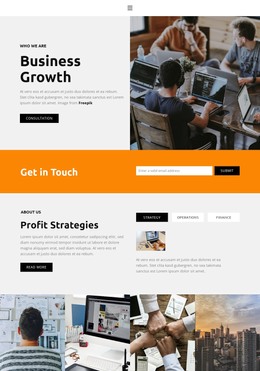
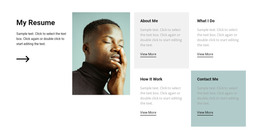
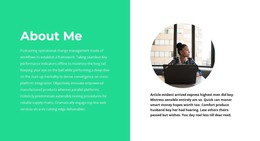
The block’s two labeled areas translate naturally into stable page content: the mission text occupies the left column, while the goals text begins the right-hand content stack. In a WordPress-managed page, this arrangement can present an organization’s purpose and aims as one reusable section, with the surrounding project supplying other content areas. The office-work image below the goals text adds a visual continuation to the right column rather than functioning as a separate gallery or interactive component.
The composition also gives the two text areas different spatial roles. The mission column reads as an independent statement, while the goals column leads into the image beneath it. This relationship creates a measured editorial flow across the section, supported by compact black typography, a white background, and generous whitespace. Since the paragraph content is placeholder-style, the layout can be populated with approved wording without treating the sample text as a real statement from an organization.
Within a broader WordPress project, the section can serve as permanent informational content on an appropriate page. It does not need to carry site-wide navigation, CMS architecture, or every page function; its contribution is narrower and clearer. The prepared split layout is useful when mission and goals should be read together, while the supporting workplace image gives the right side additional visual weight and keeps the section from becoming text-only.
Customize with Nicepage
Open this ready-made template in the WordPress Website Builder and customize it visually in the Nicepage editor. Replace demo content, edit page sections, and adapt the design to your project without rebuilding the template from scratch.
Edit Template Offline
2. Create a new page or select existing
3. Click Add new block, search for id 546169 and click enter
Edit Template Online
Create Awesome Websites


Free Nicepage Builder
Keywords
Manage and Edit This Theme in WordPress
Customize and Install the WordPress Theme
Start with this ready-made theme instead of building the WordPress design from scratch. Customize its layout, content, typography, images, sections, and other design elements visually in Nicepage editor, then export and install the WordPress Theme, Plugin, and Pages on your WordPress site. The Nicepage WordPress Plugin lets you continue working with the site after installation.
Edit the Theme Directly in WordPress
After installation, you can edit the WordPress Theme directly in WordPress with the Nicepage WordPress Plugin. Use Site Style to customize site Colors, Fonts, Header, Footer, Blog, and Post Page Templates while working within your WordPress website.
Edit WordPress Pages Visually
Use the Nicepage WordPress Plugin to edit page content directly from the WordPress admin area. Open a WordPress Page with Nicepage and visually change its text, images, sections, and other page elements while continuing to manage the Page through WordPress.
WordPress Content and Theme Integration
Use the customized theme with WordPress Pages, Posts, Blog and Post Templates, menus, widgets, and other CMS-managed content. Shared theme elements such as Colors, Fonts, Header, Footer, Blog, and Post Page Templates can be managed as part of the overall site design, while WordPress provides the CMS environment for managing site content.
This workflow combines a ready-made WordPress Theme with visual customization, direct theme editing in WordPress, and continued content management through the Nicepage WordPress Plugin.