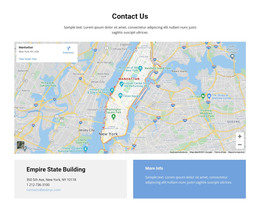
Contacts and social icons WordPress Theme


Stable Page Contact Content With a Separate Inquiry Region
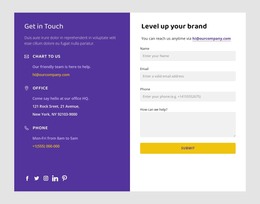
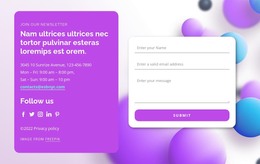
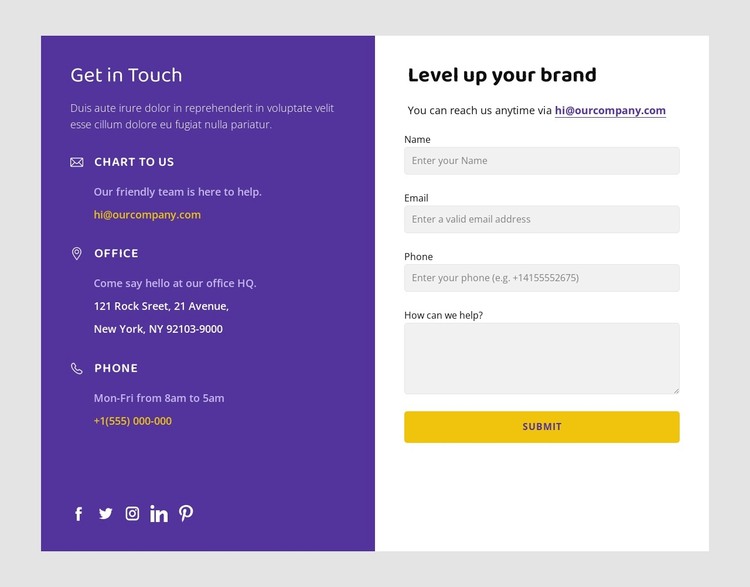
The block separates two kinds of page content that commonly belong together on a contact-oriented page. The purple left panel holds the stable reference material: a “Get in Touch” heading, introductory copy, three contact-information items, and five social media links. These elements can remain recognizable as persistent ways to reach the organization. The light right panel serves a different content role, presenting “Level up your brand,” supporting text, and a form for name, email, phone, and message details.
That distinction suits a WordPress-managed page where the visual section can remain consistent while its text and contact details are maintained as page content. The form’s four fields create a predictable inquiry structure, and the single submission control keeps the response path concentrated. The purple and light surfaces help visitors distinguish reference information from the act of sending a request without requiring separate page areas.
In a broader WordPress project, this section can support a stable services, company, or contact page while other content areas handle editorial updates or additional pages. The block’s role comes from its actual content relationship rather than from a CMS label: three contact channels and five social links provide connection context, while the form collects a specific message. This gives the section a practical place in a managed page and leaves the wider site free to organize navigation and other content around it.
Customize with Nicepage
Open this ready-made template in the WordPress Website Builder and customize it visually in the Nicepage editor. Replace demo content, edit page sections, and adapt the design to your project without rebuilding the template from scratch.
Edit Template Offline
2. Create a new page or select existing
3. Click Add new block, search for id 2919482 and click enter
Edit Template Online
Create Awesome Websites


Free Nicepage Builder
Keywords
Manage and Edit This Theme in WordPress
Customize and Install the WordPress Theme
Start with this ready-made theme instead of building the WordPress design from scratch. Customize its layout, content, typography, images, sections, and other design elements visually in Nicepage editor, then export and install the WordPress Theme, Plugin, and Pages on your WordPress site. The Nicepage WordPress Plugin lets you continue working with the site after installation.
Edit the Theme Directly in WordPress
After installation, you can edit the WordPress Theme directly in WordPress with the Nicepage WordPress Plugin. Use Site Style to customize site Colors, Fonts, Header, Footer, Blog, and Post Page Templates while working within your WordPress website.
Edit WordPress Pages Visually
Use the Nicepage WordPress Plugin to edit page content directly from the WordPress admin area. Open a WordPress Page with Nicepage and visually change its text, images, sections, and other page elements while continuing to manage the Page through WordPress.
WordPress Content and Theme Integration
Use the customized theme with WordPress Pages, Posts, Blog and Post Templates, menus, widgets, and other CMS-managed content. Shared theme elements such as Colors, Fonts, Header, Footer, Blog, and Post Page Templates can be managed as part of the overall site design, while WordPress provides the CMS environment for managing site content.
This workflow combines a ready-made WordPress Theme with visual customization, direct theme editing in WordPress, and continued content management through the Nicepage WordPress Plugin.