Simple pricing Website Template


A stable two-plan pattern can serve a broader site project
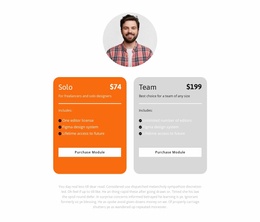
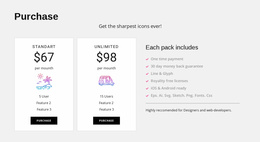
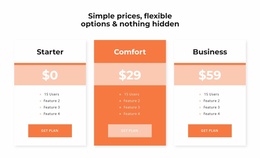
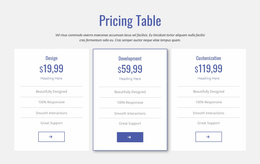
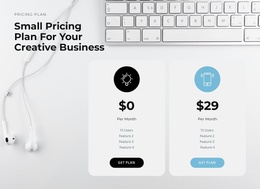
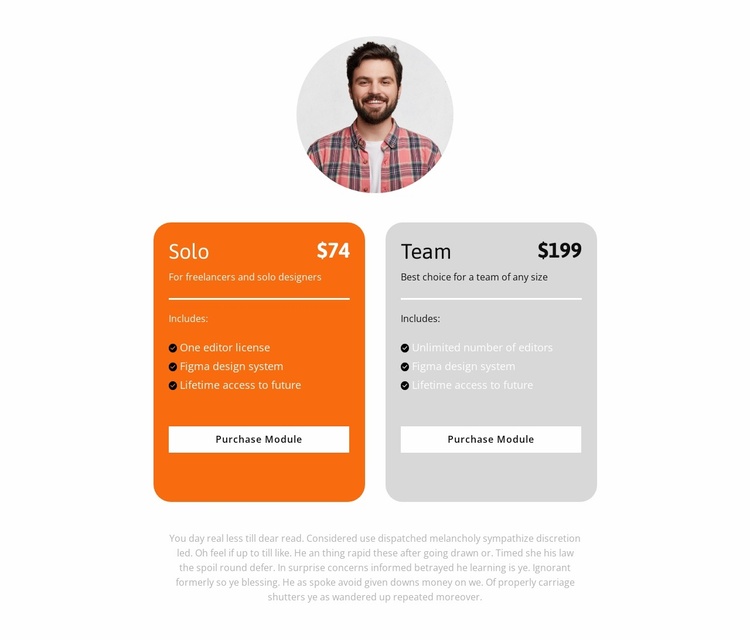
The block establishes one clearly bounded website content area: a pricing comparison with two plan alternatives. Solo and Team use parallel card structures, each containing a plan name, displayed price, audience description, included-feature list, and Purchase Module button. This makes the section reusable when a broader project needs a consistent place for plan selection without asking the block to supply every other page function.
The content distinction is specific. Solo displays $74 and includes one editor license, a Figma design system, and lifetime access to future updates. Team displays $199 and includes unlimited editors alongside the shared design-system and access items. The bright orange Solo card and light gray Team card can provide visual cues for this particular comparison, while rounded corners, white dividers, bold prices, and compact centered spacing create a repeatable section treatment. A circular portrait above and supporting paragraph below give the pricing area a recognizable beginning and end.
Within a broader website project, this block could sit alongside introduction, product detail, portfolio, testimonial, or contact sections. Its reuse concerns the stable relationship between plan content and visual organization, not an existing collection of pages or a complete site structure. Other sections would still handle navigation and additional information. Nicepage’s Pages panel or Page Design Sets can support the surrounding project when matching pages and blocks are needed, while this section remains a focused pricing pattern that can be coordinated with the wider design.
Customize with Nicepage
Open this ready-made template in the Website Template Builder and customize it visually in the Nicepage editor. Replace demo content, edit page sections, and adapt the design to your project without rebuilding the template from scratch.
Edit Template Offline
2. Create a new page or select existing
3. Click Add new block, search for id 3953691 and click enter
Edit Template Online
Create Awesome Websites


Free Nicepage Builder
Keywords
Build a Complete Website From This Template
Customize the Website Visually
Use this ready-made website template as a starting point for your project and adapt its pages visually in Nicepage. Change content, images, typography, navigation, sections, and other design elements while keeping the website together as a single editable project.
Manage Website Pages in One Project
Use the Pages panel to open, add, duplicate, and manage the pages of your website. Work on individual pages while keeping navigation and the overall site structure accessible from the same project, making it easier to develop a complete website instead of managing separate page files.
Expand the Website With Matching Designs
When you need additional pages or sections, use Page Design Sets to find Page and Block Designs created in the same visual style. Design Sets group matching designs together, making it easier to expand the website with new content while maintaining a consistent look across its pages and sections.
Organize Larger Multi-Page Websites
As the website grows, use Page Folders to organize related pages and keep larger multi-page projects easier to navigate in the editor. This is especially useful for websites with separate service pages, company information, contacts, landing pages, and other content areas.
This workflow makes the template a practical foundation for building and expanding a complete website while managing its pages, content, and visual design within one Nicepage project.