Travel safari tours WordPress Theme


The Safari Heading and Wildlife Images Form Stable Page Content
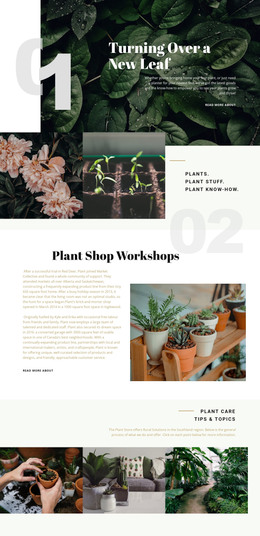
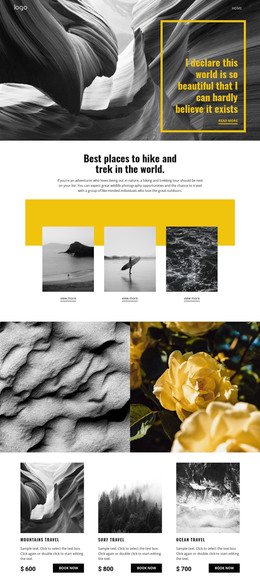
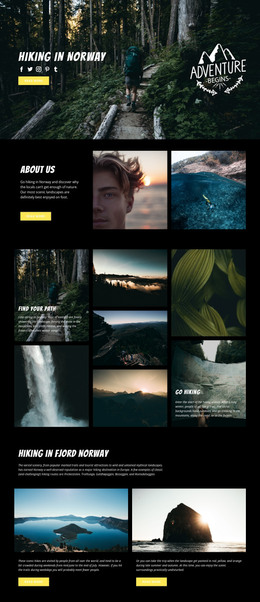
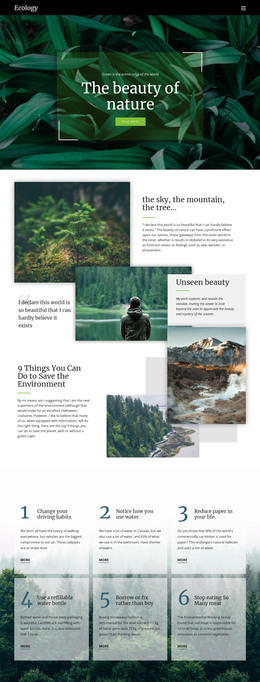
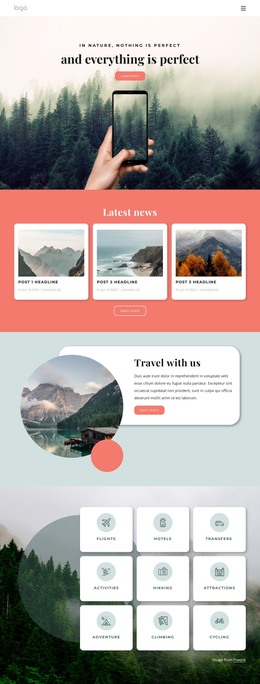
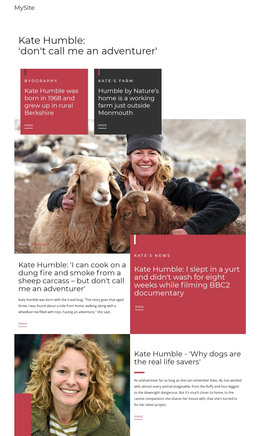
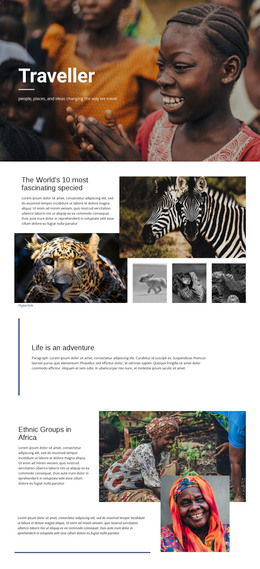
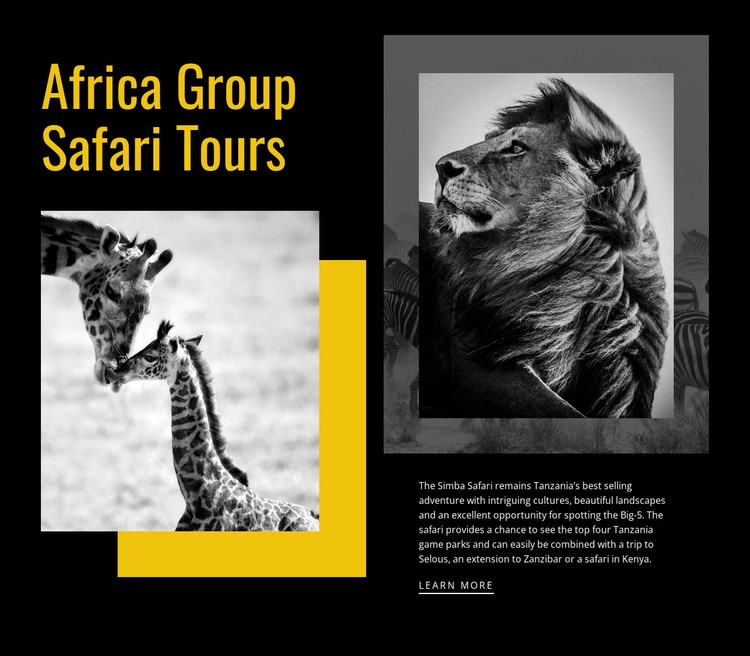
The large “Africa Group Safari Tours” heading and two wildlife photographs give this section a defined subject before the supporting text is read. The giraffe image works with the left-side title, while the lion photograph introduces the descriptive Simba Safari paragraph on the right. The “Learn more” link follows that explanation, creating a compact path from identification to additional information without requiring the section to contain every detail about the tour offering.
For a WordPress-oriented project, this arrangement is suited to stable page content that can remain part of a broader travel or tourism site. The content reads as a reusable introductory area rather than a stream of time-sensitive posts: one heading establishes the topic, the imagery supplies visual context, and the paragraph explains the safari subject. Other CMS-managed content can surround it with fuller tour information, destination details, galleries, or contact options.
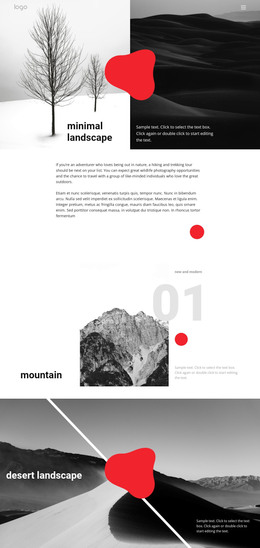
The visual treatment also gives the page section a consistent identity within the wider theme. A black background, vivid yellow accents, grayscale wildlife photography, and overlapping geometric rectangles create a recognizable presentation while preserving the existing two-area structure. The block can therefore participate in a WordPress-managed page as a distinct content region, with its own imagery, description, and onward link rather than functioning as a complete theme or site.
Customize with Nicepage
Open this ready-made template in the WordPress Website Builder and customize it visually in the Nicepage editor. Replace demo content, edit page sections, and adapt the design to your project without rebuilding the template from scratch.
Edit Template Offline
2. Create a new page or select existing
3. Click Add new block, search for id 53211 and click enter
Edit Template Online
Create Awesome Websites


Free Nicepage Builder
Keywords
Manage and Edit This Theme in WordPress
Customize and Install the WordPress Theme
Start with this ready-made theme instead of building the WordPress design from scratch. Customize its layout, content, typography, images, sections, and other design elements visually in Nicepage editor, then export and install the WordPress Theme, Plugin, and Pages on your WordPress site. The Nicepage WordPress Plugin lets you continue working with the site after installation.
Edit the Theme Directly in WordPress
After installation, you can edit the WordPress Theme directly in WordPress with the Nicepage WordPress Plugin. Use Site Style to customize site Colors, Fonts, Header, Footer, Blog, and Post Page Templates while working within your WordPress website.
Edit WordPress Pages Visually
Use the Nicepage WordPress Plugin to edit page content directly from the WordPress admin area. Open a WordPress Page with Nicepage and visually change its text, images, sections, and other page elements while continuing to manage the Page through WordPress.
WordPress Content and Theme Integration
Use the customized theme with WordPress Pages, Posts, Blog and Post Templates, menus, widgets, and other CMS-managed content. Shared theme elements such as Colors, Fonts, Header, Footer, Blog, and Post Page Templates can be managed as part of the overall site design, while WordPress provides the CMS environment for managing site content.
This workflow combines a ready-made WordPress Theme with visual customization, direct theme editing in WordPress, and continued content management through the Nicepage WordPress Plugin.