Smart design for new retail WordPress Theme


Permanent Project Content With a Strong Visual Record
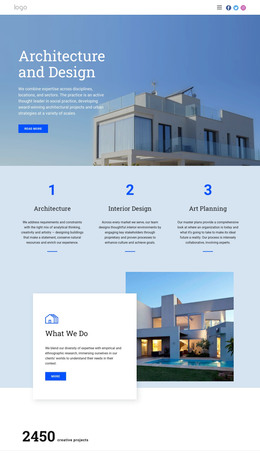
The Villa Laguna section reads as stable project content: a named architecture presentation supported by descriptive copy, one dominant residential image, and three related thumbnails. In a WordPress-managed page, this makes it suitable for a permanent portfolio or featured-project region rather than a generic promotional strip. The View More button adds a clear destination for further project information, while the block itself retains the essential visual introduction.
Its content hierarchy is led by the large photograph of a modern low-rise villa and its surrounding grounds. The centered white uppercase heading and supporting text sit over a darkened image area, keeping the project identity and description legible without weakening the connection to the architecture being shown. Beneath the main image, the three white-bordered landscape thumbnails form one horizontal supporting group. Their overlap gives the section a layered visual treatment and signals that the images belong to the same project presentation.
Used within WordPress-oriented page content, the block can remain a self-contained visual section while the wider site manages other pages, portfolio entries, or editorial material around it. The static arrangement keeps all core information visible at once, and the repeated image treatment can help a broader project maintain a consistent way of presenting selected work. The section therefore contributes a focused portfolio record without becoming a standalone theme or complete site.
Customize with Nicepage
Open this ready-made template in the WordPress Website Builder and customize it visually in the Nicepage editor. Replace demo content, edit page sections, and adapt the design to your project without rebuilding the template from scratch.
Edit Template Offline
2. Create a new page or select existing
3. Click Add new block, search for id 51039 and click enter
Edit Template Online
Create Awesome Websites


Free Nicepage Builder
Keywords
Manage and Edit This Theme in WordPress
Customize and Install the WordPress Theme
Start with this ready-made theme instead of building the WordPress design from scratch. Customize its layout, content, typography, images, sections, and other design elements visually in Nicepage editor, then export and install the WordPress Theme, Plugin, and Pages on your WordPress site. The Nicepage WordPress Plugin lets you continue working with the site after installation.
Edit the Theme Directly in WordPress
After installation, you can edit the WordPress Theme directly in WordPress with the Nicepage WordPress Plugin. Use Site Style to customize site Colors, Fonts, Header, Footer, Blog, and Post Page Templates while working within your WordPress website.
Edit WordPress Pages Visually
Use the Nicepage WordPress Plugin to edit page content directly from the WordPress admin area. Open a WordPress Page with Nicepage and visually change its text, images, sections, and other page elements while continuing to manage the Page through WordPress.
WordPress Content and Theme Integration
Use the customized theme with WordPress Pages, Posts, Blog and Post Templates, menus, widgets, and other CMS-managed content. Shared theme elements such as Colors, Fonts, Header, Footer, Blog, and Post Page Templates can be managed as part of the overall site design, while WordPress provides the CMS environment for managing site content.
This workflow combines a ready-made WordPress Theme with visual customization, direct theme editing in WordPress, and continued content management through the Nicepage WordPress Plugin.