Effective and quality education WordPress Theme



Stable Institute Content With a Human-Centered Visual Focus
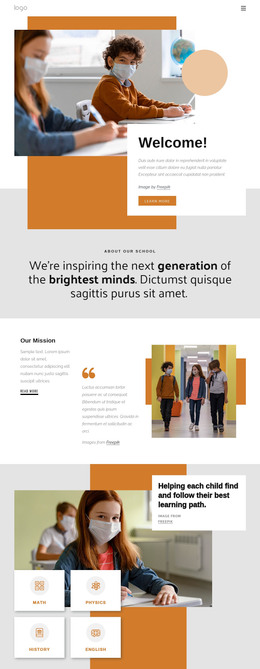
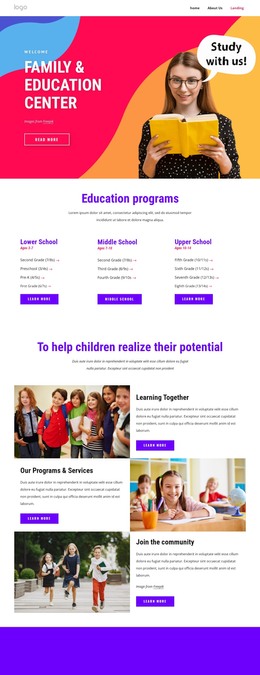
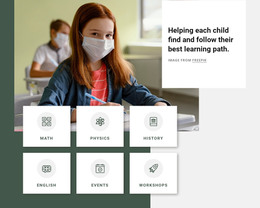
The section reads as permanent page content because its central message introduces an institute rather than presenting a time-sensitive list or stream. The eyebrow “Effective education” provides a short subject cue, and the main heading “The Institute for Effective Education” gives the page area its primary identity. Inside the rounded white card, the supporting image-credit line and “Learn more” button keep attribution and the next information step close to the main message.
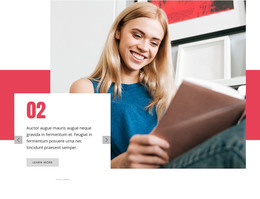
The portrait supplies a human point of focus behind that text card. Its circular crop contrasts with the card’s rounded rectangular form, while the lower-left overlap makes the text feel intentionally placed over the visual field. Orange and purple organic shapes surround the portrait and establish a recognizable decorative treatment. The white background, soft shadow, strong black typography, and purple action button maintain separation between content, image, and ornament.
For a WordPress-oriented project, this block can function as a stable introductory section on an institute, organization, or education-related page. The broader site can manage additional page content around it, while this section preserves the coordinated heading, portrait, image credit, and “Learn more” pathway. It can therefore be edited as part of a wider CMS-managed page without being treated as a complete WordPress Theme or a full site structure.
Customize with Nicepage
Open this ready-made template in the WordPress Website Builder and customize it visually in the Nicepage editor. Replace demo content, edit page sections, and adapt the design to your project without rebuilding the template from scratch.
Edit Template Offline
2. Create a new page or select existing
3. Click Add new block, search for id 1673640 and click enter
Edit Template Online
Create Awesome Websites


Free Nicepage Builder
Keywords
Manage and Edit This Theme in WordPress
Customize and Install the WordPress Theme
Start with this ready-made theme instead of building the WordPress design from scratch. Customize its layout, content, typography, images, sections, and other design elements visually in Nicepage editor, then export and install the WordPress Theme, Plugin, and Pages on your WordPress site. The Nicepage WordPress Plugin lets you continue working with the site after installation.
Edit the Theme Directly in WordPress
After installation, you can edit the WordPress Theme directly in WordPress with the Nicepage WordPress Plugin. Use Site Style to customize site Colors, Fonts, Header, Footer, Blog, and Post Page Templates while working within your WordPress website.
Edit WordPress Pages Visually
Use the Nicepage WordPress Plugin to edit page content directly from the WordPress admin area. Open a WordPress Page with Nicepage and visually change its text, images, sections, and other page elements while continuing to manage the Page through WordPress.
WordPress Content and Theme Integration
Use the customized theme with WordPress Pages, Posts, Blog and Post Templates, menus, widgets, and other CMS-managed content. Shared theme elements such as Colors, Fonts, Header, Footer, Blog, and Post Page Templates can be managed as part of the overall site design, while WordPress provides the CMS environment for managing site content.
This workflow combines a ready-made WordPress Theme with visual customization, direct theme editing in WordPress, and continued content management through the Nicepage WordPress Plugin.