Outfit ideas, fashion tips WordPress Theme


The Text-and-Image Group Fits Stable Page Content
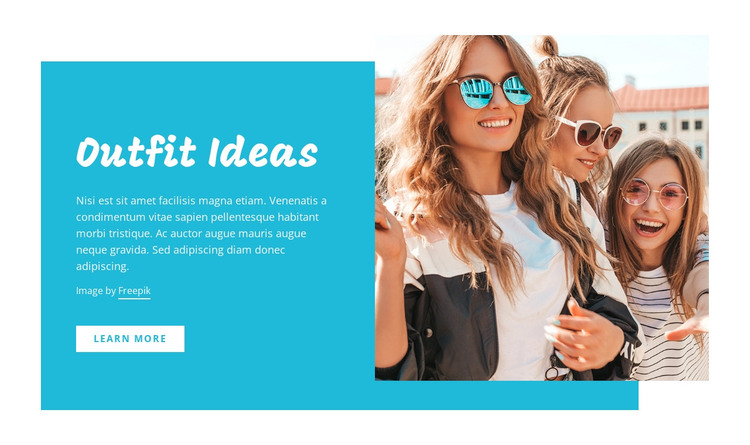
The “Outfit Ideas” heading and supporting paragraph read as a stable introductory content group rather than a stream of dated entries. The adjacent “Learn More” button gives that group a clear destination, while the right-side photograph of three people wearing sunglasses provides visual context for the fashion subject. A cyan rectangular background shape connects the two columns, and the light text treatment keeps the message visibly separate from the image.
Within a WordPress-managed page, this arrangement can serve as a reusable fashion or beauty section while the broader project manages other content around it. The section’s content can remain visually consistent even when surrounding page material changes. Its static presentation is also straightforward: there is no confirmed carousel, form, product list, or repeated card structure requiring a different content model.
The image overlap is important to the section’s identity because it prevents the photograph from feeling like an unrelated column. The heading, paragraph, CTA, cyan panel, and image therefore work as one publishable page region. A WordPress-oriented use should preserve that relationship while treating the block as page content inside a wider site, not as a complete theme or a complete website. The block contributes a focused outfit-introduction role that can sit alongside other managed content.
Customize with Nicepage
Open this ready-made template in the WordPress Website Builder and customize it visually in the Nicepage editor. Replace demo content, edit page sections, and adapt the design to your project without rebuilding the template from scratch.
Edit Template Offline
2. Create a new page or select existing
3. Click Add new block, search for id 111767 and click enter
Edit Template Online
Create Awesome Websites


Free Nicepage Builder
Keywords
Manage and Edit This Theme in WordPress
Customize and Install the WordPress Theme
Start with this ready-made theme instead of building the WordPress design from scratch. Customize its layout, content, typography, images, sections, and other design elements visually in Nicepage editor, then export and install the WordPress Theme, Plugin, and Pages on your WordPress site. The Nicepage WordPress Plugin lets you continue working with the site after installation.
Edit the Theme Directly in WordPress
After installation, you can edit the WordPress Theme directly in WordPress with the Nicepage WordPress Plugin. Use Site Style to customize site Colors, Fonts, Header, Footer, Blog, and Post Page Templates while working within your WordPress website.
Edit WordPress Pages Visually
Use the Nicepage WordPress Plugin to edit page content directly from the WordPress admin area. Open a WordPress Page with Nicepage and visually change its text, images, sections, and other page elements while continuing to manage the Page through WordPress.
WordPress Content and Theme Integration
Use the customized theme with WordPress Pages, Posts, Blog and Post Templates, menus, widgets, and other CMS-managed content. Shared theme elements such as Colors, Fonts, Header, Footer, Blog, and Post Page Templates can be managed as part of the overall site design, while WordPress provides the CMS environment for managing site content.
This workflow combines a ready-made WordPress Theme with visual customization, direct theme editing in WordPress, and continued content management through the Nicepage WordPress Plugin.