Campground faqs Template


Edit Template Offline
2. Create new page and search for id 6352080
Edit Template Online
Create Awesome Websites


Free Nicepage Builder
Keywords
Outdoor Imagery Supports a Focused Booking FAQ
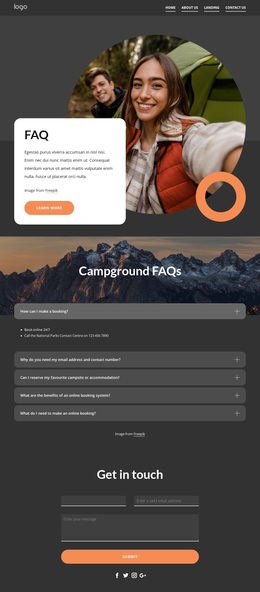
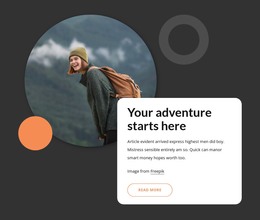
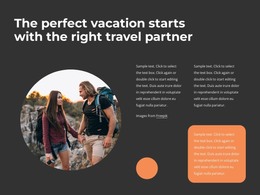
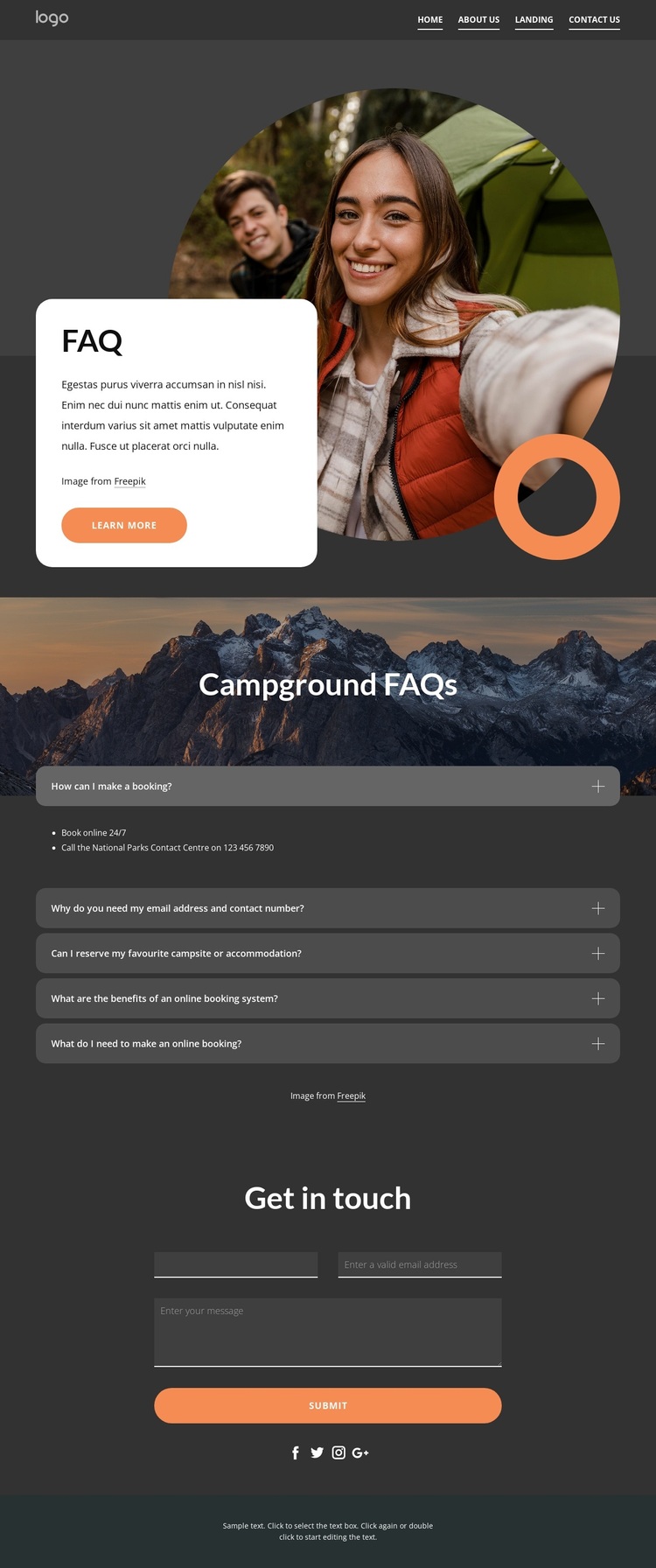
The circular outdoor photograph in the opening panel immediately places the FAQ within a campground setting, while the adjacent text card keeps the initial explanation compact. That balance makes the design a useful choice for projects where visitors need a visual sense of the environment before reviewing practical reservation information. The warm orange accents add emphasis to controls and links without replacing the dark charcoal base, so the page has a recognizable direction beyond a generic question list.
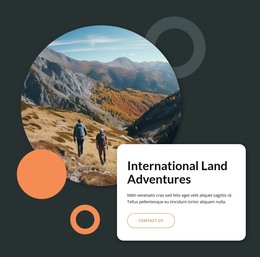
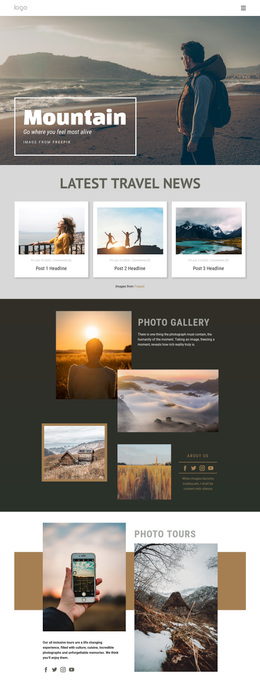
The strongest distinguishing feature is the relationship between the scenic Campground FAQs section and its five expandable questions. The mountain image supplies context, and the accordion keeps booking concerns organized into separate answers. Questions about making an online booking and reserving a favourite campsite or accommodation show that the layout is suited to reservation guidance rather than broad corporate content. Visitors can focus on the topic that matters to them while the page retains a compact overall footprint.
The closing contact area makes the design practical for cases where an answer does not resolve a visitor’s situation. Name, email, and message inputs lead to a Submit action, while Facebook, Twitter, Instagram, and Google icons provide additional ways to remain connected. Rounded cards, soft-cornered controls, white text panels, and generous vertical spacing carry the same visual language from the hero through the questions and into contact. Those combined traits make this a strong option for an outdoor accommodation FAQ that needs clarity, atmosphere, and a direct inquiry path.
Customize with Nicepage
Open this ready-made template in the Template Builder and customize it visually in the Nicepage editor. Replace demo content, edit page sections, and adapt the design to your project without rebuilding the template from scratch.
Start With a Ready-Made Template
Choose a Design for a New Page
Use a ready-made template as a starting point instead of creating every page from a blank canvas. When adding a new page in Nicepage, browse available designs, compare different layouts, and choose an option that already fits the general purpose and visual direction of your project.
Browse Different Page Designs
Explore Page Designs using search, thematic categories, Design Sets, and full-page previews. The collection includes layouts for different subjects and page purposes, making it easier to compare alternatives before selecting a design to customize.
Customize the Selected Template
After choosing a design, create the page and continue editing it visually in Nicepage. Replace the demo content, adjust images, typography, colors, sections, and other elements, and adapt the ready-made layout to your own content instead of rebuilding the design from the beginning.
Explore More Design Directions
If the first option does not match your project closely enough, return to the design collection and compare other templates before committing to a layout. This makes the template library useful not only for faster page creation, but also for exploring different visual approaches and finding a suitable starting point for a new project.
This workflow gives you access to a broad collection of ready-made designs that can be selected, compared, and customized according to the needs of each new page or project.