Coming soon block with logo Website Template


A Reusable Announcement Section for a Broader Website Project
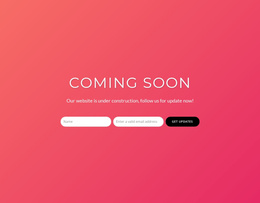
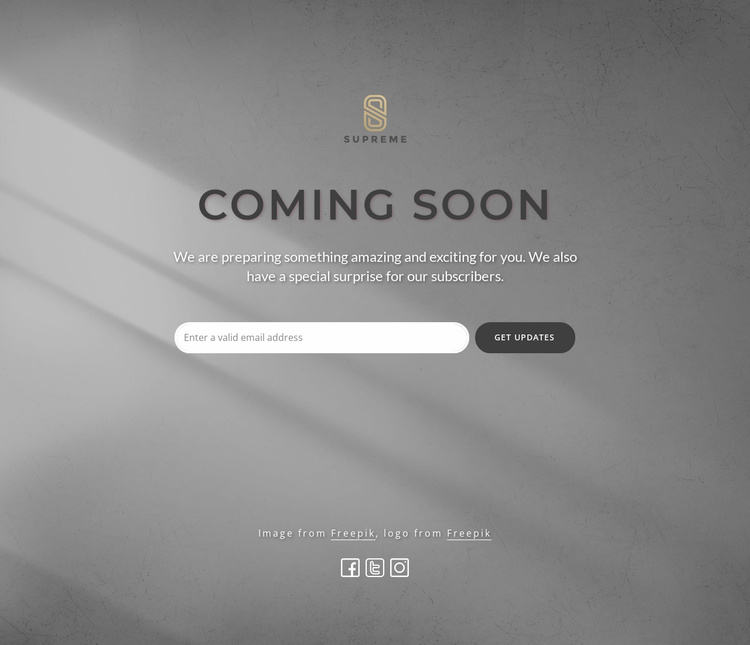
The block establishes a complete content role at section level: identity through the centered logo, an upcoming message through the “Coming Soon” heading and supporting paragraph, and a subscription response through the email field and “GET UPDATES” button. The three social media icons add a secondary connection group beneath that primary function. Because these elements are arranged around one clear purpose, the section can be reused as an announcement area without taking responsibility for unrelated page content.
Its gray textured background and centered spacing also make the block visually distinct within a larger project. It could introduce a temporary launch message, sit near the end of a page as an update invitation, or accompany other sections that explain a project in greater depth. The rounded white input gives the subscription control a consistent visual anchor against the monochrome background, while the dark heading keeps the main message easy to locate.
A Website Template interpretation places this block inside the wider project rather than treating it as the project itself. Other pages and sections can handle navigation, detailed information, or additional responses, while this reusable block preserves its focused announcement and email-subscription role.
Customize with Nicepage
Open this ready-made template in the Website Template Builder and customize it visually in the Nicepage editor. Replace demo content, edit page sections, and adapt the design to your project without rebuilding the template from scratch.
Edit Template Offline
2. Create a new page or select existing
3. Click Add new block, search for id 300941 and click enter
Edit Template Online
Create Awesome Websites


Free Nicepage Builder
Keywords
Build a Complete Website From This Template
Customize the Website Visually
Use this ready-made website template as a starting point for your project and adapt its pages visually in Nicepage. Change content, images, typography, navigation, sections, and other design elements while keeping the website together as a single editable project.
Manage Website Pages in One Project
Use the Pages panel to open, add, duplicate, and manage the pages of your website. Work on individual pages while keeping navigation and the overall site structure accessible from the same project, making it easier to develop a complete website instead of managing separate page files.
Expand the Website With Matching Designs
When you need additional pages or sections, use Page Design Sets to find Page and Block Designs created in the same visual style. Design Sets group matching designs together, making it easier to expand the website with new content while maintaining a consistent look across its pages and sections.
Organize Larger Multi-Page Websites
As the website grows, use Page Folders to organize related pages and keep larger multi-page projects easier to navigate in the editor. This is especially useful for websites with separate service pages, company information, contacts, landing pages, and other content areas.
This workflow makes the template a practical foundation for building and expanding a complete website while managing its pages, content, and visual design within one Nicepage project.