Travel club WordPress Theme


Travel Page Content Split Between Air and Road Features
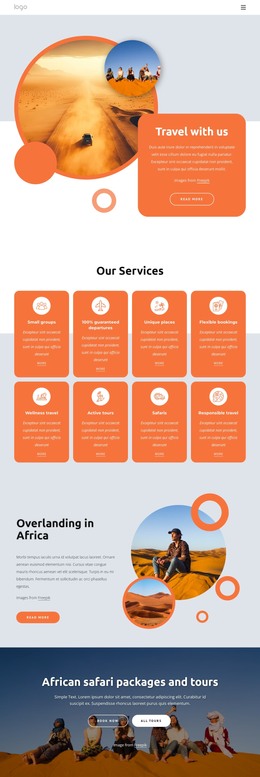
The centered “Travel Club” heading and supporting paragraph make the block read as a stable informational section rather than a temporary announcement. Beneath that introduction, the two cards divide the travel message into parallel content units. The airplane-themed icon provides the first unit with an immediate air-travel reference, while the car-themed icon gives the second a road-travel reference. This clear split can help a WordPress-managed page present related feature content without merging it into one long paragraph.
The cards share a repeatable internal pattern: a large pale icon, descriptive text, and a directional arrow inside a rounded colored surface. Their muted terracotta and olive treatments distinguish the two units while preserving a common visual structure. In a WordPress-oriented project, that pattern can remain consistent as page content while surrounding pages or sections handle longer explanations, additional travel categories, contact details, or other site functions.
The arrows offer a natural place for links to be added when the page has relevant destinations, but they do not define a particular WordPress feature by themselves. The block can therefore remain useful as permanent travel content even when no dynamic component is required. Its role is a focused, visually organized section that supports the wider site without being treated as the complete theme or page structure.
Customize with Nicepage
Open this ready-made template in the WordPress Website Builder and customize it visually in the Nicepage editor. Replace demo content, edit page sections, and adapt the design to your project without rebuilding the template from scratch.
Edit Template Offline
2. Create a new page or select existing
3. Click Add new block, search for id 689916 and click enter
Edit Template Online
Create Awesome Websites


Free Nicepage Builder
Keywords
Manage and Edit This Theme in WordPress
Customize and Install the WordPress Theme
Start with this ready-made theme instead of building the WordPress design from scratch. Customize its layout, content, typography, images, sections, and other design elements visually in Nicepage editor, then export and install the WordPress Theme, Plugin, and Pages on your WordPress site. The Nicepage WordPress Plugin lets you continue working with the site after installation.
Edit the Theme Directly in WordPress
After installation, you can edit the WordPress Theme directly in WordPress with the Nicepage WordPress Plugin. Use Site Style to customize site Colors, Fonts, Header, Footer, Blog, and Post Page Templates while working within your WordPress website.
Edit WordPress Pages Visually
Use the Nicepage WordPress Plugin to edit page content directly from the WordPress admin area. Open a WordPress Page with Nicepage and visually change its text, images, sections, and other page elements while continuing to manage the Page through WordPress.
WordPress Content and Theme Integration
Use the customized theme with WordPress Pages, Posts, Blog and Post Templates, menus, widgets, and other CMS-managed content. Shared theme elements such as Colors, Fonts, Header, Footer, Blog, and Post Page Templates can be managed as part of the overall site design, while WordPress provides the CMS environment for managing site content.
This workflow combines a ready-made WordPress Theme with visual customization, direct theme editing in WordPress, and continued content management through the Nicepage WordPress Plugin.