Galaxy Note WordPress Theme


Product Information Stays Clear in a WordPress Page Section
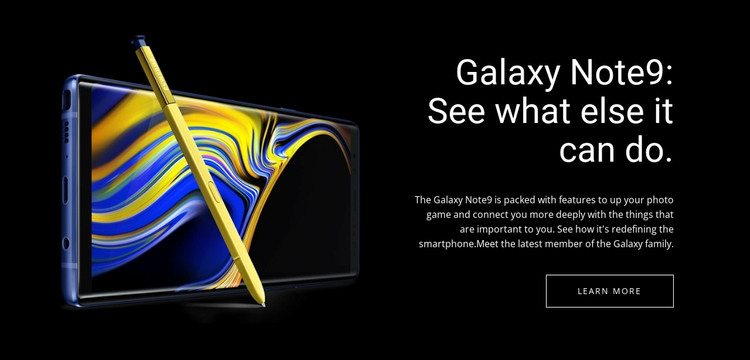
The block’s content is organized around one publishable subject, the Galaxy Note9. The large product image provides immediate identification, while the heading and compact paragraph create a stable explanatory area for photo features, connectivity, and the smartphone experience. The Learn More button adds a link to a further information step, so the section can remain useful as permanent product content within a WordPress-managed page rather than depending on a changing list of posts.
The visual arrangement supports that content role. A black background separates the section from neighboring page material, the bright phone image carries the strongest visual weight, and white right-aligned typography keeps the written message easy to distinguish. Because the block is static and contains no repeated content group, it can work as a consistent product presentation area while other parts of the broader site handle catalogs, articles, navigation, or additional product information.
In a WordPress-oriented project, this section can therefore be treated as a reusable page-content pattern for a featured device. Its value lies in the relationship between one product visual, one descriptive message, and one next-step button. The CMS context surrounds that section; it does not change the block’s underlying structure. This keeps the design suitable for a product page or promotional content area while preserving its original two-column identity.
Customize with Nicepage
Open this ready-made template in the WordPress Website Builder and customize it visually in the Nicepage editor. Replace demo content, edit page sections, and adapt the design to your project without rebuilding the template from scratch.
Edit Template Offline
2. Create a new page or select existing
3. Click Add new block, search for id 56401 and click enter
Edit Template Online
Create Awesome Websites


Free Nicepage Builder
Keywords
Manage and Edit This Theme in WordPress
Customize and Install the WordPress Theme
Start with this ready-made theme instead of building the WordPress design from scratch. Customize its layout, content, typography, images, sections, and other design elements visually in Nicepage editor, then export and install the WordPress Theme, Plugin, and Pages on your WordPress site. The Nicepage WordPress Plugin lets you continue working with the site after installation.
Edit the Theme Directly in WordPress
After installation, you can edit the WordPress Theme directly in WordPress with the Nicepage WordPress Plugin. Use Site Style to customize site Colors, Fonts, Header, Footer, Blog, and Post Page Templates while working within your WordPress website.
Edit WordPress Pages Visually
Use the Nicepage WordPress Plugin to edit page content directly from the WordPress admin area. Open a WordPress Page with Nicepage and visually change its text, images, sections, and other page elements while continuing to manage the Page through WordPress.
WordPress Content and Theme Integration
Use the customized theme with WordPress Pages, Posts, Blog and Post Templates, menus, widgets, and other CMS-managed content. Shared theme elements such as Colors, Fonts, Header, Footer, Blog, and Post Page Templates can be managed as part of the overall site design, while WordPress provides the CMS environment for managing site content.
This workflow combines a ready-made WordPress Theme with visual customization, direct theme editing in WordPress, and continued content management through the Nicepage WordPress Plugin.