Collection latest projects WordPress Theme


Stable Portfolio Content in a WordPress-Managed Page
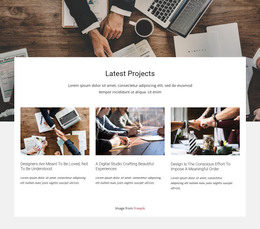
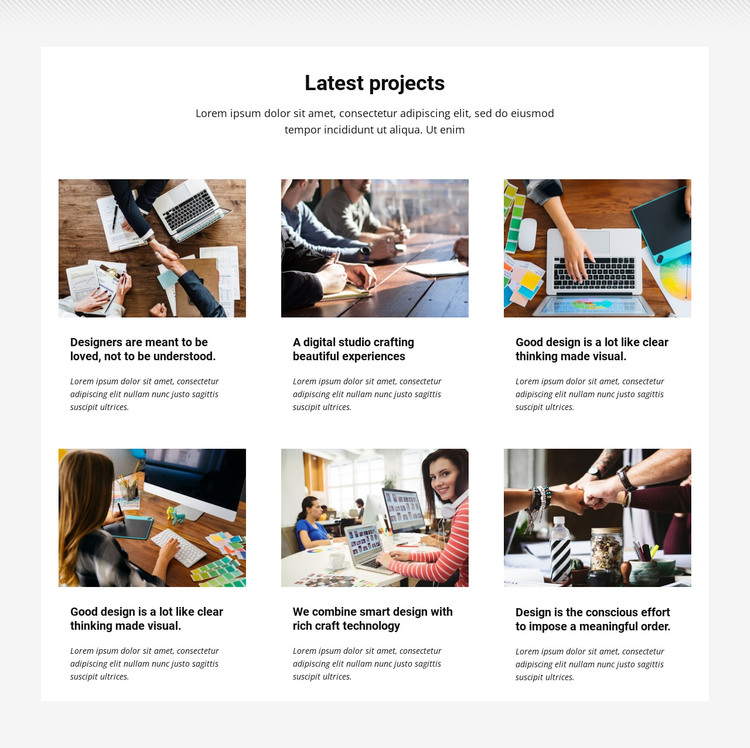
The centered “Latest projects” heading and supporting paragraph give the section a clear editorial introduction, while the six project cards provide the durable content that follows. Each card contains an image, title, and descriptive paragraph, so the block reads as a publishable portfolio area rather than as a single promotional message. The three-column grid across two rows keeps the collection compact and makes the six entries easy to compare within one WordPress-managed page.
The white content panel creates a contained area for the project information, and the light gray patterned background gives that area a distinct visual boundary. Black typography and left-aligned card text keep the titles and descriptions readable beneath the rectangular thumbnails. Because the interaction is static, the project information is presented directly rather than depending on a carousel or expandable control. A broader WordPress site can place other page content around this section while preserving its role as one portfolio region.
Nicepage documentation describes WordPress workflows for working with page content and visual sections. In that context, this block can remain a stable part of a portfolio or projects page while the wider site manages its other content separately. The section should be treated as reusable page content, not as a standalone theme. Its useful contribution is the organized project collection: one introduction, six image-led entries, and a consistent grid that can be maintained within the surrounding WordPress design.
Customize with Nicepage
Open this ready-made template in the WordPress Website Builder and customize it visually in the Nicepage editor. Replace demo content, edit page sections, and adapt the design to your project without rebuilding the template from scratch.
Edit Template Offline
2. Create a new page or select existing
3. Click Add new block, search for id 42514 and click enter
Edit Template Online
Create Awesome Websites


Free Nicepage Builder
Keywords
Manage and Edit This Theme in WordPress
Customize and Install the WordPress Theme
Start with this ready-made theme instead of building the WordPress design from scratch. Customize its layout, content, typography, images, sections, and other design elements visually in Nicepage editor, then export and install the WordPress Theme, Plugin, and Pages on your WordPress site. The Nicepage WordPress Plugin lets you continue working with the site after installation.
Edit the Theme Directly in WordPress
After installation, you can edit the WordPress Theme directly in WordPress with the Nicepage WordPress Plugin. Use Site Style to customize site Colors, Fonts, Header, Footer, Blog, and Post Page Templates while working within your WordPress website.
Edit WordPress Pages Visually
Use the Nicepage WordPress Plugin to edit page content directly from the WordPress admin area. Open a WordPress Page with Nicepage and visually change its text, images, sections, and other page elements while continuing to manage the Page through WordPress.
WordPress Content and Theme Integration
Use the customized theme with WordPress Pages, Posts, Blog and Post Templates, menus, widgets, and other CMS-managed content. Shared theme elements such as Colors, Fonts, Header, Footer, Blog, and Post Page Templates can be managed as part of the overall site design, while WordPress provides the CMS environment for managing site content.
This workflow combines a ready-made WordPress Theme with visual customization, direct theme editing in WordPress, and continued content management through the Nicepage WordPress Plugin.