Cyber technology WordPress Theme



Stable Gallery Content for a WordPress-Managed Page
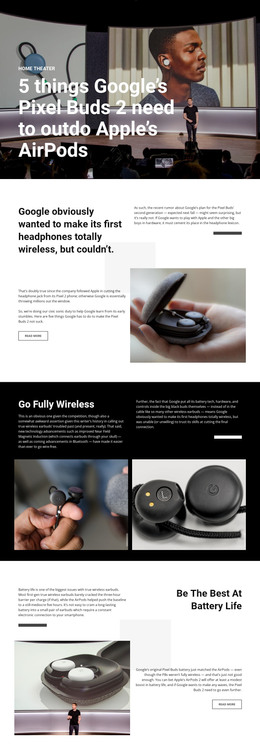
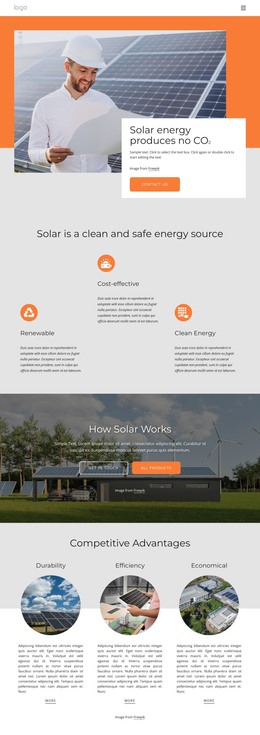
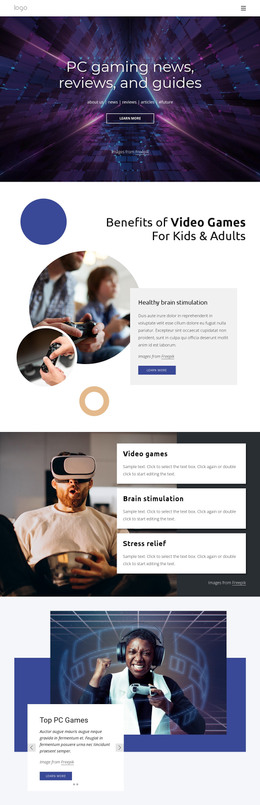
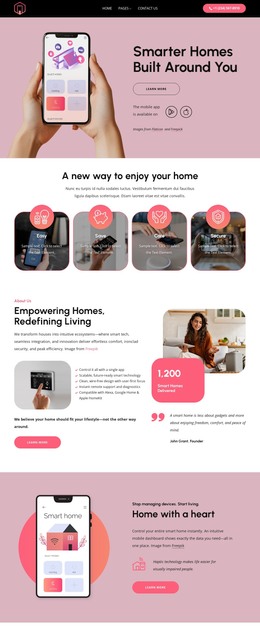
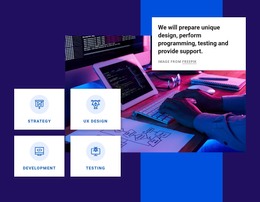
The paired photographs read as stable page content rather than time-sensitive editorial material. The keyboard image supplies an equipment-focused visual, while the virtual-reality portrait presents a person using immersive technology. Their equal-width arrangement creates one consistent gallery region that can remain visually recognizable wherever the broader WordPress-managed project uses this section.
This interpretation emphasizes reusable page content: the block can support a technology, equipment, or visual presentation area while other page sections handle written explanations, regularly updated material, or contact details. No blog posts, categories, widgets, or CMS-driven items are visible inside the block, and the static interaction keeps its role centered on the two images. Any surrounding publishing structure belongs to the page context rather than changing the gallery's internal composition.
The visual treatment also gives the section a dependable presentation pattern. Dark imagery with blue, purple, and pink lighting creates a strong backdrop, while the direct seam keeps the two subjects connected without blending them together. A WordPress-oriented project can place this stable image area within a larger page design and maintain the surrounding content through its wider CMS workflow, while the section itself continues to provide the same concise technology gallery.
Customize with Nicepage
Open this ready-made template in the WordPress Website Builder and customize it visually in the Nicepage editor. Replace demo content, edit page sections, and adapt the design to your project without rebuilding the template from scratch.
Edit Template Offline
2. Create a new page or select existing
3. Click Add new block, search for id 52585 and click enter
Edit Template Online
Create Awesome Websites


Free Nicepage Builder
Keywords
Manage and Edit This Theme in WordPress
Customize and Install the WordPress Theme
Start with this ready-made theme instead of building the WordPress design from scratch. Customize its layout, content, typography, images, sections, and other design elements visually in Nicepage editor, then export and install the WordPress Theme, Plugin, and Pages on your WordPress site. The Nicepage WordPress Plugin lets you continue working with the site after installation.
Edit the Theme Directly in WordPress
After installation, you can edit the WordPress Theme directly in WordPress with the Nicepage WordPress Plugin. Use Site Style to customize site Colors, Fonts, Header, Footer, Blog, and Post Page Templates while working within your WordPress website.
Edit WordPress Pages Visually
Use the Nicepage WordPress Plugin to edit page content directly from the WordPress admin area. Open a WordPress Page with Nicepage and visually change its text, images, sections, and other page elements while continuing to manage the Page through WordPress.
WordPress Content and Theme Integration
Use the customized theme with WordPress Pages, Posts, Blog and Post Templates, menus, widgets, and other CMS-managed content. Shared theme elements such as Colors, Fonts, Header, Footer, Blog, and Post Page Templates can be managed as part of the overall site design, while WordPress provides the CMS environment for managing site content.
This workflow combines a ready-made WordPress Theme with visual customization, direct theme editing in WordPress, and continued content management through the Nicepage WordPress Plugin.