Planning strategy WordPress Theme


Stable Service Content for a WordPress-Managed Page
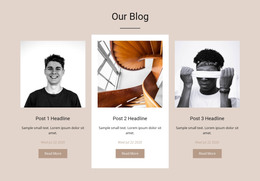
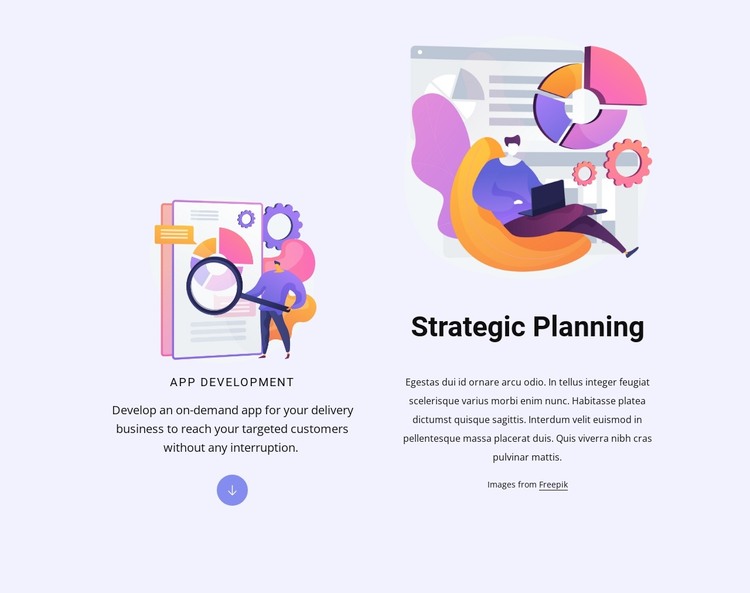
The two service areas read as durable page content rather than a time-sensitive post stream. App Development and Strategic Planning are presented as parallel offerings, each with its own illustration and supporting description. That structure gives a WordPress-oriented project a clearly bounded services section that can remain part of a permanent page while other content areas develop around it.
The left column uses the App Development label and a circular down-arrow accent beneath its text. The right column is organized around the Strategic Planning heading and retains an image credit to Freepik. These details help preserve the block's identity when it is placed beside other page sections. The pale lavender background and generous whitespace also provide a visual boundary, making the service content easier to distinguish from introductions, articles, portfolios, or contact areas managed elsewhere in the project.
A WordPress-managed page can use this block as one reusable visual content region without requiring the section itself to contain CMS-specific items. Its value comes from the relationship between two offerings, two illustrations, and their descriptions. Text and images can be maintained as page content while the surrounding site handles broader publishing, navigation, and additional sections. The result is a focused services area that supports the page's content structure without becoming a standalone theme.
Customize with Nicepage
Open this ready-made template in the WordPress Website Builder and customize it visually in the Nicepage editor. Replace demo content, edit page sections, and adapt the design to your project without rebuilding the template from scratch.
Edit Template Offline
2. Create a new page or select existing
3. Click Add new block, search for id 1230593 and click enter
Edit Template Online
Create Awesome Websites


Free Nicepage Builder
Keywords
Manage and Edit This Theme in WordPress
Customize and Install the WordPress Theme
Start with this ready-made theme instead of building the WordPress design from scratch. Customize its layout, content, typography, images, sections, and other design elements visually in Nicepage editor, then export and install the WordPress Theme, Plugin, and Pages on your WordPress site. The Nicepage WordPress Plugin lets you continue working with the site after installation.
Edit the Theme Directly in WordPress
After installation, you can edit the WordPress Theme directly in WordPress with the Nicepage WordPress Plugin. Use Site Style to customize site Colors, Fonts, Header, Footer, Blog, and Post Page Templates while working within your WordPress website.
Edit WordPress Pages Visually
Use the Nicepage WordPress Plugin to edit page content directly from the WordPress admin area. Open a WordPress Page with Nicepage and visually change its text, images, sections, and other page elements while continuing to manage the Page through WordPress.
WordPress Content and Theme Integration
Use the customized theme with WordPress Pages, Posts, Blog and Post Templates, menus, widgets, and other CMS-managed content. Shared theme elements such as Colors, Fonts, Header, Footer, Blog, and Post Page Templates can be managed as part of the overall site design, while WordPress provides the CMS environment for managing site content.
This workflow combines a ready-made WordPress Theme with visual customization, direct theme editing in WordPress, and continued content management through the Nicepage WordPress Plugin.