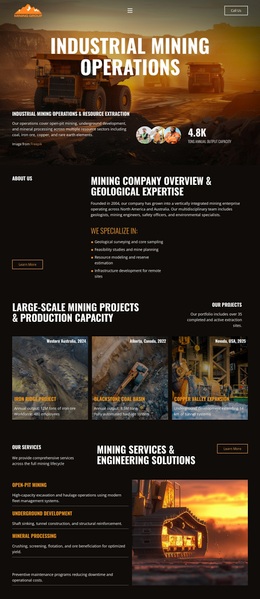
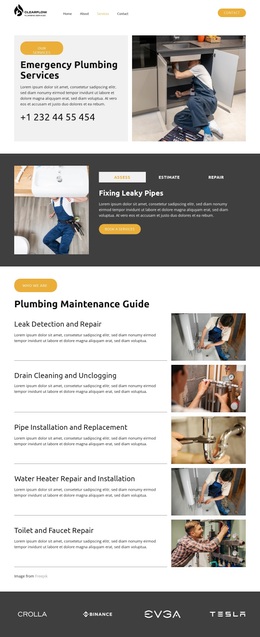
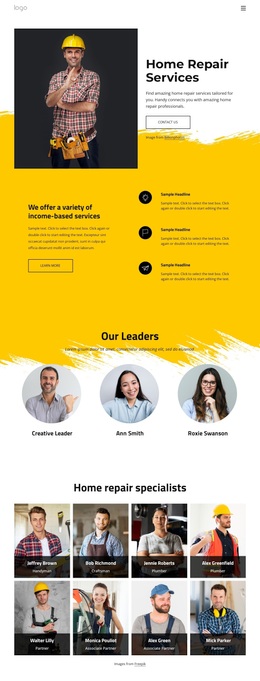
Machinery parks for industrial Template


Edit Template Offline
2. Create new page and search for id 48832
Edit Template Online
Create Awesome Websites


Free Nicepage Builder
Keywords
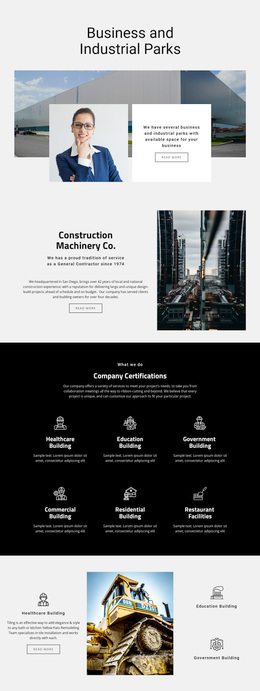
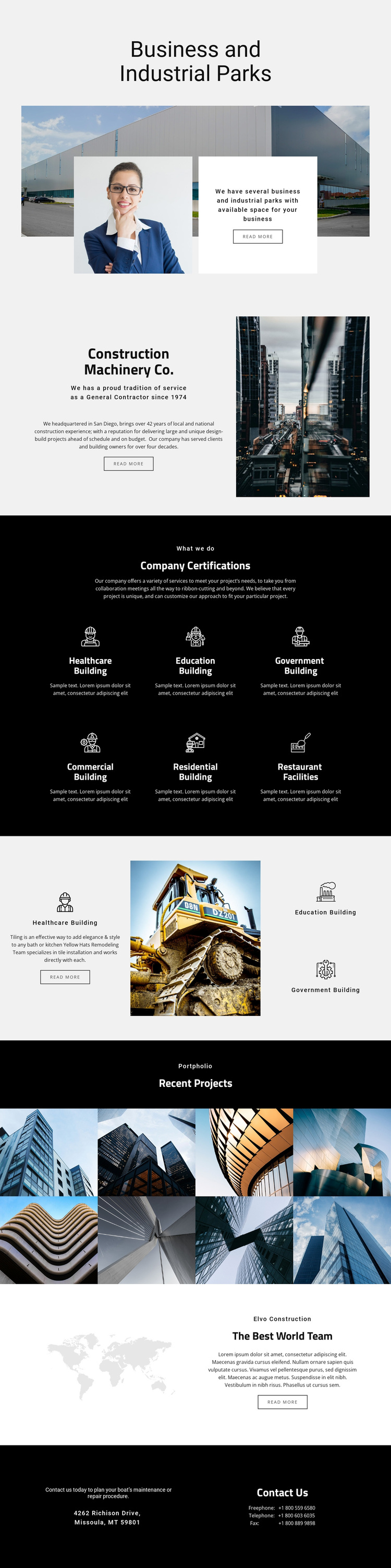
Six building categories and eight project images define the choice
Business and Industrial Parks gives this design a specific starting point rather than a generic construction-company appearance. The large industrial photograph carries the opening message, and the white information card creates contrast across the lower image area. That visual emphasis is followed by a split company introduction, where construction copy sits beside a tall site photograph. The combination suits projects that need to present an industrial offering while retaining a clear company identity.
The strongest distinguishing content is the capabilities section. Six repeated icon-led items name healthcare, education, government, commercial, residential, and restaurant building categories, giving the page unusually broad coverage within one presentation. The nearby asymmetric grid changes the scale of that information by placing selected categories around a central construction-equipment photograph. This relationship adds a more editorial feature moment instead of leaving all capabilities at the same visual weight.
The eight-image Recent Projects gallery makes imagery a major carrier of the message. Its dense two-row arrangement can support a portfolio-led presentation where completed environments or project types should be seen quickly. The world-map graphic then adds a restrained international identity cue, while the final dark panels provide address, telephone, fax, and inquiry content. Together, these facts make the design a useful option for construction and industrial projects that need breadth, visual proof, and a defined contact ending.
Customize with Nicepage
Open this ready-made template in the Template Builder and customize it visually in the Nicepage editor. Replace demo content, edit page sections, and adapt the design to your project without rebuilding the template from scratch.
Start With a Ready-Made Template
Choose a Design for a New Page
Use a ready-made template as a starting point instead of creating every page from a blank canvas. When adding a new page in Nicepage, browse available designs, compare different layouts, and choose an option that already fits the general purpose and visual direction of your project.
Browse Different Page Designs
Explore Page Designs using search, thematic categories, Design Sets, and full-page previews. The collection includes layouts for different subjects and page purposes, making it easier to compare alternatives before selecting a design to customize.
Customize the Selected Template
After choosing a design, create the page and continue editing it visually in Nicepage. Replace the demo content, adjust images, typography, colors, sections, and other elements, and adapt the ready-made layout to your own content instead of rebuilding the design from the beginning.
Explore More Design Directions
If the first option does not match your project closely enough, return to the design collection and compare other templates before committing to a layout. This makes the template library useful not only for faster page creation, but also for exploring different visual approaches and finding a suitable starting point for a new project.
This workflow gives you access to a broad collection of ready-made designs that can be selected, compared, and customized according to the needs of each new page or project.