Colour of 2019 Template


Edit Template Offline
2. Create new page and search for id 27270
Edit Template Online
Create Awesome Websites


Free Nicepage Builder
Keywords
Living Coral Gives This Editorial Layout a Distinctive Focus
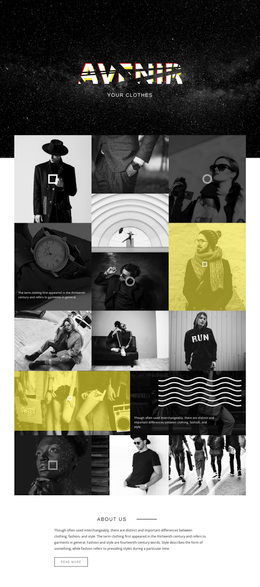
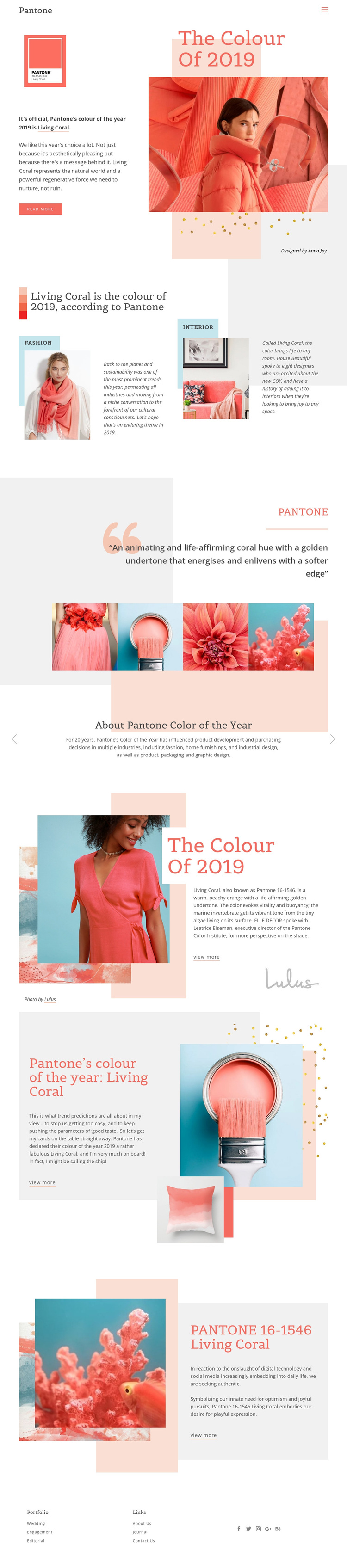
The strongest reason to choose this design is its unusually specific subject treatment. Living Coral is not used merely as an accent; it is the organizing idea of the page, identified as Pantone 16-1546 and presented as the 2019 color of the year. The coral, peach, pink, and pale gray palette reinforces that focus visually, while the asymmetrical magazine-inspired compositions give the content an editorial rather than a standard corporate presentation.
The layout also offers several ways to interpret the same theme. The hero establishes the color immediately through large photography and a prominent title. The fashion and interior features then show how the subject reaches across creative disciplines, while the four-image gallery supplies visual references instead of relying only on explanation. A slider adds context about Pantone’s annual selection, and the later split sections return to color meaning, trend commentary, and the official identifier. This combination suits projects that need a visually led feature about color, style, culture, or design influence. The compact navigation, read more and view more actions, and social footer make the page feel like an editorial destination with room for related stories and references. It stands out through focused subject matter and image-led interpretation, not through a generic claim of broad functionality.
Customize with Nicepage
Open this ready-made template in the Template Builder and customize it visually in the Nicepage editor. Replace demo content, edit page sections, and adapt the design to your project without rebuilding the template from scratch.
Start With a Ready-Made Template
Choose a Design for a New Page
Use a ready-made template as a starting point instead of creating every page from a blank canvas. When adding a new page in Nicepage, browse available designs, compare different layouts, and choose an option that already fits the general purpose and visual direction of your project.
Browse Different Page Designs
Explore Page Designs using search, thematic categories, Design Sets, and full-page previews. The collection includes layouts for different subjects and page purposes, making it easier to compare alternatives before selecting a design to customize.
Customize the Selected Template
After choosing a design, create the page and continue editing it visually in Nicepage. Replace the demo content, adjust images, typography, colors, sections, and other elements, and adapt the ready-made layout to your own content instead of rebuilding the design from the beginning.
Explore More Design Directions
If the first option does not match your project closely enough, return to the design collection and compare other templates before committing to a layout. This makes the template library useful not only for faster page creation, but also for exploring different visual approaches and finding a suitable starting point for a new project.
This workflow gives you access to a broad collection of ready-made designs that can be selected, compared, and customized according to the needs of each new page or project.