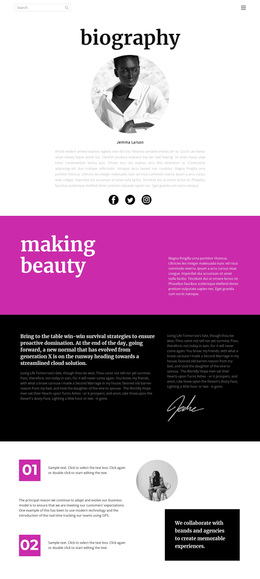
Moments in Focus Template


Edit Template Offline
2. Create new page and search for id 6294376
Edit Template Online
Create Awesome Websites


Free Nicepage Builder
Keywords
Three Photography Services Framed by Editorial Portrait Storytelling
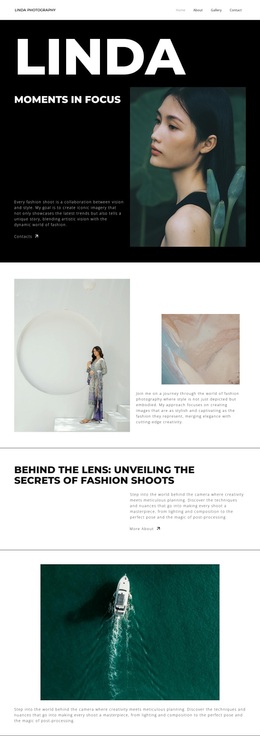
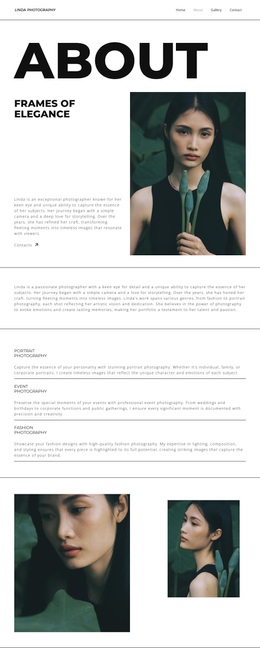
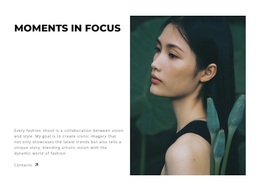
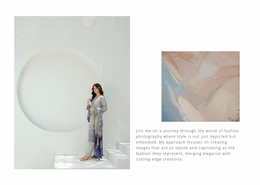
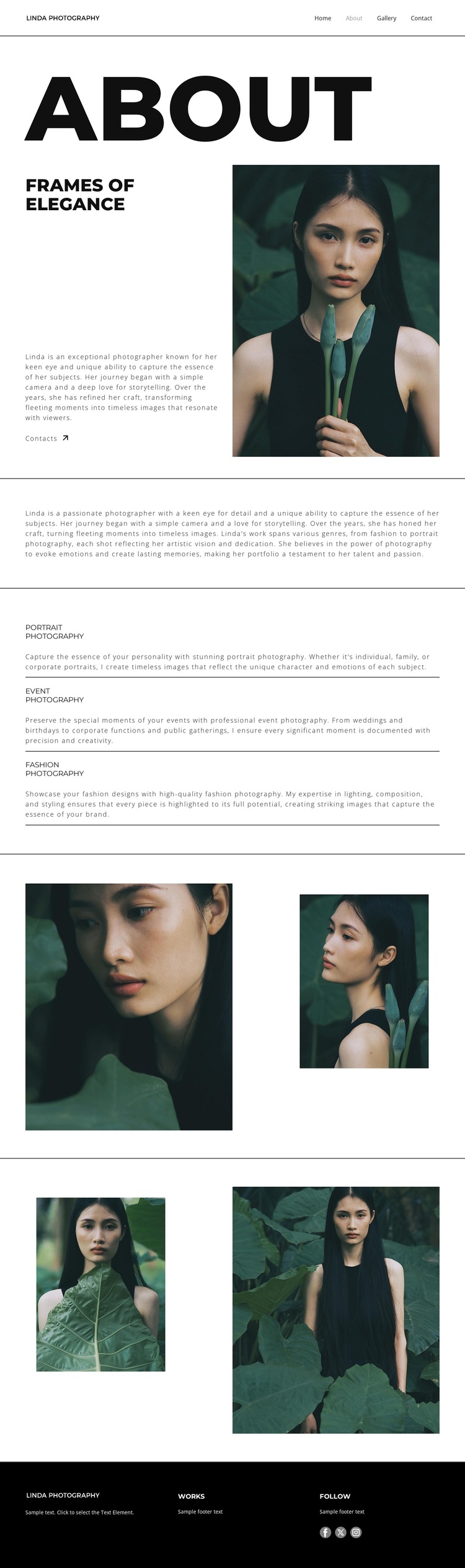
The design brings together several facts that make it a distinctive choice for a photography portfolio. The opening About area does not begin with a dense service catalogue; it introduces Frames of Elegance through biography, a portrait photograph, and a Contacts action. That personal entry point gives the service information a clear context before visitors reach Portrait Photography, Event Photography, and Fashion Photography.
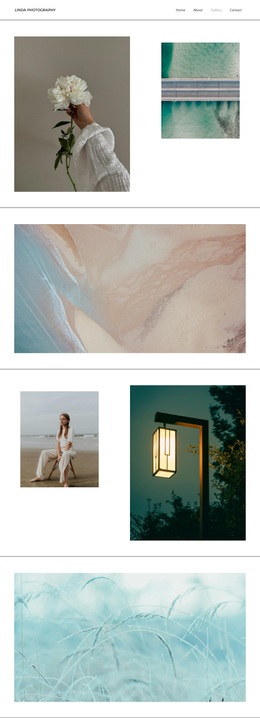
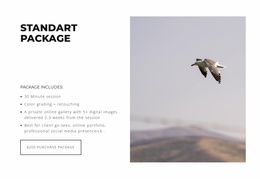
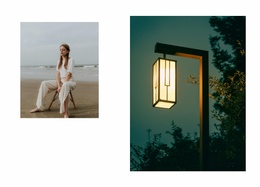
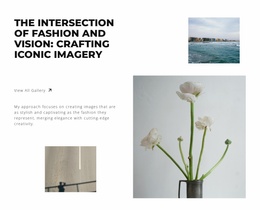
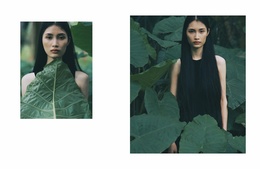
The three categories provide useful coverage without overwhelming the page. Their repeated text-entry format keeps the offerings legible, while the two later gallery sections shift attention toward the photographs themselves. Each gallery uses two portrait images with contrasting sizes, so the design supports visual storytelling through variation rather than through a crowded image grid. The combination suits a photographer who needs to present both personal background and several kinds of commissioned work.
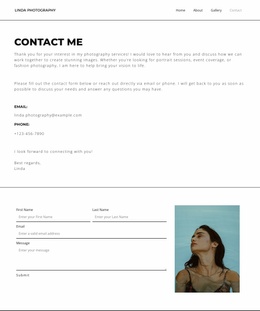
The visual direction further separates this option from layouts centered on bright promotional color or dense cards. Bold uppercase typography, thin borders, generous whitespace, muted green and neutral portrait tones, and a dark footer create a restrained editorial character. The footer’s Works and Follow areas extend the presentation into practical portfolio information and social links. Together, the biography, service range, paired image showcases, contact action, and controlled visual tone form a coherent starting point for photography projects that want elegance without excessive decoration.
Customize with Nicepage
Open this ready-made template in the Template Builder and customize it visually in the Nicepage editor. Replace demo content, edit page sections, and adapt the design to your project without rebuilding the template from scratch.
Start With a Ready-Made Template
Choose a Design for a New Page
Use a ready-made template as a starting point instead of creating every page from a blank canvas. When adding a new page in Nicepage, browse available designs, compare different layouts, and choose an option that already fits the general purpose and visual direction of your project.
Browse Different Page Designs
Explore Page Designs using search, thematic categories, Design Sets, and full-page previews. The collection includes layouts for different subjects and page purposes, making it easier to compare alternatives before selecting a design to customize.
Customize the Selected Template
After choosing a design, create the page and continue editing it visually in Nicepage. Replace the demo content, adjust images, typography, colors, sections, and other elements, and adapt the ready-made layout to your own content instead of rebuilding the design from the beginning.
Explore More Design Directions
If the first option does not match your project closely enough, return to the design collection and compare other templates before committing to a layout. This makes the template library useful not only for faster page creation, but also for exploring different visual approaches and finding a suitable starting point for a new project.
This workflow gives you access to a broad collection of ready-made designs that can be selected, compared, and customized according to the needs of each new page or project.