Two phones for consultation Joomla Template



Two Phone Lines Create a Structured Contact Region
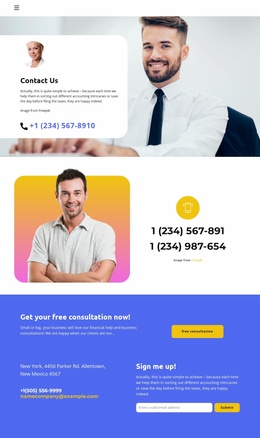
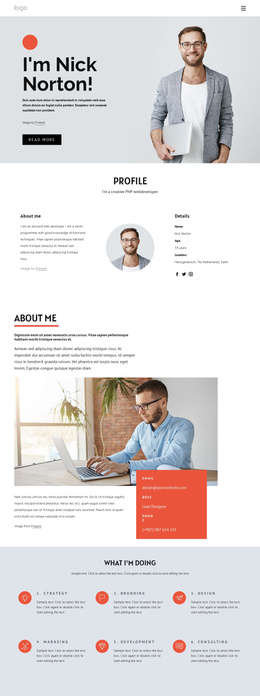
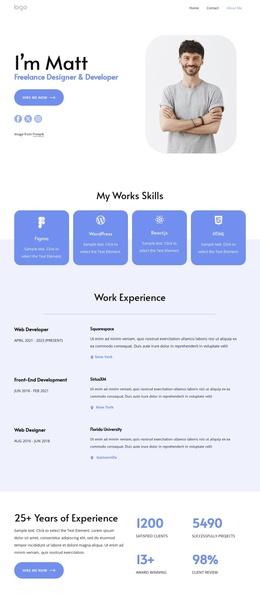
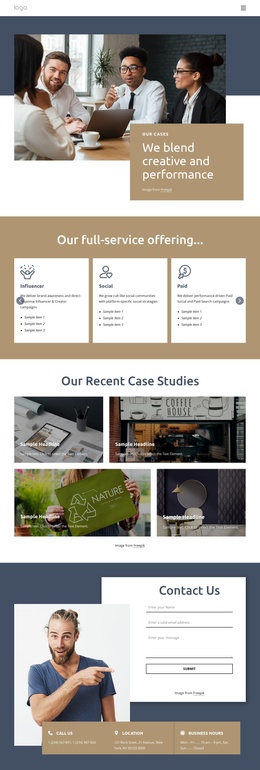
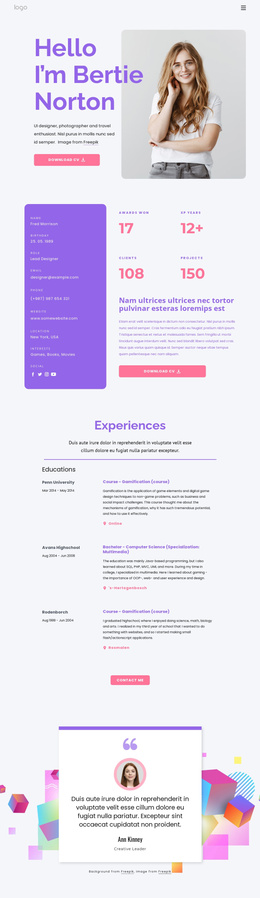
The left panel organizes the block's primary information into one compact contact region: a circular phone icon introduces the channel, and two telephone-number lines sit beneath it in bold white text. Beside this, the white panel isolates a single colorful illustration inside generous space. The two equal columns therefore separate informational content from visual support while keeping them within one recognizable section.
In a Joomla-managed page, this arrangement can serve as a stable contact-information area alongside broader editorial content. The two phone lines can remain a concise, page-oriented content group, while the illustration helps mark the region visually without adding another communication method. Since the interaction is static and the block has no heading, its meaning comes from the phone symbol, centered alignment, and contrast between the teal and white panels. The surrounding Joomla project can provide the page title, navigation, related content, or other contact channels around this section; the block itself remains focused on displaying the two telephone details. This makes it suitable for a page region that needs a visible consultation contact point without requiring a form, appointment workflow, or expandable content model. Its balanced split also gives the section a consistent visual boundary when placed between neighboring content areas.
Customize with Nicepage
Open this ready-made template in the Joomla Page Builder and customize it visually in the Nicepage editor. Replace demo content, edit page sections, and adapt the design to your project without rebuilding the template from scratch.
Edit Template Offline
2. Create a new page or select existing
3. Click Add new block, search for id 3494149 and click enter
Edit Template Online
Create Awesome Websites


Free Nicepage Builder
Keywords
Work With This Template in Joomla
Customize and Install the Joomla Template
Start with this ready-made template instead of building the Joomla design from scratch. Customize its layout, content, typography, images, sections, and other design elements visually in the Nicepage application, then export and install the Joomla Template, Nicepage Extension, and supported content on your Joomla website.
Edit the Template Directly in Joomla
After installation, you can edit the Joomla Template directly in Joomla with the Nicepage Joomla Extension. Customize the Header, Footer, Colors, Fonts, typography, and Page Templates from the Joomla workflow while keeping the site design connected with your CMS content.
Edit Joomla Articles Visually
Use the Nicepage Joomla Extension to open and edit Joomla Articles visually from the Joomla Administrator. Change text, images, sections, layouts, and other page content in the Nicepage editor while continuing to manage the Articles through Joomla.
Joomla Content and Template Integration
Use the customized template together with Joomla Articles, module Positions, menus, forms, Blog Pages, and other supported CMS elements. With the Nicepage Extension used as the Site Style Source, shared design settings can be applied across Joomla Articles while Joomla continues to provide the CMS environment for managing site content.
This workflow combines a ready-made Joomla Template with visual customization, direct template editing in Joomla, and continued content management through the Nicepage Joomla Extension.