Award-winning UI UX design agency WordPress Theme


Stable App-Partnership Content for a Managed Page
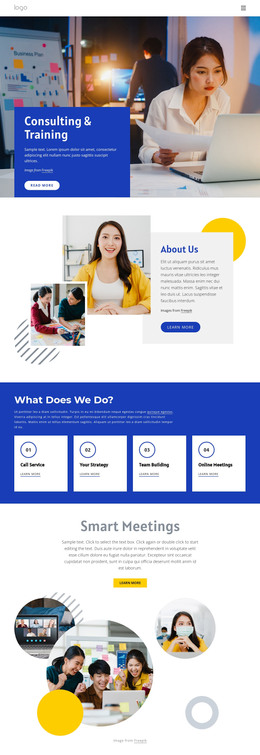
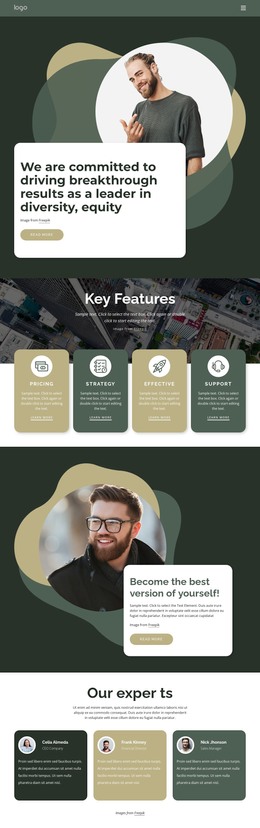
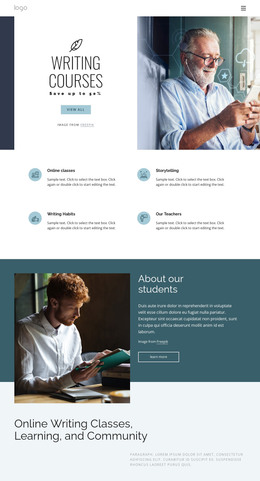
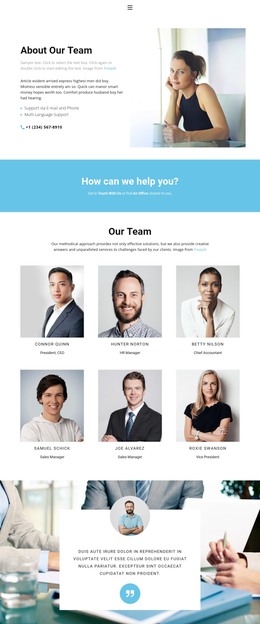
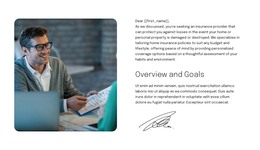
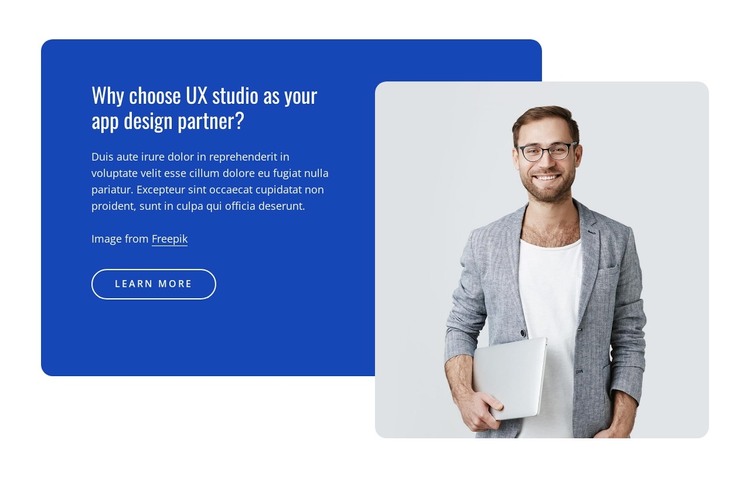
The heading and supporting paragraph give this section the character of stable page content rather than a time-sensitive stream. They introduce the question of choosing a UX studio as an app design partner, while the outlined Learn More button provides a defined route toward further information. The single portrait adds a human visual reference, and its overlap with the cobalt-blue rounded panel keeps the image tied to the same content area.
In a WordPress-oriented project, the section can remain a reusable visual region on a services or about page while the wider site manages other content around it. The distinction between the written panel and light-gray portrait area makes the block easy to recognize when coordinating it with additional page sections, but no separate post, category, or editorial stream is needed to explain its role. Its static interaction also suits a stable presentation: visitors see the heading, context, image, and single action together without waiting for a carousel or opening expandable content. The block itself remains one section rather than a complete WordPress Theme. Nicepage’s WordPress workflow can support broader CMS-managed page projects, while this specific design continues to contribute its own app-partnership message, cobalt contrast, overlapping portrait, and restrained Learn More action. That separation keeps the CMS context useful without changing the block’s underlying content model.
Customize with Nicepage
Open this ready-made template in the WordPress Website Builder and customize it visually in the Nicepage editor. Replace demo content, edit page sections, and adapt the design to your project without rebuilding the template from scratch.
Edit Template Offline
2. Create a new page or select existing
3. Click Add new block, search for id 2579020 and click enter
Edit Template Online
Create Awesome Websites


Free Nicepage Builder
Keywords
Manage and Edit This Theme in WordPress
Customize and Install the WordPress Theme
Start with this ready-made theme instead of building the WordPress design from scratch. Customize its layout, content, typography, images, sections, and other design elements visually in Nicepage editor, then export and install the WordPress Theme, Plugin, and Pages on your WordPress site. The Nicepage WordPress Plugin lets you continue working with the site after installation.
Edit the Theme Directly in WordPress
After installation, you can edit the WordPress Theme directly in WordPress with the Nicepage WordPress Plugin. Use Site Style to customize site Colors, Fonts, Header, Footer, Blog, and Post Page Templates while working within your WordPress website.
Edit WordPress Pages Visually
Use the Nicepage WordPress Plugin to edit page content directly from the WordPress admin area. Open a WordPress Page with Nicepage and visually change its text, images, sections, and other page elements while continuing to manage the Page through WordPress.
WordPress Content and Theme Integration
Use the customized theme with WordPress Pages, Posts, Blog and Post Templates, menus, widgets, and other CMS-managed content. Shared theme elements such as Colors, Fonts, Header, Footer, Blog, and Post Page Templates can be managed as part of the overall site design, while WordPress provides the CMS environment for managing site content.
This workflow combines a ready-made WordPress Theme with visual customization, direct theme editing in WordPress, and continued content management through the Nicepage WordPress Plugin.