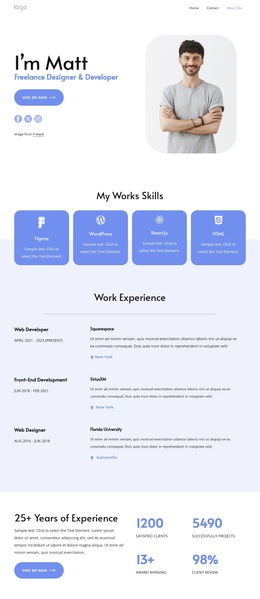
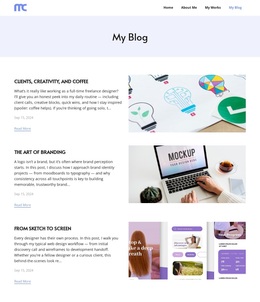
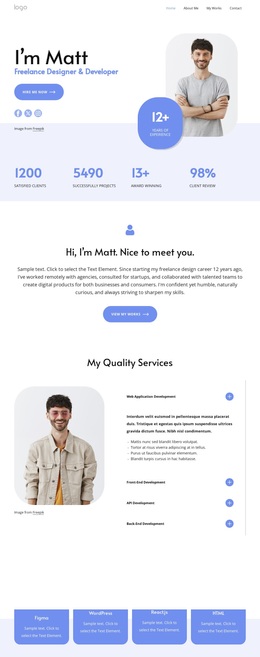
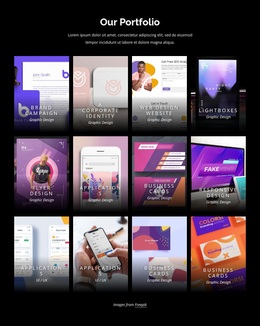
My portfolio Template


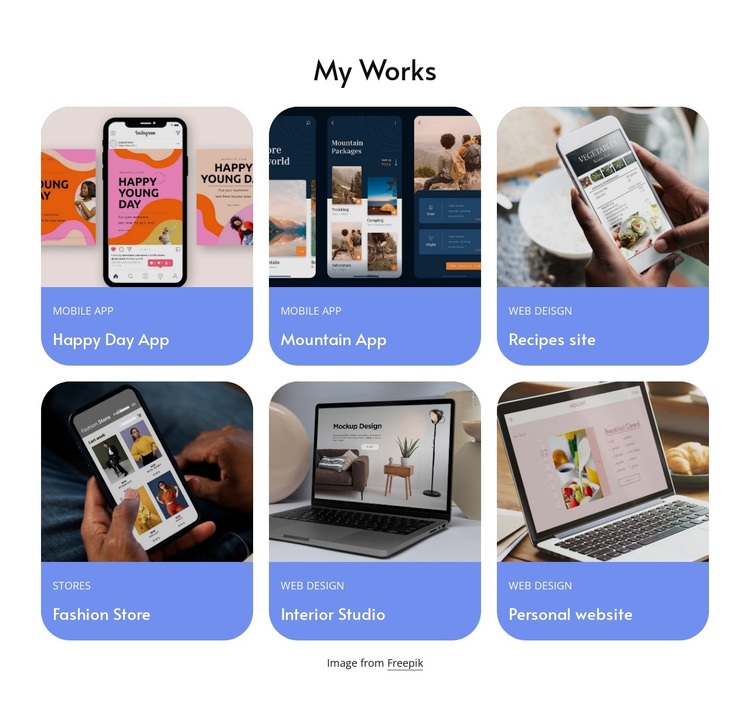
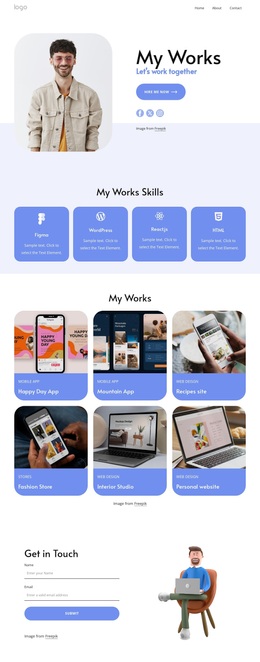
Six Project Cards Give the Section a Clear Selection Advantage
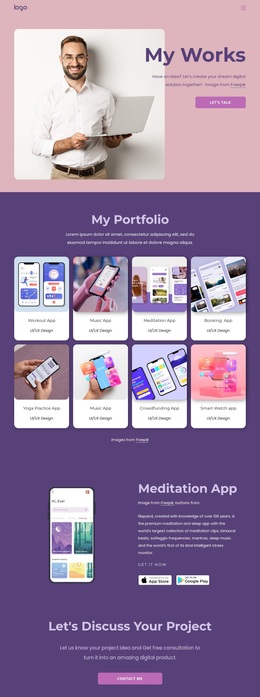
The strongest reason to choose this block is its combination of breadth and compact presentation. Six portfolio examples are visible in a three-column grid across two rows, so the section can show a varied body of work without expanding into a long list. The centered “My Works” heading establishes the purpose immediately, while each card gives one project its own image, category label, and title.
The collection covers examples such as Happy Day App, Mountain App, Recipes site, Fashion Store, Interior Studio, and Personal website. That mix makes the layout useful when a page needs to communicate several design directions at once, including mobile app, web design, store, interior, and personal work. The cards are more informative than a simple image gallery because the lower blue panels preserve category and title context alongside the visual preview.
Rounded corners and consistent spacing add a recognizable treatment without overwhelming the project imagery. The repeated three-column structure also makes the block easy to compare with alternative portfolio arrangements, such as a single featured case study or a larger gallery. Choose this section when the page needs a balanced selection of work that remains visually organized and easy to scan, while other blocks handle introductions, detailed case studies, or contact actions.
Customize with Nicepage
Open this ready-made template in the Template Builder and customize it visually in the Nicepage editor. Replace demo content, edit page sections, and adapt the design to your project without rebuilding the template from scratch.
Edit Template Offline
2. Create a new page or select existing
3. Click Add new block, search for id 6343359 and click enter
Edit Template Online
Create Awesome Websites


Free Nicepage Builder
Keywords
Start With a Ready-Made Template
Choose a Design for a New Page
Use a ready-made template as a starting point instead of creating every page from a blank canvas. When adding a new page in Nicepage, browse available designs, compare different layouts, and choose an option that already fits the general purpose and visual direction of your project.
Browse Different Page Designs
Explore Page Designs using search, thematic categories, Design Sets, and full-page previews. The collection includes layouts for different subjects and page purposes, making it easier to compare alternatives before selecting a design to customize.
Customize the Selected Template
After choosing a design, create the page and continue editing it visually in Nicepage. Replace the demo content, adjust images, typography, colors, sections, and other elements, and adapt the ready-made layout to your own content instead of rebuilding the design from the beginning.
Explore More Design Directions
If the first option does not match your project closely enough, return to the design collection and compare other templates before committing to a layout. This makes the template library useful not only for faster page creation, but also for exploring different visual approaches and finding a suitable starting point for a new project.
This workflow gives you access to a broad collection of ready-made designs that can be selected, compared, and customized according to the needs of each new page or project.