Faq on web design Website Template


Edit Template Offline
2. Create new page and search for id 6349640
Edit Template Online
Create Awesome Websites


Free Nicepage Builder
Keywords
Navigation, Client Questions, and Contact Form a Broader Site Foundation
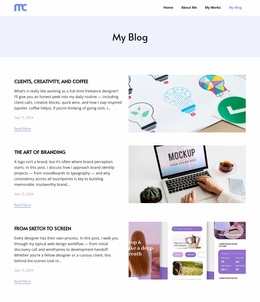
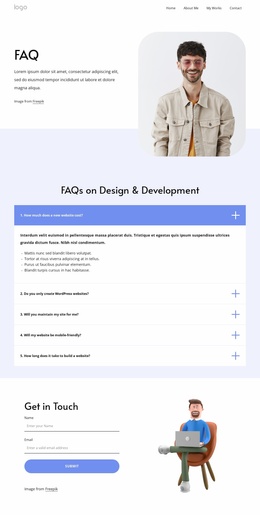
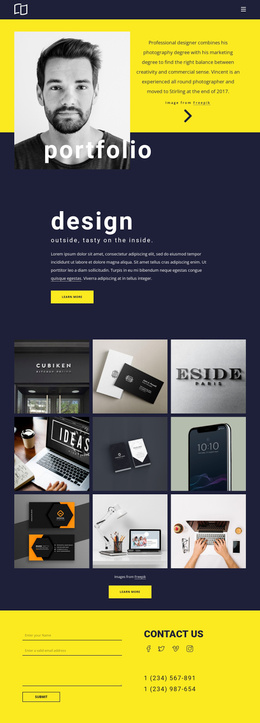
The page establishes several content categories that can support a broader website project without claiming that additional pages are already included. Its header separates Home, About Me, My Works, and My Blog into recognizable navigation destinations, giving the design a clear relationship to personal profile, portfolio, and editorial content. The FAQ page can therefore function as one focused information area within a larger web design practice.
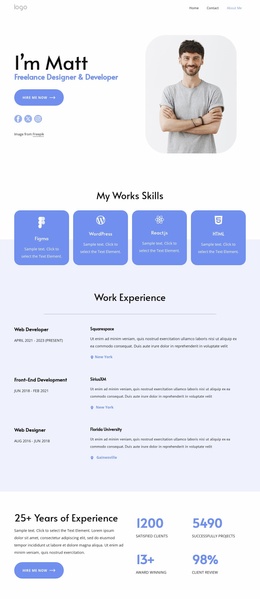
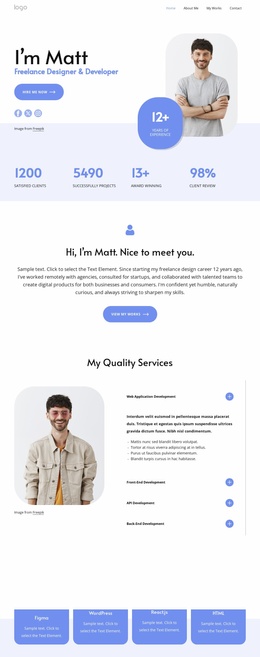
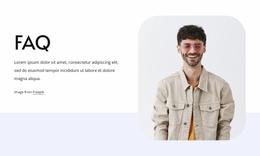
The five-question accordion supplies a useful client-facing content category. Questions about cost, WordPress websites, maintenance, mobile friendliness, and build time cover practical concerns that often arise before a project begins. Positioned after the portrait-led introduction, the accordion gives the potential site structure a dedicated place for explanatory content rather than mixing every topic into one general section.
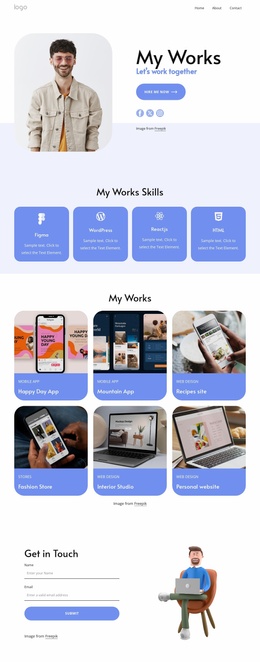
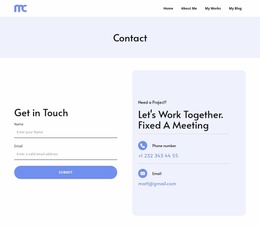
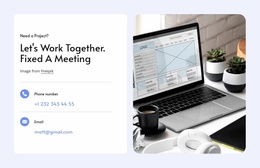
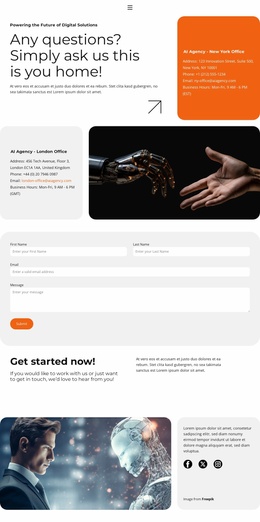
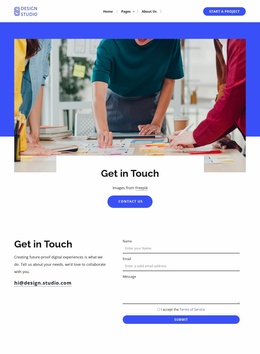
The contact area adds another important foundation category. Its name and email inputs provide a defined inquiry point, while the adjacent illustration prevents the form from becoming an isolated utility block. At the bottom, Facebook, Twitter, and Instagram links sit alongside contact information and the message “Let’s create something great,” extending the page into a recognizable social and communication region. These relationships give a larger site a starting information architecture: navigation at the top, personal context and work-related content pathways, client guidance in the FAQ, and contact or social follow-up near the end.
Customize with Nicepage
Open this ready-made template in the Website Template Builder and customize it visually in the Nicepage editor. Replace demo content, edit page sections, and adapt the design to your project without rebuilding the template from scratch.
Build a Complete Website From This Template
Customize the Website Visually
Use this ready-made website template as a starting point for your project and adapt its pages visually in Nicepage. Change content, images, typography, navigation, sections, and other design elements while keeping the website together as a single editable project.
Manage Website Pages in One Project
Use the Pages panel to open, add, duplicate, and manage the pages of your website. Work on individual pages while keeping navigation and the overall site structure accessible from the same project, making it easier to develop a complete website instead of managing separate page files.
Expand the Website With Matching Designs
When you need additional pages or sections, use Page Design Sets to find Page and Block Designs created in the same visual style. Design Sets group matching designs together, making it easier to expand the website with new content while maintaining a consistent look across its pages and sections.
Organize Larger Multi-Page Websites
As the website grows, use Page Folders to organize related pages and keep larger multi-page projects easier to navigate in the editor. This is especially useful for websites with separate service pages, company information, contacts, landing pages, and other content areas.
This workflow makes the template a practical foundation for building and expanding a complete website while managing its pages, content, and visual design within one Nicepage project.