Custom iOS and Android apps for your business Template


Edit Template Offline
2. Create new page and search for id 5564969
Edit Template Online
Create Awesome Websites


Free Nicepage Builder
Keywords
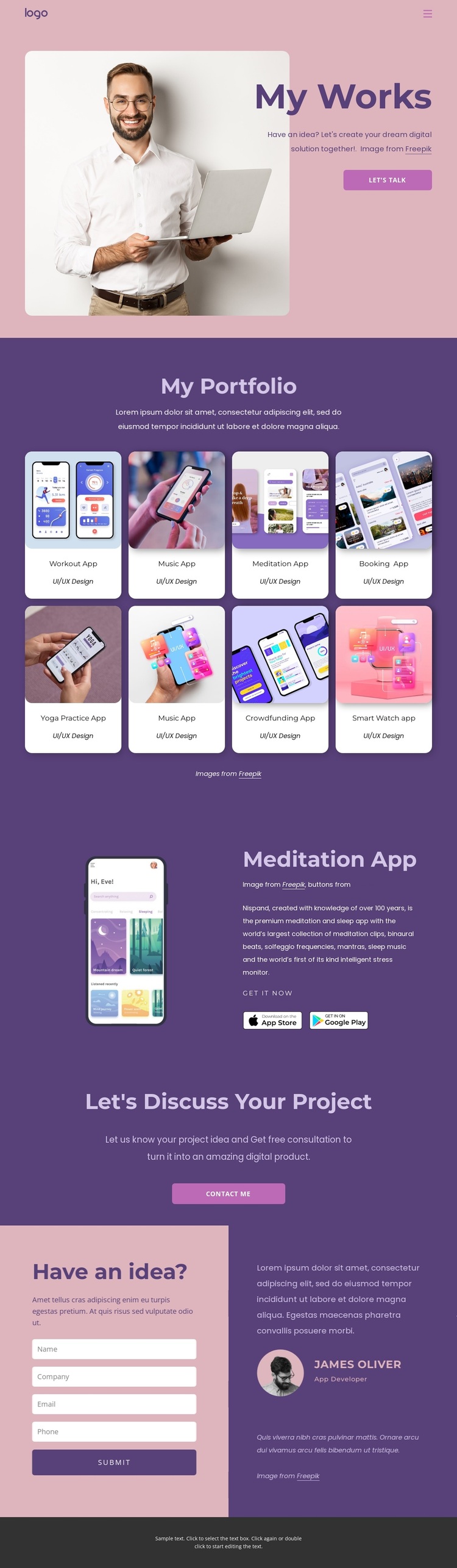
Eight App Concepts Give This Portfolio a Clear Selection Profile
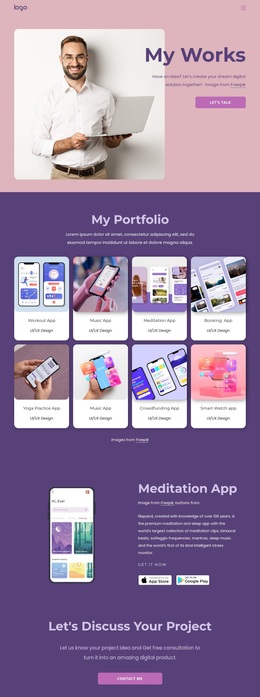
The combination of eight app project entries and a consistent UI/UX Design label makes this design a strong option for work that needs to communicate range without losing a clear specialization. The portfolio grid can show different product directions, from workout and music apps to booking, yoga, crowdfunding, and smartwatch concepts. Because the entries share a repeated card format, visitors can compare the visual work while still seeing the collection as one coherent practice.
The featured Meditation App gives the page a second reason to stand out. Instead of ending with a gallery of project cards, the design expands one example into a phone mockup, explanatory description, “Get It Now” label, and two store badges. That shift from overview to closer presentation helps demonstrate how a selected digital product can be framed for visitors.
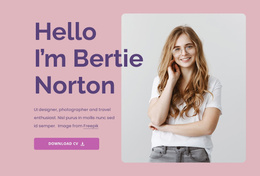
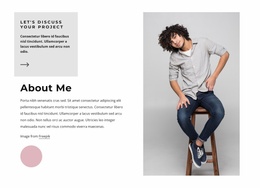
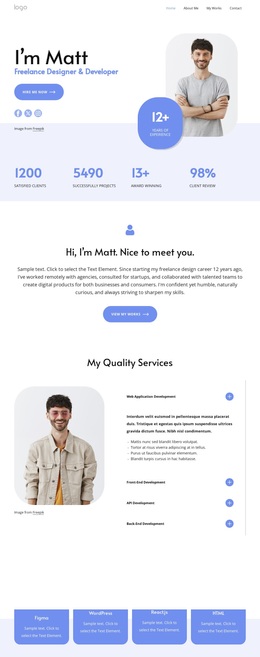
The opening portrait and “My Works” heading establish a personal point of view, while the “Let’s Discuss Your Project” and “Have an idea?” sections make the intended next conversation visible. The contact form adds a practical inquiry route after the work has been reviewed. Together, the varied app examples, featured product detail, personal introduction, and direct discussion path make this a useful choice for a designer who wants the portfolio itself to carry both evidence of capability and an invitation to begin a project.
Customize with Nicepage
Open this ready-made template in the Template Builder and customize it visually in the Nicepage editor. Replace demo content, edit page sections, and adapt the design to your project without rebuilding the template from scratch.
Start With a Ready-Made Template
Choose a Design for a New Page
Use a ready-made template as a starting point instead of creating every page from a blank canvas. When adding a new page in Nicepage, browse available designs, compare different layouts, and choose an option that already fits the general purpose and visual direction of your project.
Browse Different Page Designs
Explore Page Designs using search, thematic categories, Design Sets, and full-page previews. The collection includes layouts for different subjects and page purposes, making it easier to compare alternatives before selecting a design to customize.
Customize the Selected Template
After choosing a design, create the page and continue editing it visually in Nicepage. Replace the demo content, adjust images, typography, colors, sections, and other elements, and adapt the ready-made layout to your own content instead of rebuilding the design from the beginning.
Explore More Design Directions
If the first option does not match your project closely enough, return to the design collection and compare other templates before committing to a layout. This makes the template library useful not only for faster page creation, but also for exploring different visual approaches and finding a suitable starting point for a new project.
This workflow gives you access to a broad collection of ready-made designs that can be selected, compared, and customized according to the needs of each new page or project.