Freelance developer Template


Edit Template Offline
2. Create new page and search for id 6345884
Edit Template Online
Create Awesome Websites


Free Nicepage Builder
Keywords
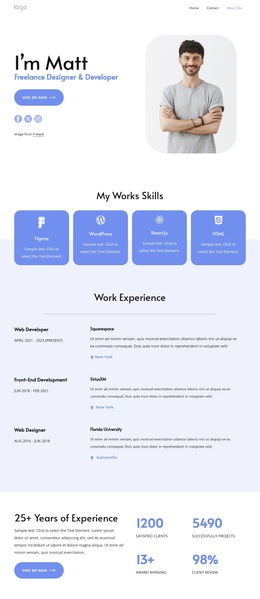
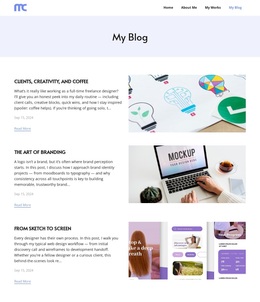
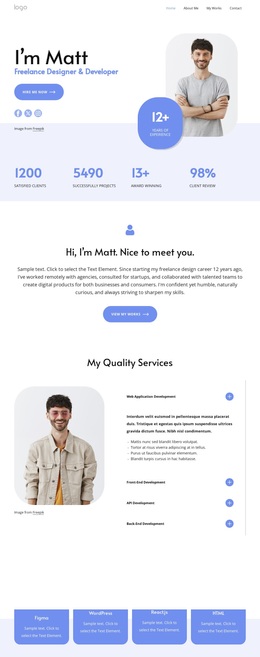
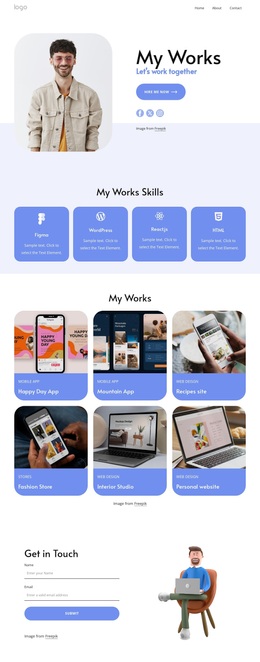
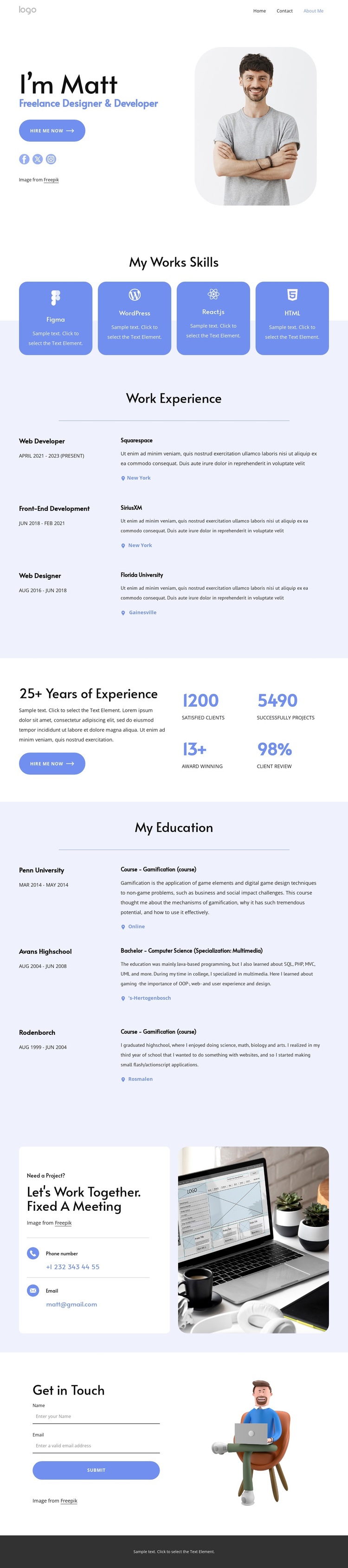
Four Technology Cards Lead Into a Full Freelance Profile
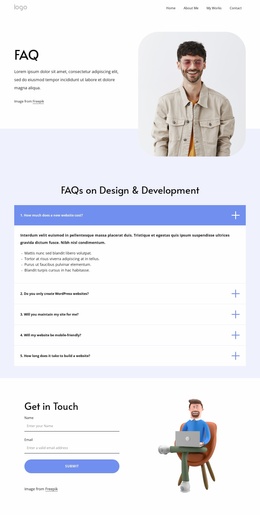
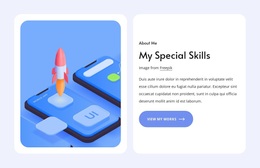
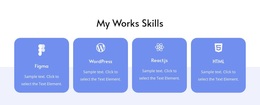
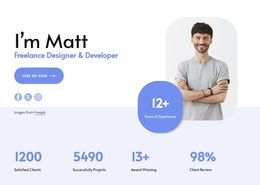
The design is a useful choice for projects that need to present both personal identity and practical development credentials. Its portrait-led introduction creates an immediate human context, while the freelance role label, social links, and Hire Me Now button establish the intended professional relationship. The four equal skill cards then make the technology focus easy to scan: Figma, WordPress, React.js, and HTML are visible as a concise capability set rather than being buried in long text.
The page also covers the evidence that a client may want to review before making contact. Three work experience entries provide a repeated career-history structure, and three education entries add a separate background section. A summary panel with displayed proof-point labels creates a stronger visual pause between those histories. Because the sample names, organizations, dates, metrics, and contact values are demonstration content, they should be replaced with the freelancer’s verified information.
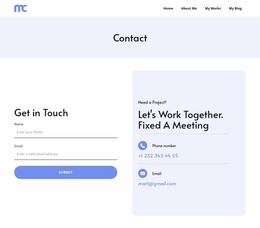
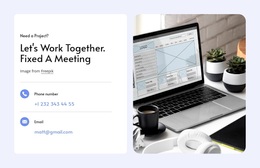
What distinguishes this option is the balance between compact skill presentation and detailed resume coverage. The lower project invitation, phone and email channels, contact form, and social footer prevent the page from ending as a passive biography. It offers a ready-made direction for a designer or developer who needs one coherent profile with visible ways for prospective clients to begin a conversation.
Customize with Nicepage
Open this ready-made template in the Template Builder and customize it visually in the Nicepage editor. Replace demo content, edit page sections, and adapt the design to your project without rebuilding the template from scratch.
Start With a Ready-Made Template
Choose a Design for a New Page
Use a ready-made template as a starting point instead of creating every page from a blank canvas. When adding a new page in Nicepage, browse available designs, compare different layouts, and choose an option that already fits the general purpose and visual direction of your project.
Browse Different Page Designs
Explore Page Designs using search, thematic categories, Design Sets, and full-page previews. The collection includes layouts for different subjects and page purposes, making it easier to compare alternatives before selecting a design to customize.
Customize the Selected Template
After choosing a design, create the page and continue editing it visually in Nicepage. Replace the demo content, adjust images, typography, colors, sections, and other elements, and adapt the ready-made layout to your own content instead of rebuilding the design from the beginning.
Explore More Design Directions
If the first option does not match your project closely enough, return to the design collection and compare other templates before committing to a layout. This makes the template library useful not only for faster page creation, but also for exploring different visual approaches and finding a suitable starting point for a new project.
This workflow gives you access to a broad collection of ready-made designs that can be selected, compared, and customized according to the needs of each new page or project.