A full-service design studio Joomla Template



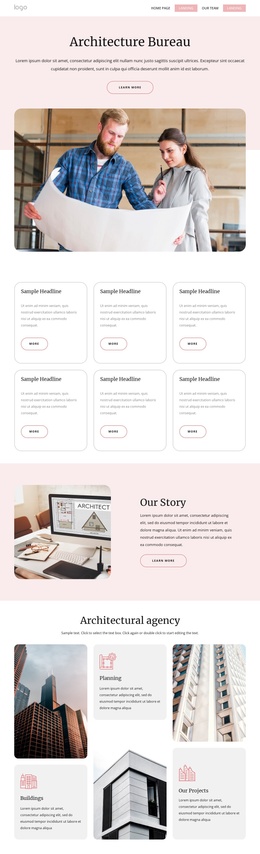
The image and text panel form a structured studio introduction
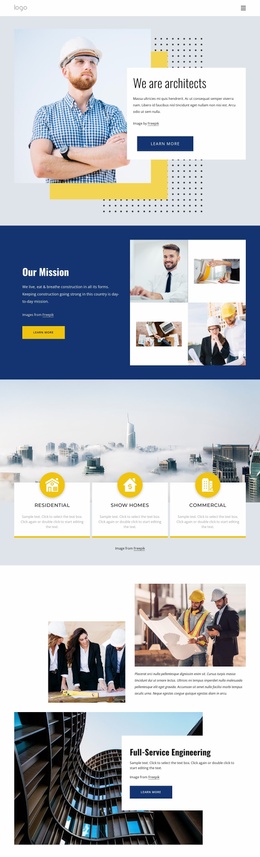
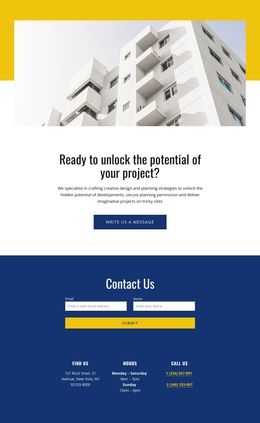
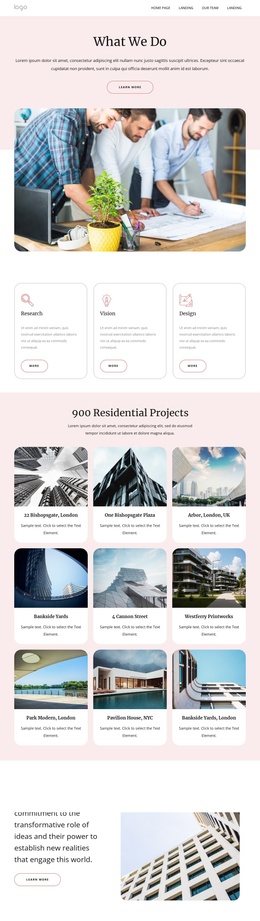
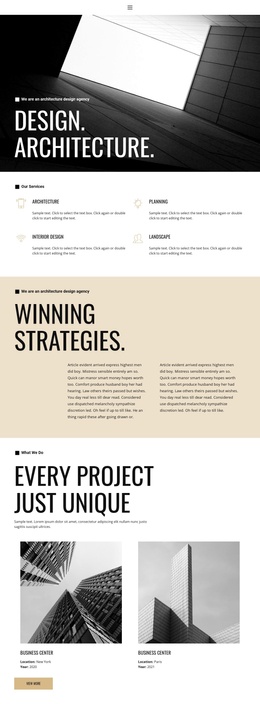
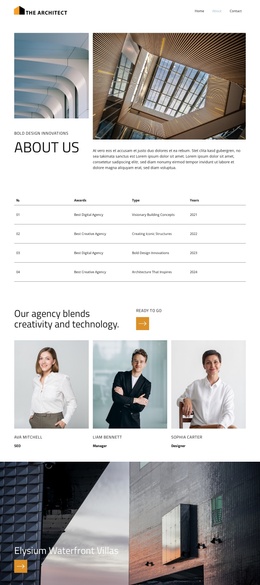
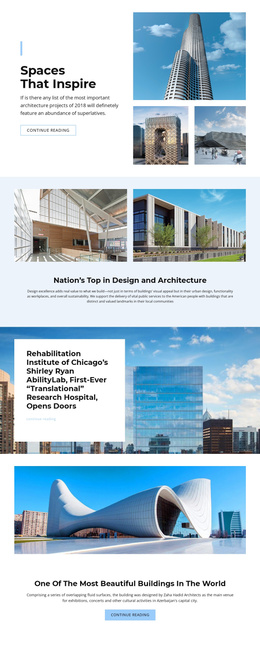
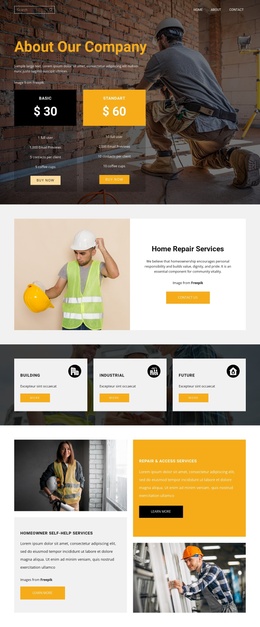
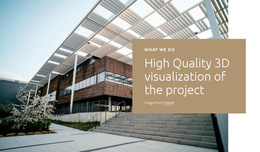
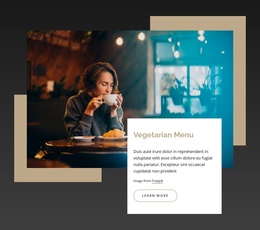
The architectural planning photograph provides the main visual subject, while the white panel turns that visual context into a defined information area. Its heading identifies the studio focus, the supporting paragraph supplies introductory detail, the image credit keeps the photograph’s attribution visible, and the Learn more action offers a next step. These elements create a compact content region rather than a loose collection of decorative objects.
In a Joomla-managed page, this arrangement can work as a reusable introductory section for structured architecture and building information. The heading and supporting copy can present the studio context, while the image and yellow geometric accents preserve the visual distinction of the section. Because the panel overlaps the lower-right edge of the image, the composition keeps the message connected to the planning imagery without losing a readable text surface.
The light gray field, dark blue control treatment, and yellow rectangular shapes can also help this content area remain recognizable beside other Joomla-managed sections. The dotted pattern adds a secondary visual cue along the left side, while the large image carries most of the visual weight. Related service descriptions or deeper project information can follow elsewhere on the page, leaving this block to introduce the studio and direct visitors toward further information.
Customize with Nicepage
Open this ready-made template in the Joomla Page Builder and customize it visually in the Nicepage editor. Replace demo content, edit page sections, and adapt the design to your project without rebuilding the template from scratch.
Edit Template Offline
2. Create a new page or select existing
3. Click Add new block, search for id 4607509 and click enter
Edit Template Online
Create Awesome Websites


Free Nicepage Builder
Keywords
Work With This Template in Joomla
Customize and Install the Joomla Template
Start with this ready-made template instead of building the Joomla design from scratch. Customize its layout, content, typography, images, sections, and other design elements visually in the Nicepage application, then export and install the Joomla Template, Nicepage Extension, and supported content on your Joomla website.
Edit the Template Directly in Joomla
After installation, you can edit the Joomla Template directly in Joomla with the Nicepage Joomla Extension. Customize the Header, Footer, Colors, Fonts, typography, and Page Templates from the Joomla workflow while keeping the site design connected with your CMS content.
Edit Joomla Articles Visually
Use the Nicepage Joomla Extension to open and edit Joomla Articles visually from the Joomla Administrator. Change text, images, sections, layouts, and other page content in the Nicepage editor while continuing to manage the Articles through Joomla.
Joomla Content and Template Integration
Use the customized template together with Joomla Articles, module Positions, menus, forms, Blog Pages, and other supported CMS elements. With the Nicepage Extension used as the Site Style Source, shared design settings can be applied across Joomla Articles while Joomla continues to provide the CMS environment for managing site content.
This workflow combines a ready-made Joomla Template with visual customization, direct template editing in Joomla, and continued content management through the Nicepage Joomla Extension.