Spiral Architecture Joomla Template



Edit Template Offline
2. Create new page and search for id 16622
Edit Template Online
Create Awesome Websites


Free Nicepage Builder
Keywords
Editorial Galleries and Interior Sections for Joomla Content
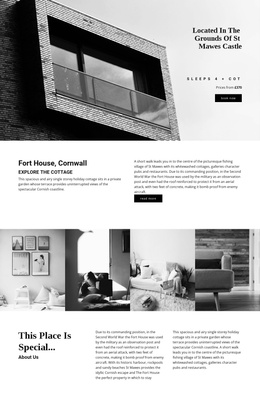
The opening slider gives the design a clear editorial entry point: a prominent headline about spiral architecture sits over an architectural image composition, with layered geometric accents reinforcing the subject. Below it, the five-image “Examples of Spiral Architecture” gallery creates a focused visual content area rather than a general portfolio grid. These sections can be treated as distinct informational regions when adapting the design to a Joomla-managed architecture site.
The middle of the page provides a different content grouping. “Integrating Plants in Your Interior” introduces the interior theme, while the following split section explains what plants contribute to interior design through a large image, supporting imagery, and editorial text. The nine-image gallery on greening homes extends that topic with a denser collection of visual references. This sequence separates architectural examples, interior discussion, and plant-focused inspiration into recognizable content areas that can be maintained as related sections.
Navigation appears in the header and returns in the dark footer, which also contains Facebook, Twitter, Instagram, and LinkedIn icons. That shared framing gives Joomla content a consistent route through the page while preserving the design’s editorial rhythm. The result is not merely a styled image page: it is a set of coordinated subject areas—architecture, interiors, plant integration, and social navigation—that can support structured site content without claiming that specific Joomla articles or modules already exist.
Customize with Nicepage
Open this ready-made template in the Joomla Page Builder and customize it visually in the Nicepage editor. Replace demo content, edit page sections, and adapt the design to your project without rebuilding the template from scratch.
Work With This Template in Joomla
Customize and Install the Joomla Template
Start with this ready-made template instead of building the Joomla design from scratch. Customize its layout, content, typography, images, sections, and other design elements visually in the Nicepage application, then export and install the Joomla Template, Nicepage Extension, and supported content on your Joomla website.
Edit the Template Directly in Joomla
After installation, you can edit the Joomla Template directly in Joomla with the Nicepage Joomla Extension. Customize the Header, Footer, Colors, Fonts, typography, and Page Templates from the Joomla workflow while keeping the site design connected with your CMS content.
Edit Joomla Articles Visually
Use the Nicepage Joomla Extension to open and edit Joomla Articles visually from the Joomla Administrator. Change text, images, sections, layouts, and other page content in the Nicepage editor while continuing to manage the Articles through Joomla.
Joomla Content and Template Integration
Use the customized template together with Joomla Articles, module Positions, menus, forms, Blog Pages, and other supported CMS elements. With the Nicepage Extension used as the Site Style Source, shared design settings can be applied across Joomla Articles while Joomla continues to provide the CMS environment for managing site content.
This workflow combines a ready-made Joomla Template with visual customization, direct template editing in Joomla, and continued content management through the Nicepage Joomla Extension.