Social Homepage Designs














































Professional Social Homepage Design for Clear Entry-Page Connections
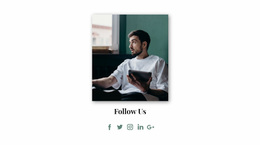
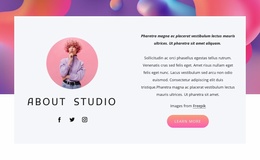
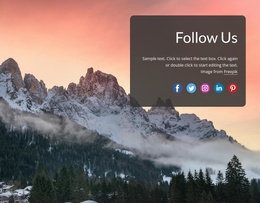
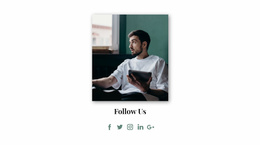
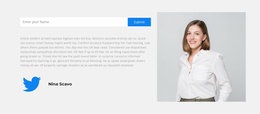
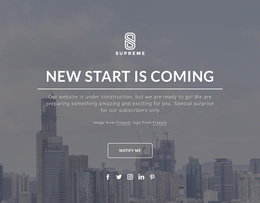
Social homepage design gives selected social channels a defined place on the site's main entry page. Instead of scattering platform links through unrelated content, a Social section groups icons, handles, and follow prompts so visitors can quickly find what they need to keep engaging outside the site.
What Should a Social Homepage Section Include?
The core content is compact because the block has one specific job: expose useful social destinations and make the next interaction clear. It does not need to explain every platform or duplicate the content visitors will find there.
A focused Social section can include:
- social icons that identify available platforms;
- profile links that lead to the relevant external accounts;
- social handles when visitors may need to recognize the account name;
- follow prompts that explain the reason to continue on a platform;
- share actions when distributing content is part of the intended interaction;
- short supporting text that gives the links enough context.
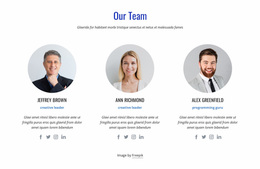
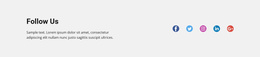
Nicepage's Social Icons Element directly supports this content model. So you can add social icon presets to a block, add additional icons, add your own social links, and upload a custom icon when the required network is unavailable. Icon size and spacing can also be adjusted.
Use Social Content to Support Homepage Trust and Community Entry
A homepage can use social content for more than exposing profile URLs. It can reinforce trust, activity, and community presence when those signals support the main message. Recent posts, follower/community cues, creator content, or a compact social feed preview can show that the project is active without turning the homepage into a copy of the external platform.
Three compositions work especially well:
- Hero + secondary social route: keep the primary homepage CTA dominant, then place a compact icon group or follow link beside supporting information.
- Proof + recent social content: follow a product, service, or community claim with selected social proof or recent content that makes the activity tangible.
- Closing community panel: use a wider follow/join section before the footer for visitors who have already explored the main offer.
The footer remains a dependable place for persistent profile links, while a hero placement deserves stronger justification because it competes directly with the homepage's first message and action.
Keep Social Separate from Brands and Contacts
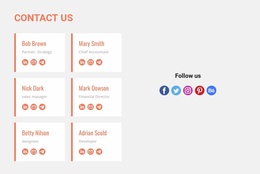
Social, Brands, and Contacts may all include small, recognizable visual elements, but their purposes differ.
Use the content type as the boundary:
- Social — profile links, handles, follow prompts, and share actions;
- Brands — partner, client, sponsor, or affiliation recognition;
- Contacts — phone numbers, email addresses, locations, hours, and direct communication channels.
This distinction also helps preserve homepage hierarchy. A partner-logo section communicates recognition or affiliation, while a Social block asks visitors to continue an interaction on another platform. Combining those jobs without a clear hierarchy can make the intended action less obvious.
Adapt Social Icons to the Homepage Hierarchy
The Social Icons Element gives the block a recognizable interaction point while allowing its presentation to match the surrounding composition. In Nicepage, you can start with a preset or a designer-made block with Social Icons, then adapt the content to the required channels.
For a homepage section, concentrate on:
- keeping the most relevant social destinations visible;
- matching icon size to the importance of the block;
- using consistent spacing between platform icons;
- adding a custom social icon when required;
- pairing icons with concise supporting text when the destination needs explanation.
The aim is not to make every social network equally prominent. The block should reflect the priority of the channels that matter to the homepage visitor.
Social Homepage Design Questions
Where should social links appear on a homepage?
Their position depends on their importance in the homepage journey. A Social block can follow introductory or community content, appear as a compact secondary connection point, or sit later in the page when visitors are ready to continue engagement on external platforms.
Can I add another social icon in Nicepage?
Yes. The Social Icons Element allows another icon to be added and assigned a social link. If the required social-network icon is unavailable, Nicepage also lets you replace an icon with an uploaded custom icon.
Can I change the spacing between social icons?
Yes. Nicepage provides controls for changing the size of the Social Icons Element and adjusting the spacing between its icons.
Should a Homepage Show Recent Social Content?
It can when recent content provides useful proof of activity or gives visitors a reason to continue to the external channel. Keep the preview selective so it supports the homepage message instead of replacing it.
Build a Focused Social Section in Nicepage
Choose a Social block whose visual weight fits its position in the homepage hierarchy. Then:
- select the social channels visitors actually need;
- replace example destinations with the correct profile links;
- add or replace icons where necessary;
- adjust icon size and spacing;
- keep supporting copy concise;
- place the section where social engagement supports rather than interrupts the homepage journey.
A well-positioned Social block gives external channels a visible purpose while keeping the homepage focused on its higher-priority introductory content.