110 Slider Homepage Designs
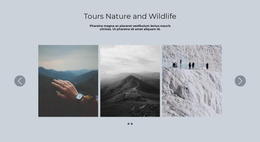





























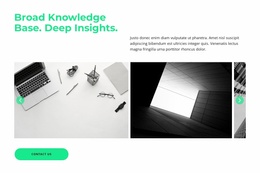
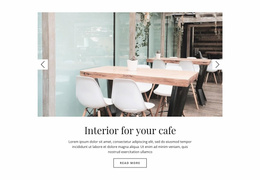
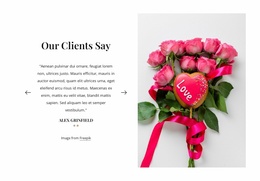
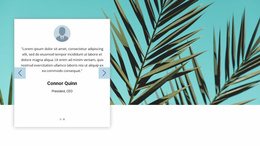
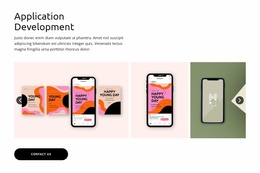
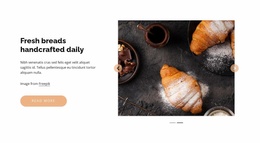
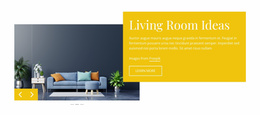
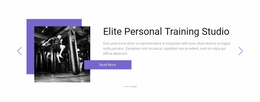

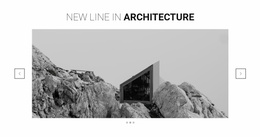

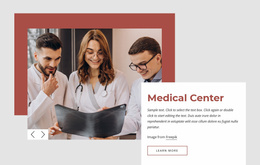


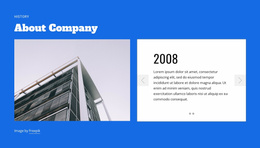



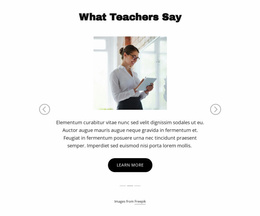

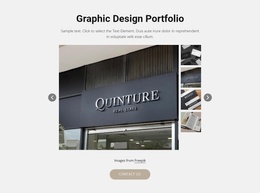
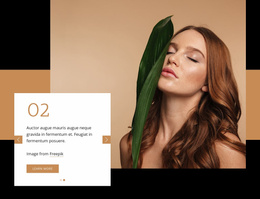
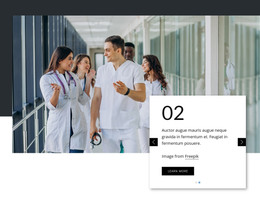
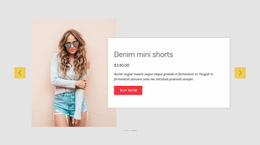


Creative Slider Homepage Design for First-Visit Content Priorities
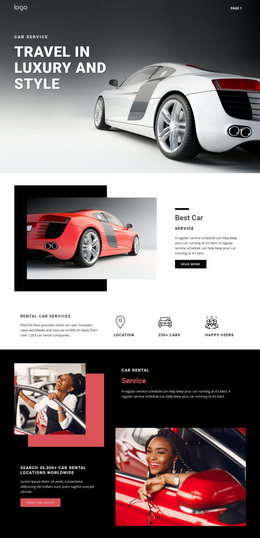
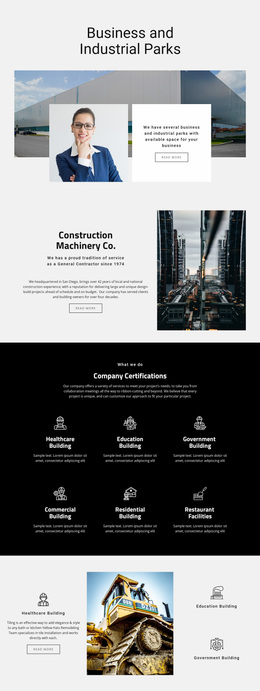
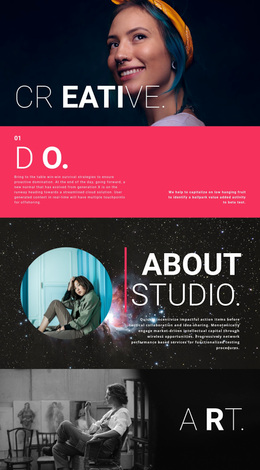
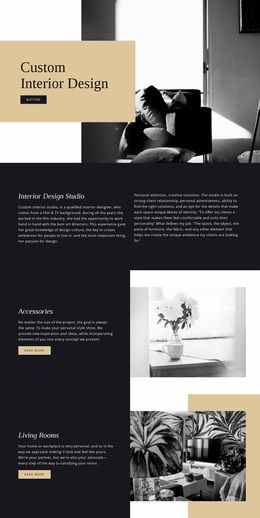
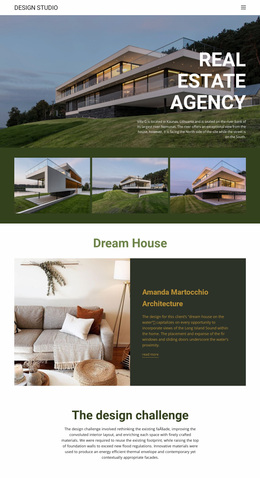
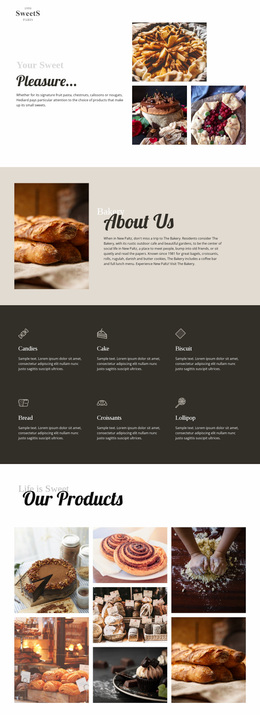
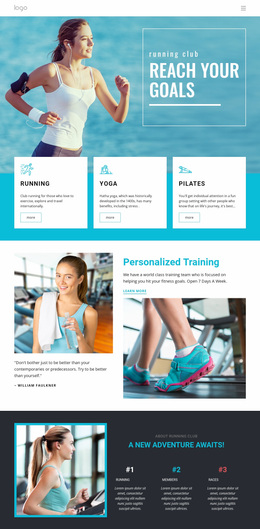
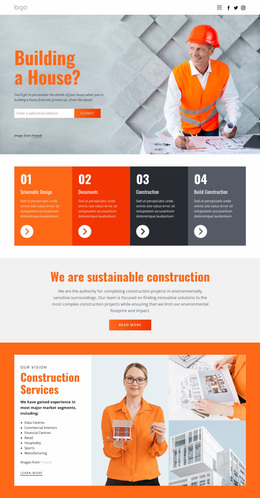
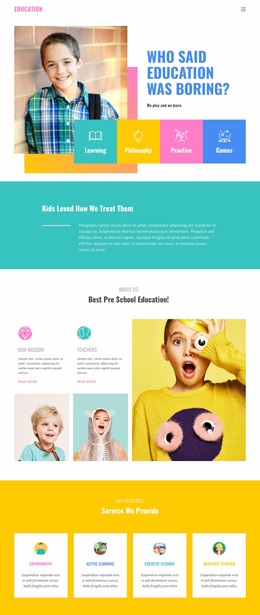
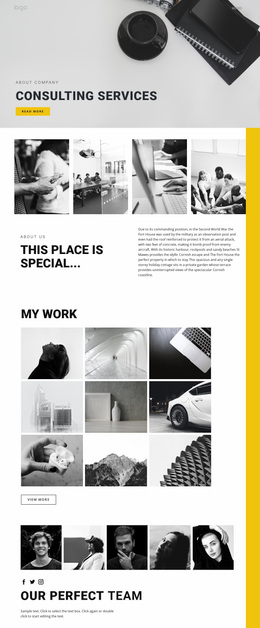
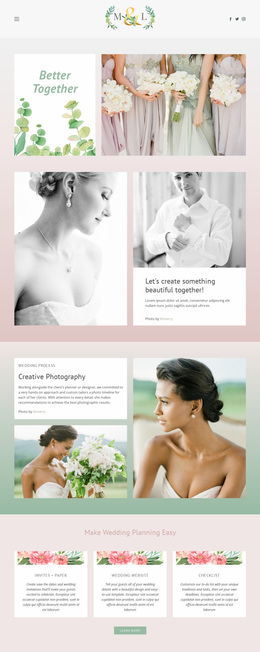
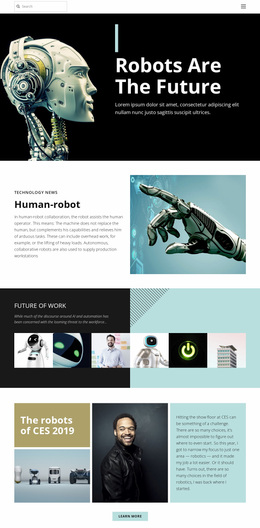
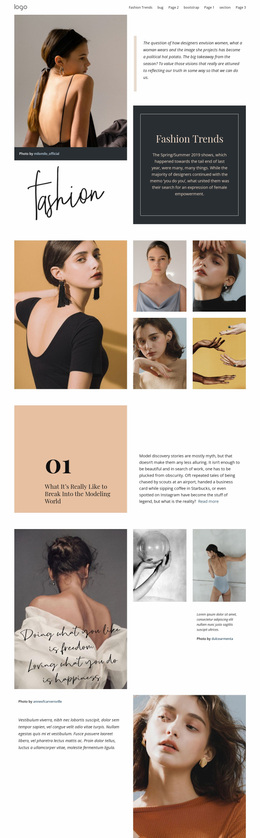
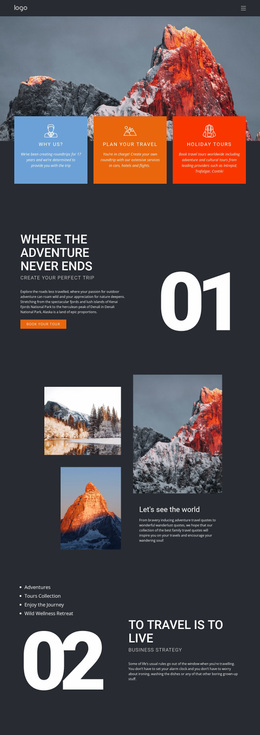
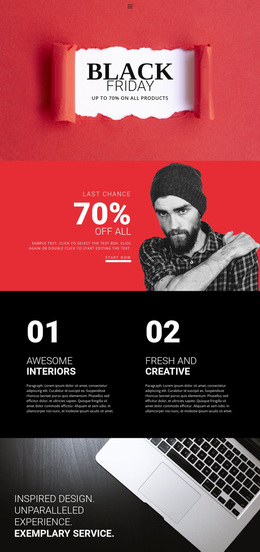
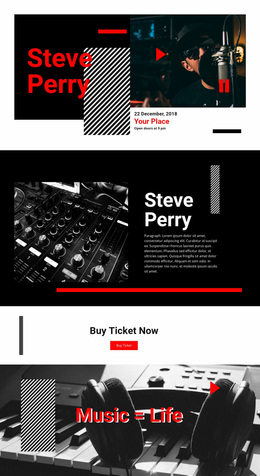
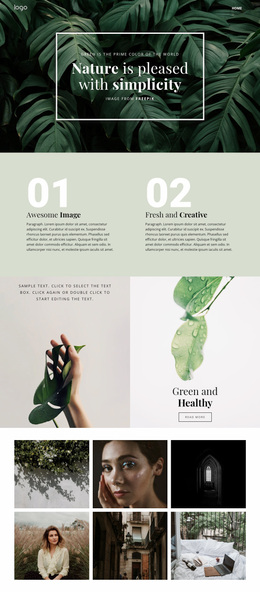
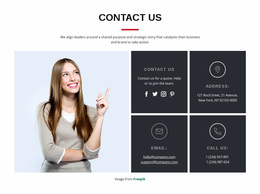
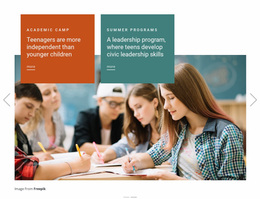
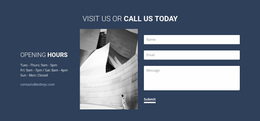
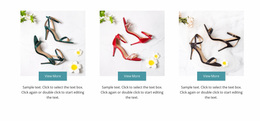
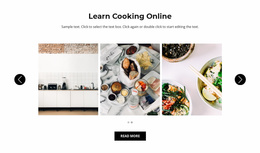
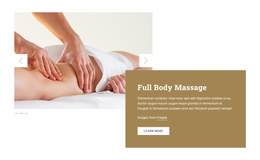
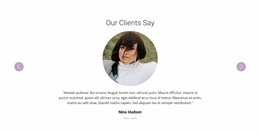
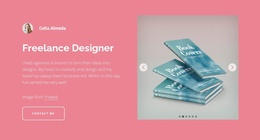
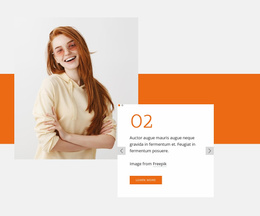
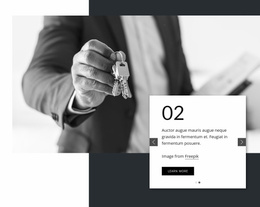
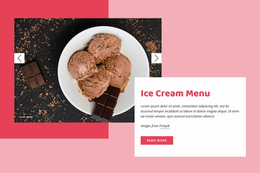
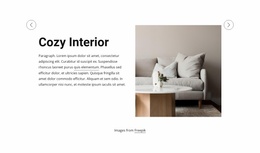
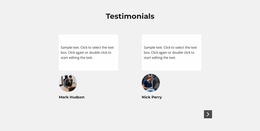
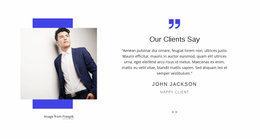
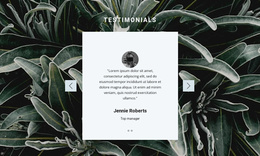
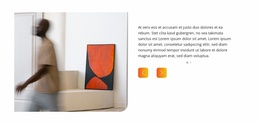
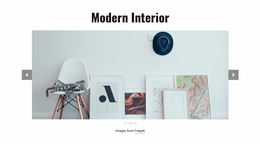
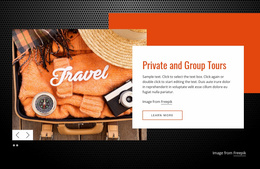
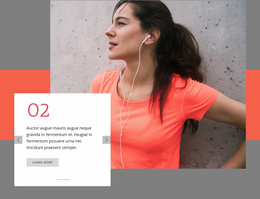
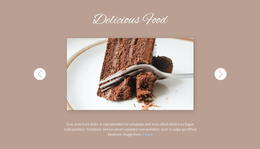
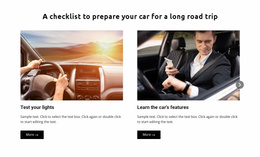
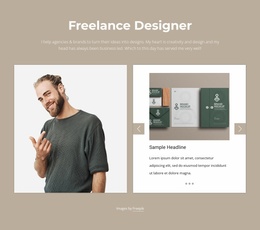
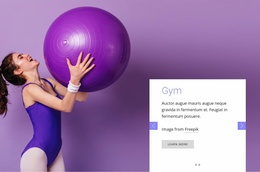
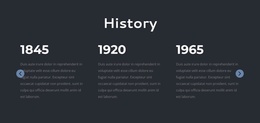
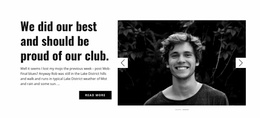
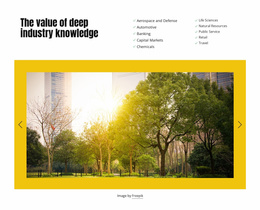
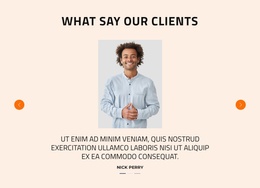
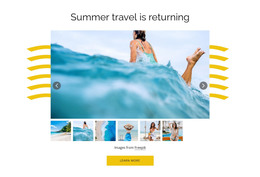
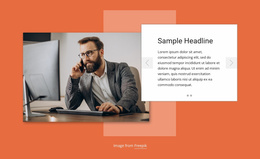
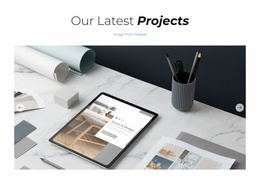
Slider Homepage Design options help you choose a prepared sequence for the opening or featured areas of a homepage. Some designs feature a prominent image with a short message, while others leave room for a product benefit, announcement, or link. The right choice makes the leading homepage priorities clear without replacing the surrounding content.
This format is especially useful near the top of a homepage, where visitors decide what deserves their attention. The first slide can communicate the main priority, while subsequent slides introduce related highlights. The purpose is not to squeeze every message into the first screen, but to give selected content a clear order.
Choose a Ready-Made Homepage Slider Composition
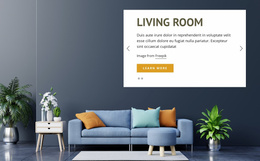
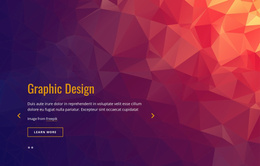
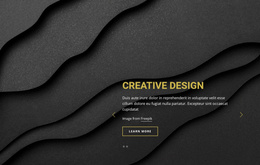
Compare finished Slider designs by how they present the first homepage message and the supporting slides that follow. A suitable composition should give the opening message prominence while keeping secondary highlights recognizable.
A useful slide sequence might contain:
- An introductory message explaining the most important offering or update.
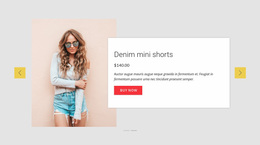
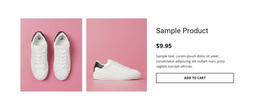
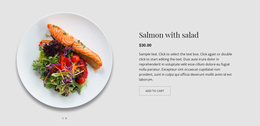
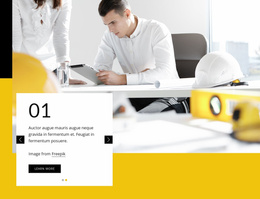
- A featured product or service supported by an image and concise description.
- A selected announcement that deserves early homepage visibility.
- A supporting story or highlight that introduces another area of the site.
These examples do not need identical layouts, but they should follow a recognizable content hierarchy.
The opening slide deserves particular attention because it sets the section's first impression. Important information should remain understandable even when visitors do not explore every slide. ** The remaining slides can expand on that initial message rather than repeating it.
Compare Homepage Slider Layouts in Nicepage
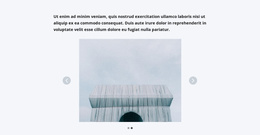
The Slider Element in Nicepage lets you arrange multiple slides containing images, text, and other elements. Navigation controls and transition settings help define how visitors move between the different content states.
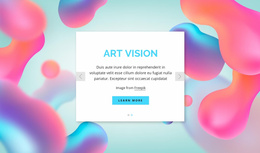
When browsing existing designs, compare how the image and headline share the first screen. A strong photograph may be useful, but the main message should still be clear in the sample composition.
Useful selection criteria include:
- Headline hierarchy: Give each slide one clearly identifiable primary message.
- Image placement: Select visuals that support the featured content rather than distract from it.
- Navigation controls: Keep arrows and indicators recognizable throughout the sequence.
- Text length: Use concise descriptions that visitors can understand without extended reading.
Nicepage also provides Responsive Modes for adjusting layouts across device sizes. Review whether slide images, text, and controls retain their relationships when the available width changes.
A homepage slider should remain readable and easy to navigate on smaller screens, where long headlines or large images can crowd the content area.
Select a Slider That Connects to Homepage Sections
A ready-made homepage Slider can preview content presented later on the page or on dedicated pages. Choose a design whose buttons and supporting text match those destinations, rather than expecting the slide section to include every detail.
For example, a slide introducing a product category can include a button leading to its dedicated page. Another slide might feature a recent announcement, while the following homepage section provides more detailed supporting information.
The important distinction is between a content preview and the complete content itself. Slider messages work best when they establish interest and provide a meaningful next step.
Avoid using the section as a substitute for every important homepage element. Visitors should still be able to understand the primary message without navigating through the entire slide sequence.
Choose the Right Slider Format for Your Homepage
A regular Slider works well when related messages need to rotate inside a defined content area. It can sit above an introduction, between featured sections, or alongside other homepage elements.
A Full Width Slider is different: its main characteristic is an expansive presentation across the available section width. Choose it when large visual storytelling is the defining requirement.
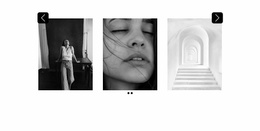
A Gallery serves another purpose: it lets visitors browse a visual collection. For a homepage section combining announcements, headlines, images, and links, a regular Slider may provide a more suitable content sequence.
Prioritize visitor orientation over decorative movement. Every slide should have a clear reason to appear in the sequence.
Slider Homepage Design FAQ
Can I start with a ready-made slider block in Nicepage?
Yes. Nicepage provides a library of pre-designed Blocks and Elements, including sliders. You can select a suitable design and refine its images, text, and content arrangement for the homepage.
Can Nicepage AI help create a homepage slider section?
Nicepage AI Services can generate sites, pages, and blocks. You can use a generated block as a starting point and refine its content and layout for the featured messages you want to present.
How can I adapt a homepage slider for mobile screens?
Nicepage supports Responsive Modes for different screen sizes, including tablets and phones. You can adjust the layout to keep slide headlines, imagery, and navigation controls appropriately arranged in narrower views.
Should a homepage Slider replace the main introductory content?
Not necessarily. A Slider is useful for presenting several related highlights, but the main homepage message should remain clear without requiring visitors to browse every slide. Use the Slider Element when sequential content adds value, rather than when one static introduction would communicate the information more directly.
Create a Focused Homepage Slider in Nicepage
Browse ready-made homepage Slider designs with the opening message and subsequent highlights in mind. Choose a section whose visual prominence, content space, and action placement already suit the homepage, then personalize the sample content in Nicepage.
The finished section should introduce key information, support visitor orientation, and make deeper content easier to reach without overwhelming the homepage entry point.