Blog Posts Homepage Designs
-
-

-
-
-
-
-
-
-
-
-
Build Website with no CodingDownload
-
-
-
-
-
-
-
-
-
-
-
-
-
-
-
-
-
-
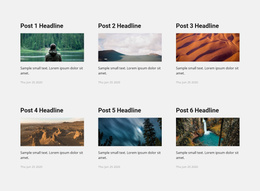
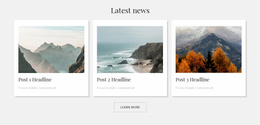
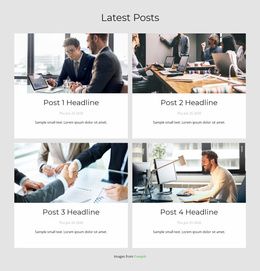
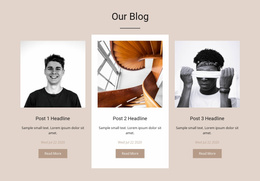


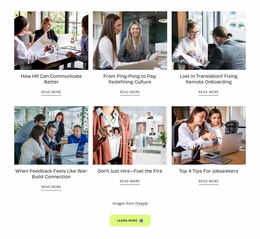
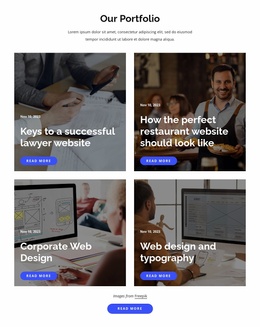

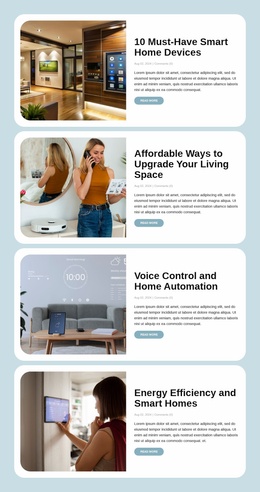
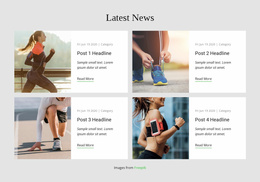
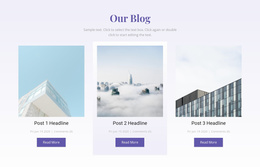
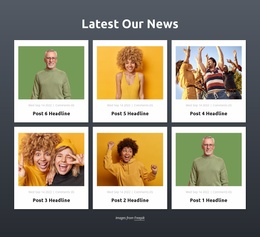
User-Friendly Blog Posts Homepage Design for Front-Page Article Discovery
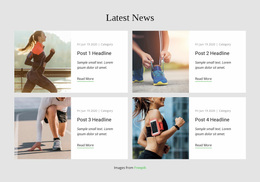
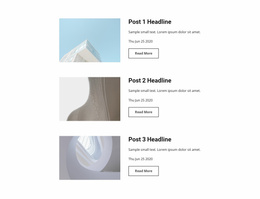
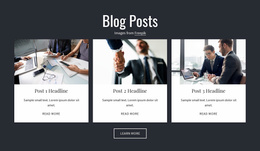
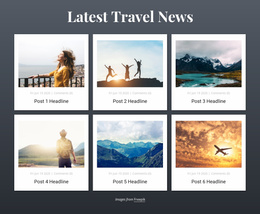
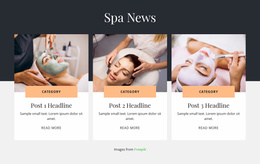
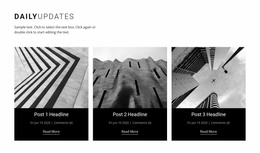
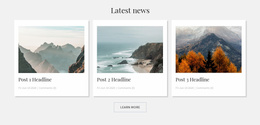
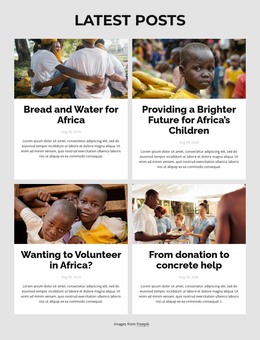
Near the middle or lower part of a homepage, a Blog Posts section can introduce visitors to recent publications without interrupting the main page message. Blog Posts Homepage Design uses article previews, featured images, excerpts, and reading links to highlight editorial content in a limited area. Instead of showing a full article archive, the section gives visitors a quick overview of available stories and a clear path to keep reading.
How Does a Blog Posts Section Support Homepage Navigation?
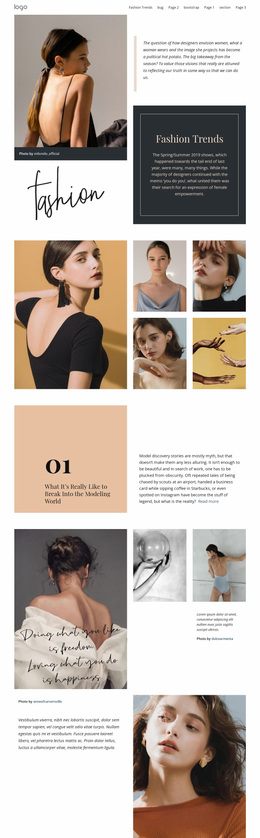
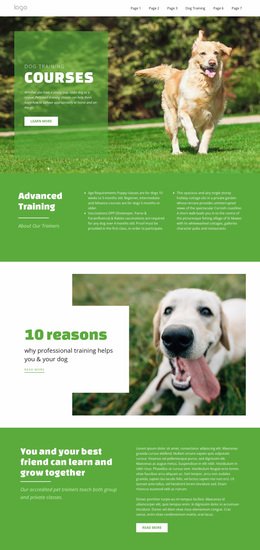
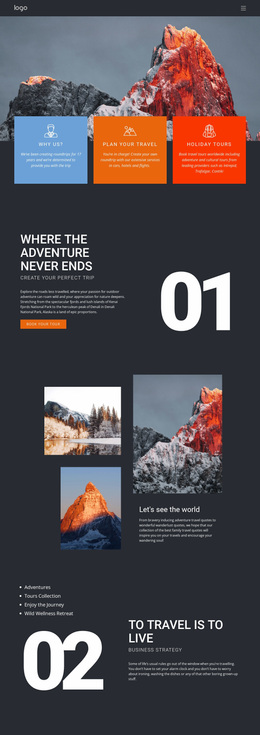
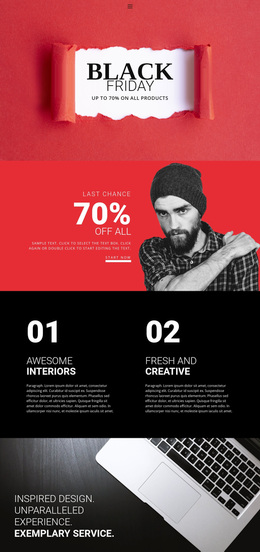
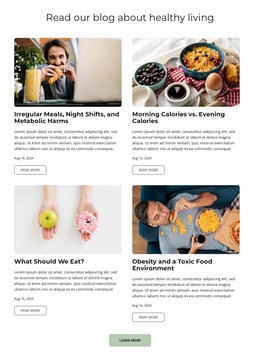
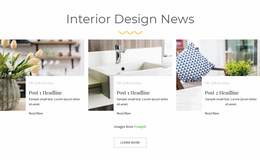
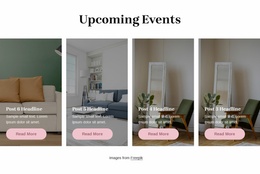
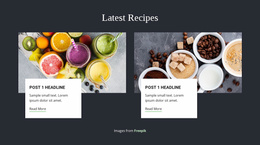
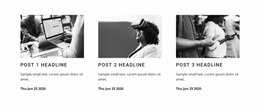
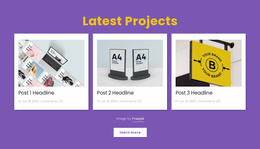
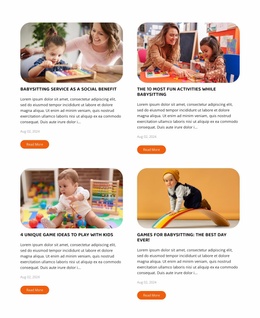
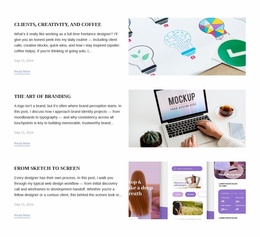
A homepage Blog Posts section introduces selected editorial content and connects visitors to individual articles. It typically displays several post previews with headlines, images, short summaries, and publication details. This arrangement helps readers recognize current topics while keeping the homepage focused on its broader introductory role.
The section can feature recent updates, important announcements, or selected stories that deserve attention. Visitors can scan the previews, identify a relevant article, and follow its link for more information.
Unlike a general Grid, which organizes different content types into rows or columns, Blog Posts follow an editorial publishing structure. Each repeated entry represents an article with its own title, metadata, and reading destination.
Essential Content for a Compact Homepage Blog Feed
Homepage space is valuable, so an article preview should communicate enough information without reproducing the full story.
Post titles carry the main editorial message. Clear headlines help visitors quickly identify topics, especially when the section includes several articles.
Featured images provide visual context and distinguish adjacent posts. Consistent proportions keep the listing recognizable without letting individual images dominate the homepage.
Short excerpts explain what an article covers. They should support the title rather than repeat it or introduce unnecessary detail.
Publication metadata can include dates or categories when that context helps readers understand the relevance of a story.
Read-more links connect each preview to its complete article, keeping the browsing process straightforward.
Nicepage's Blog Posts Element supports repeated post layouts with controls for columns, rows, spacing, and post presentation. These options help organize editorial previews in a homepage section without manually building each entry as unrelated content.
Place Blog Posts Where Homepage Visitors Need Them
There is no universal position for a homepage article feed. A company homepage might place three recent insights after its services and customer proof, letting editorial content reinforce the business message. A media homepage may lead with a featured story immediately below the navigation because articles are the primary product. A personal blog can move recent posts close to the hero, making the author's latest writing easy to find.
The placement changes the section's job:
- Below the hero: useful when fresh articles are a central reason to visit.
- Within the main content: helpful when stories explain the services or subjects introduced above.
- Before the footer: a restrained way to suggest more reading after the homepage's main message.
For a consultancy, consider a narrow row of three insights with concise headlines. For an online magazine, a large featured article beside two secondary stories may be more appropriate. Both qualify as Blog Posts sections, but their composition serves different visitors.
Avoid turning the homepage into an archive. Keep the selection purposeful and leave the full list of articles to its own browsing page. In Nicepage, adjust the Blog Posts Element's rows and columns to fit the available homepage space.
Add a recognizable View All Articles route to the full blog archive when readers need more than the few stories shown on the homepage. The short feed introduces editorial content; for examples of larger article collections, explore blog layouts. The archive supports deeper browsing by topic or date.
Choosing a Blog Posts Layout for Different Homepage Goals
Once the feed has a clear role on the homepage, review it in Nicepage responsive views. Reduce columns where needed, and make sure the section invites further reading without competing with the homepage’s main message.
Frequently Asked Questions About Blog Posts Homepage Design
Can I add a Blog Posts section to an existing homepage?
Yes. The Nicepage Blog Posts Element can be used within a page section to display multiple article previews. You can arrange the section alongside other homepage content without making it a separate blog page.
Can I control how many articles appear in a homepage blog section?
Yes. The Blog Posts Element provides layout settings for rows and columns, allowing you to adjust the visible post arrangement. A smaller selection often works better when the homepage contains several other sections.
What makes a homepage Blog Posts section different from a full blog listing?
A homepage Blog Posts section typically introduces a limited selection of recent or featured articles. It guides visitors to deeper editorial content, while a full blog listing lets them browse a larger collection of publications.
Can I use Nicepage templates if I am not a professional designer?
Yes. You can start with a ready-made Nicepage block design and refine its content and appearance in the editor. For a homepage blog section, focus on clear post titles, readable excerpts, and a layout that fits the surrounding content.
Place Your Latest Articles Where Visitors Can Find Them
Start with a Blog Posts block that suits the homepage's content priorities, then adjust its article previews in the Nicepage editor. Refine the number of visible entries, image treatment, and spacing before integrating the section into the main page. A focused editorial preview gives visitors a useful introduction to recent stories and an easy way to continue reading.