320 Text & Button Homepage Designs













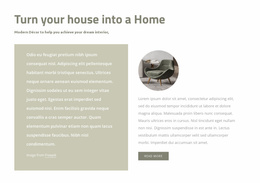
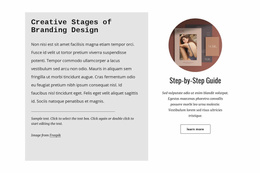
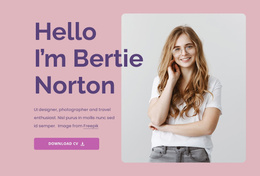




Professional Text & Button Homepage Design for Clear Page Transitions
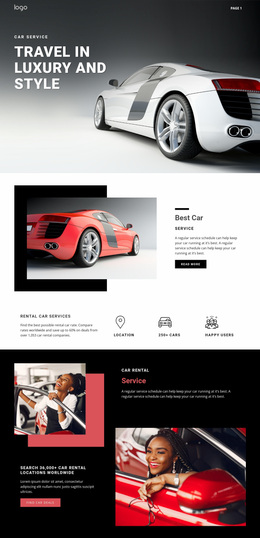
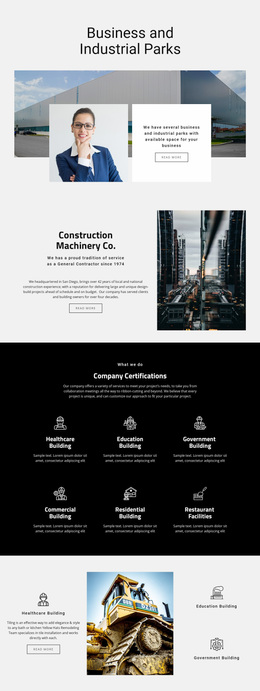
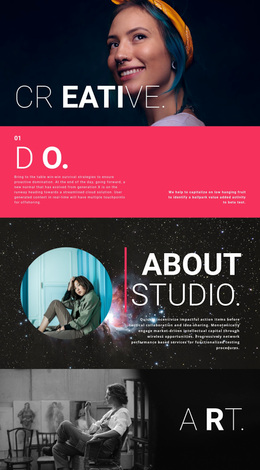
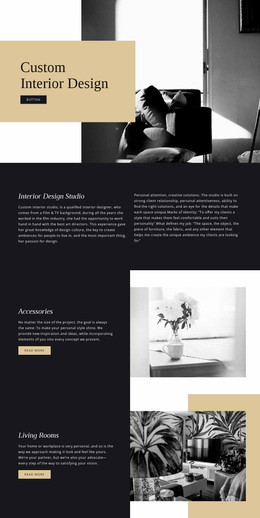
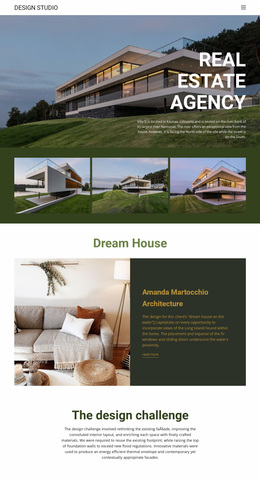
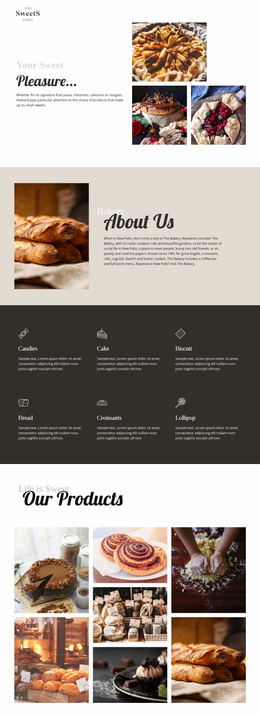
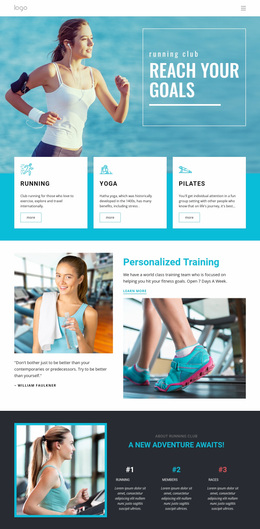
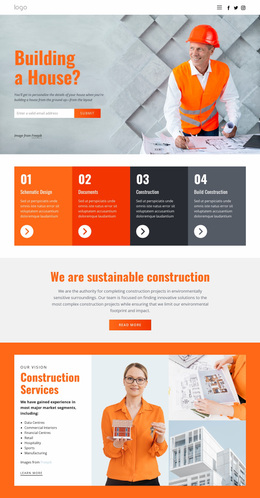
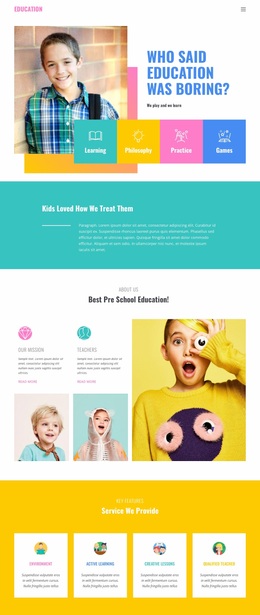
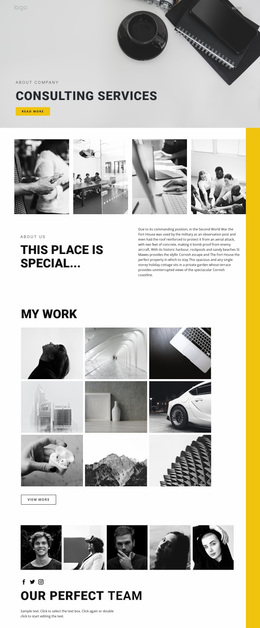
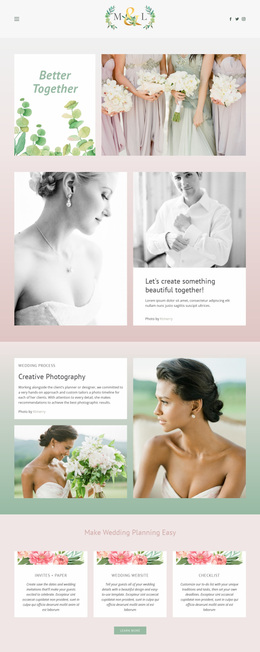
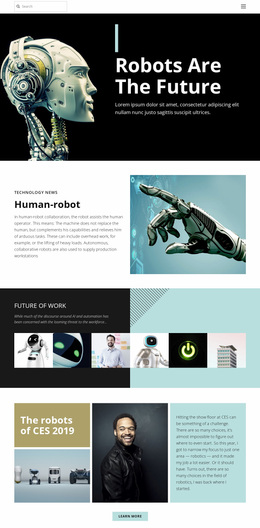
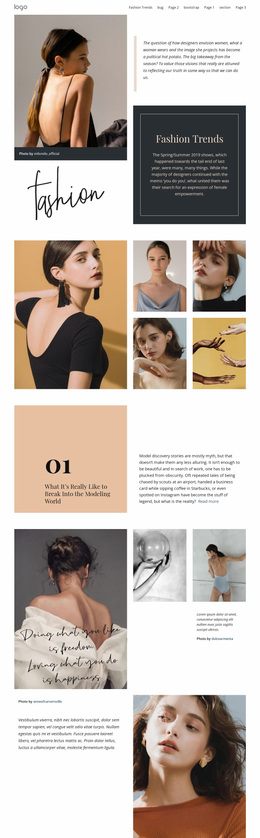
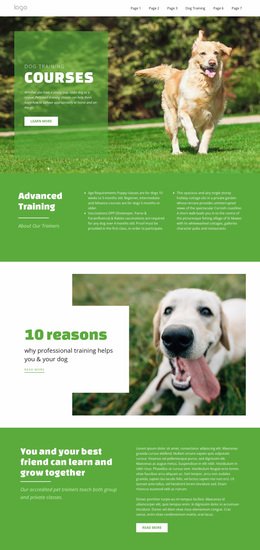
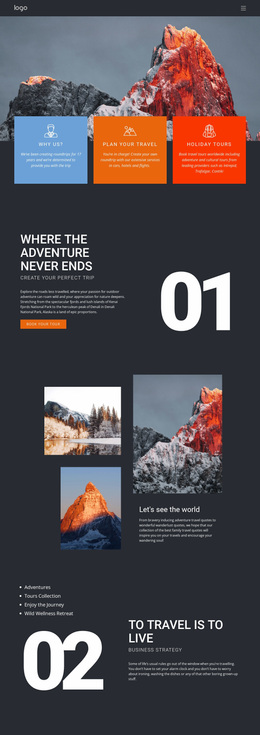
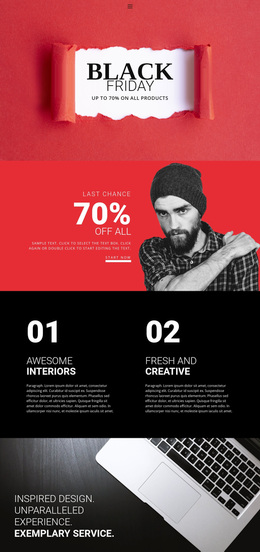
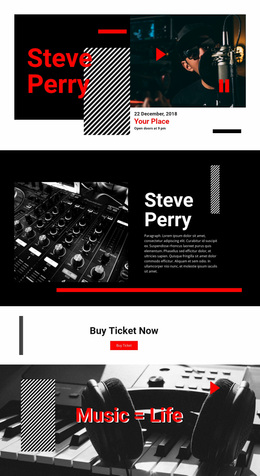
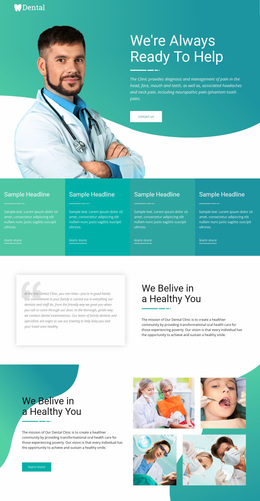
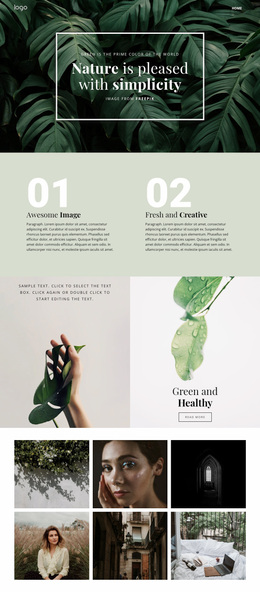
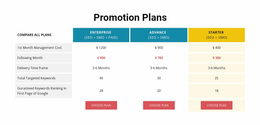
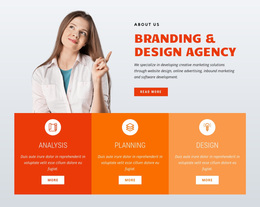
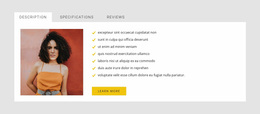
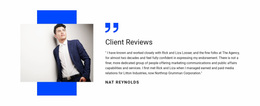
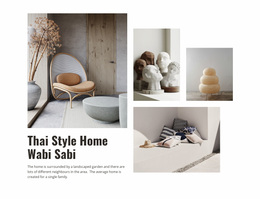
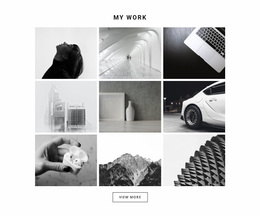
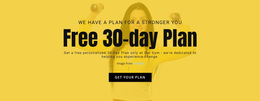
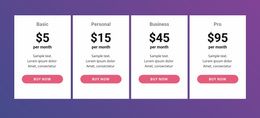
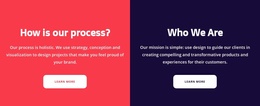
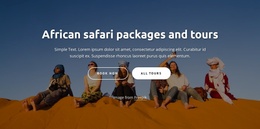
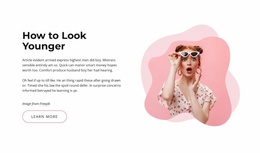
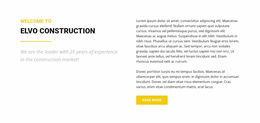
Text & Button Homepage Design examples show how a short message and CTA can become a navigation bridge to important parts of a website. Browse designs for service introductions, product highlights, portfolio prompts, about-page transitions, featured content, and other homepage moments where visitors need a clear route into deeper sections of the site.
The strongest examples combine visual emphasis with a useful destination: the block attracts attention, then helps visitors continue to a key page or site area.
Browse Homepage CTA Design Ideas
A homepage introduces different parts of a site, so a Text & Button block works best where visitors need a clear transition from information to action. It can connect an introductory message with deeper content or provide a focused next step after another section has established enough context.
Common placement roles include:
- a CTA transition after an introductory or explanatory section;
- an action prompt following benefits, features, or supporting content;
- a short message directing visitors toward a more detailed page;
- a focused continuation between major homepage content areas.
The block should not attempt to carry the entire homepage message. Its job is narrower: present enough context for one action and make that action easy to recognize.
Browse Homepage CTA Ideas by Destination
Homepage text and button designs can act as navigation-oriented transitions to important areas of the site. Examples include prompts that lead to:
- services or product categories;
- featured projects or portfolio work;
- a company or about section;
- current offers or highlighted content;
- a key editorial or resource area.
Compare designs by how naturally they introduce that destination and how well their visual emphasis fits the surrounding homepage sections.
Use the Block to Connect Major Homepage Areas
A homepage often serves several visitor intents at once. The Text & Button section is useful when one of those areas needs a clearer handoff from summary content to a deeper destination. It can sit after an introduction, a feature group, a service overview, or another section that has already established context.
That navigational role is the defining homepage axis. Unlike a landing page, the block doesn't have to support one campaign conversion; unlike a one-page template, it doesn't primarily manage linear in-page movement.
Use Visual Examples as Inspiration, Not a Fixed Formula
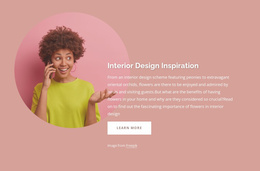
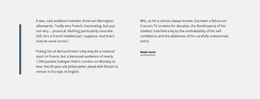
Centered, split, image-supported, and minimal compositions can all work on a homepage. Compare examples by destination, prominence, and fit with surrounding content, then adapt the design that already feels closest to the required homepage role.
Text & Button Homepage Design FAQ
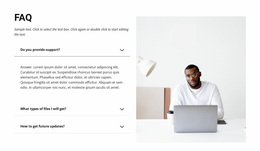
Can I start a homepage Text & Button section with a pre-designed block?
Yes. Nicepage provides pre-designed Blocks and Elements that you can use as starting points. Adapt the selected block to the actual headline, supporting copy, CTA, and position required within the homepage.
Can I adjust a homepage CTA section for different screen sizes?
Yes. Nicepage supports Responsive Modes for Large Screens, Desktops, Laptops, Tablets, and horizontal and vertical phones. Use these modes to check how the message, button, spacing, and overall section hierarchy work at different widths.
When should I use Text & Button instead of a plain Text section on a homepage?
Use Text & Button when the message is intended to lead directly to a prominent next action. If the section primarily needs to explain information and can fulfill its purpose without an explicit CTA, Text is the closer functional category.
What homepage destinations can the button lead to?
It can lead to key destinations such as services, products, portfolio work, featured content, an about page, or another important site area that logically follows the message.
Add a Focused Next Step to the Homepage
Choose a Text & Button block that matches the amount of content and emphasis required at that point in the page. In the Nicepage editor, adapt the headline and supporting copy, refine the Button Element, check the section hierarchy, and place the block where its CTA naturally continues the homepage flow.
The finished section should perform one clear role: connect a focused homepage message with the next action visitors are expected to take.