Table Homepage Designs
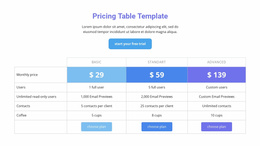
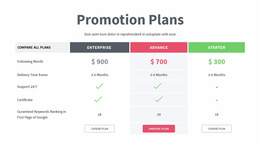
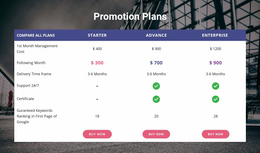
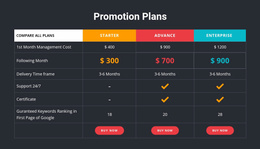
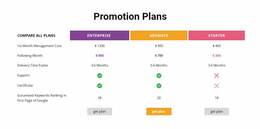
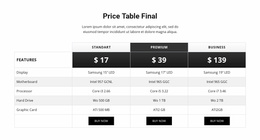
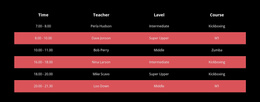
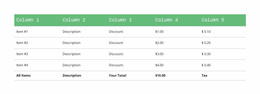
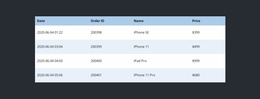
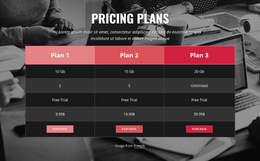
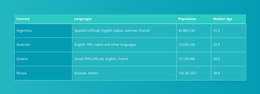
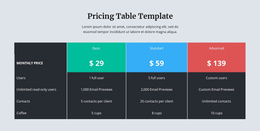
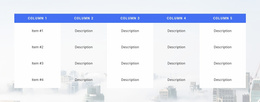
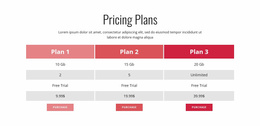
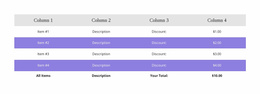

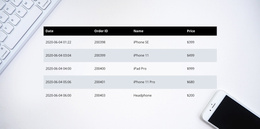
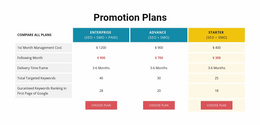
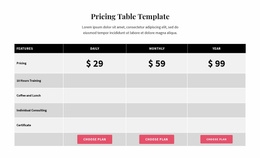
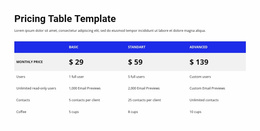
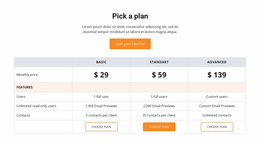
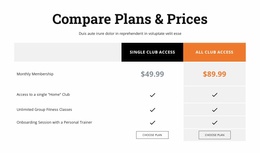
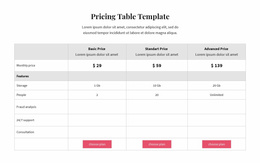
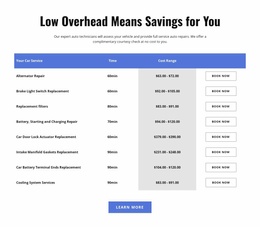
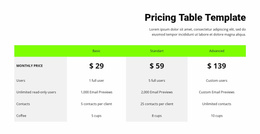
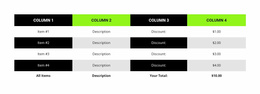

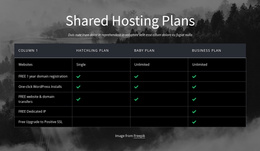

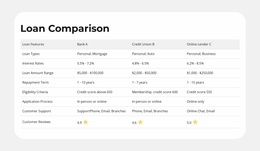
Modern Table Homepage Design for Clear First-Visit Comparisons
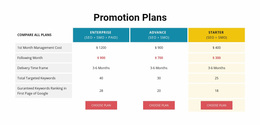
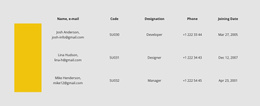
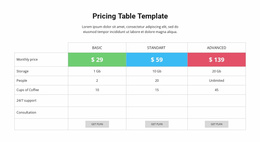
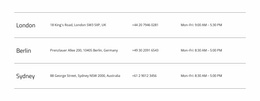
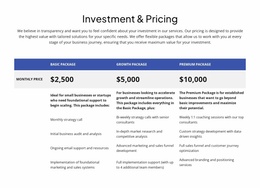
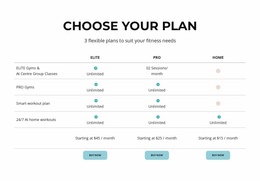
A Table Homepage Design gives the first screen or an early homepage section a concise way to show important facts. A ready-made table block can give key information a dedicated place on the homepage. Its role is to make the homepage more informative without letting data overpower the main message.
Choose a design according to the space available in the overall composition. A compact two-column treatment feels very different from a broad comparison panel; the right option balances the number of attributes, text length, contrast, and the visual weight of neighboring sections.
Choose a Table Layout That Fits the Homepage
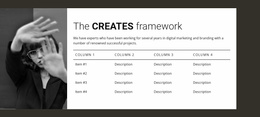
Ready-made homepage designs vary in how much information they can show comfortably. A narrow table works beside an image or introduction, while a wider band can stand on its own between major sections.
Look for a layout that matches the page's visual priorities:
- Compact column count keeps essential facts visible at a glance.
- Moderate visual density prevents a data section from crowding the homepage.
- Consistent typography connects table headings with the site's broader type scale.
- Balanced contrast allows the table to stand out without becoming the dominant feature.
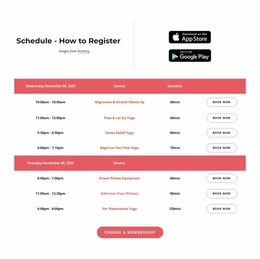
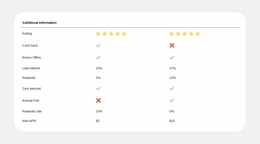
Schedules, short feature comparisons, and selected specifications can all work on a homepage. Extensive records usually deserve a dedicated page. Choose the size of the table for the homepage, not for the entire dataset.
Match the Table Styling to the Other Sections
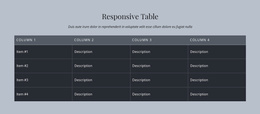
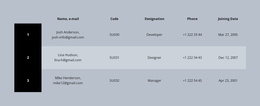
The best homepage Table block looks designed for its surroundings. On a restrained page, fine borders and generous whitespace can keep comparisons light. A more colorful homepage may benefit from a stronger header background, but the data still needs sufficient breathing room.
The Table Element in Nicepage lets you adapt a ready-made section's proportions, headings, and cell styling. When comparing options, consider how the table's width lines up with adjacent text and images, whether the row height matches the page's spacing rhythm, and how clearly its title announces the comparison.
Visual continuity matters: visitors should perceive the table as part of the homepage, not a separate reference document.
Give the Homepage Table a Clear Supporting Role
On the homepage, a Table section should answer a small set of practical questions without taking over the page. A short comparison can establish credibility, while a schedule or specification panel can provide practical detail.
Treat the table as a useful visual pause within the homepage. If the records are extensive, a compact overview can lead visitors toward a dedicated detail page.
Keep the Block Type Appropriate to the Content
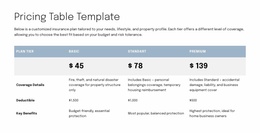
A Table is the right fit for comparable factual values. Independent image cards generally suit a Grid, while paid plan selection belongs more naturally in a Pricing section. On a homepage, choose the block that makes the important information immediately understandable.
Table Homepage Design FAQ
Can Nicepage AI help create a table section for my homepage?
Yes. Nicepage AI Services can generate sites, pages, and blocks. You can use a generated block as a starting point, then refine its content and layout in the Nicepage editor to suit the factual information you want to present.
Can I use a homepage table section with third-party hosting?
Yes. Nicepage supports third-party hosting for generated websites. A Table section can be included as part of the broader site project that you prepare for publication.
How should I choose a table design if I am not a professional designer?
Start with the information your visitors need to understand. Choose a ready-made design with enough rows and columns for that content, then refine the headings, values, spacing, and typography. Prioritize readable comparisons rather than decorative details.
Add a Clear Table Section to Your Homepage
Begin with the specifications, schedules, or comparison details that visitors need most. Choose a suitable Table block, open it in the Nicepage editor, and adapt its headings, rows, and cell values to your content.
Keep the homepage version focused on quick understanding and reliable comparison. A well-organized table helps visitors find the facts they need while keeping detailed information on the pages where it belongs.