300 Gallery Homepage Designs
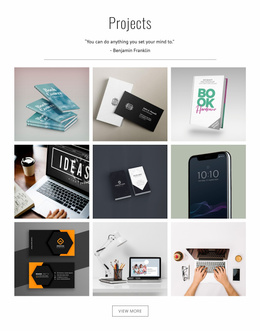
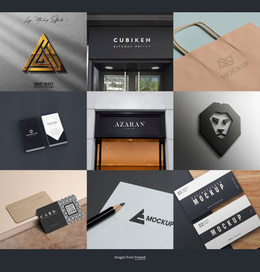
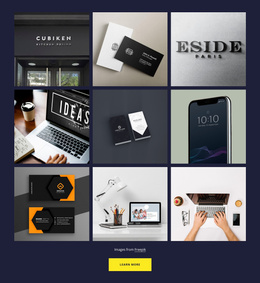

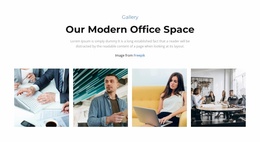





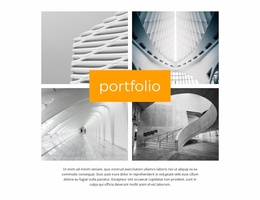
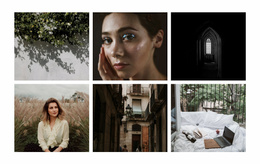

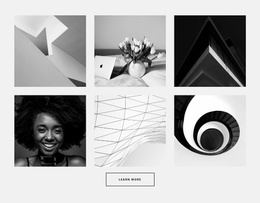
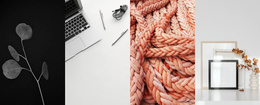














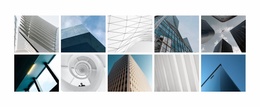

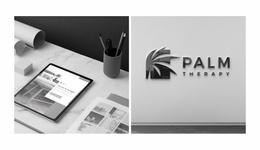
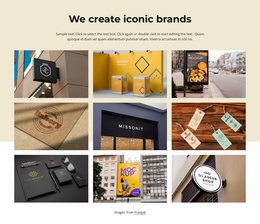

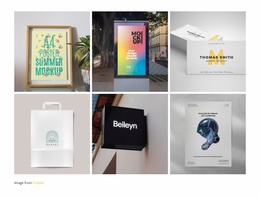

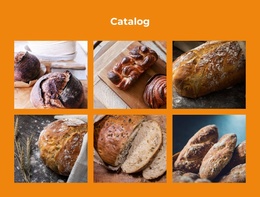

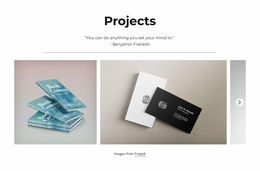




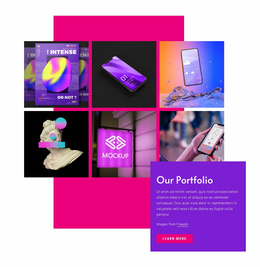


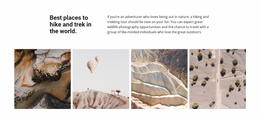
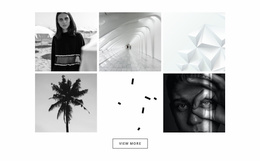


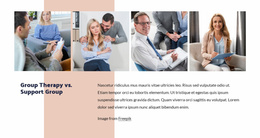



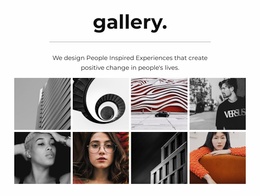

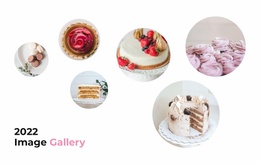















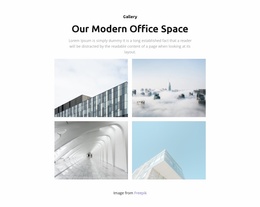







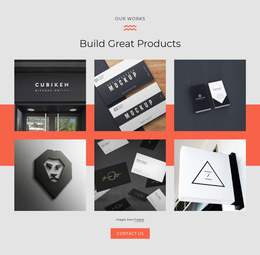
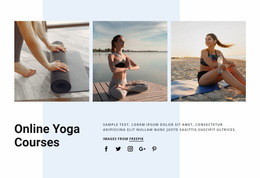
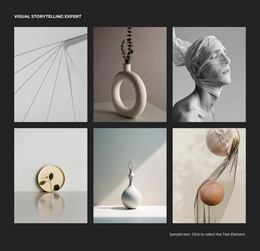







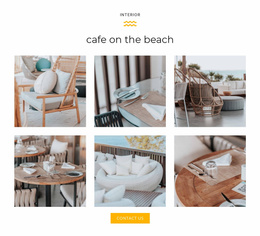





Gallery Homepage Design Templates for Featured Work
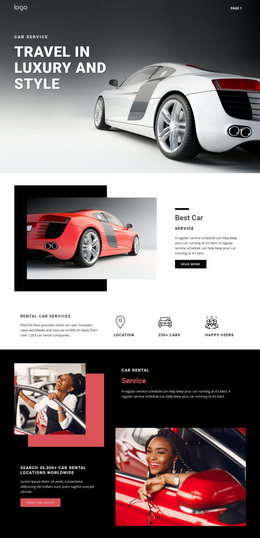
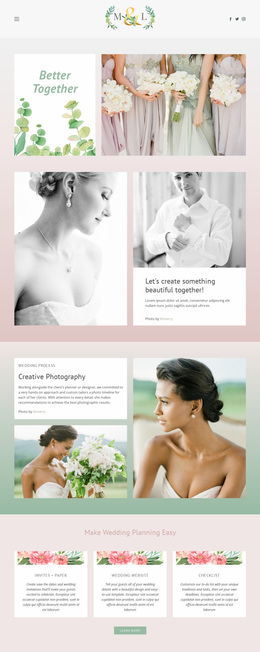
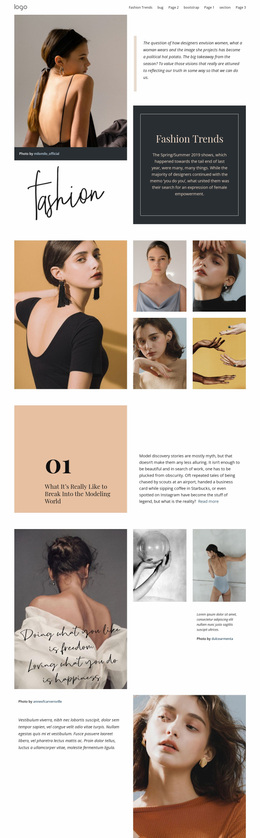
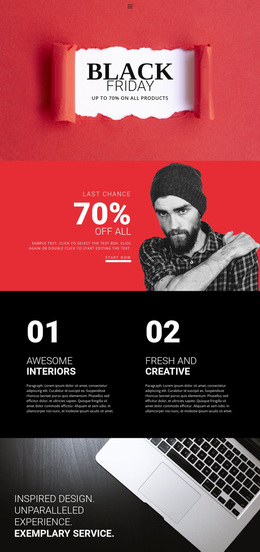
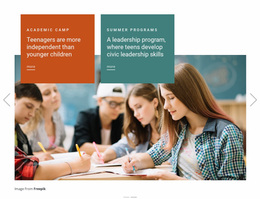
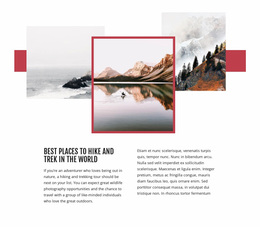
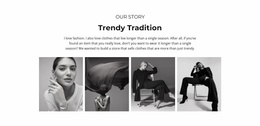
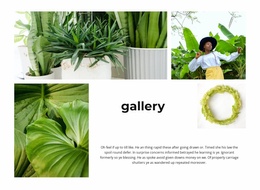
A homepage Gallery should introduce the images a visitor ought to remember first. Ready-made Nicepage designs range from small collections of featured work to more expressive compositions with a dominant photograph. The right arrangement gives visitors a glimpse of the portfolio without turning the homepage into a full archive.
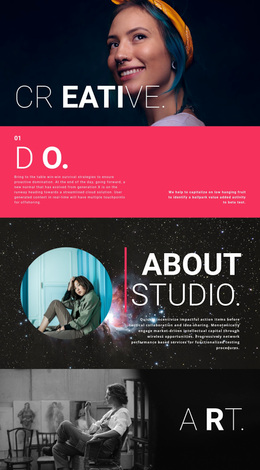
A creative studio might lead with one signature project. A maker selling several product lines may prefer an even set of images, giving each category a fair introduction.
Select a Featured Gallery for the Homepage
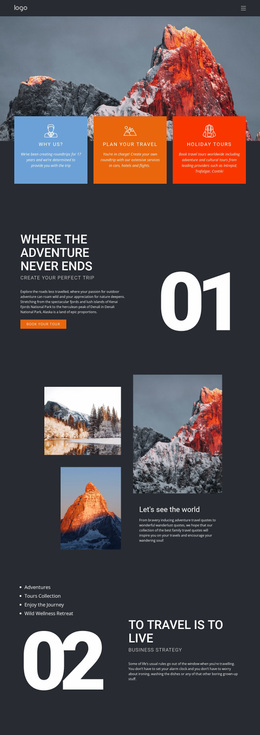
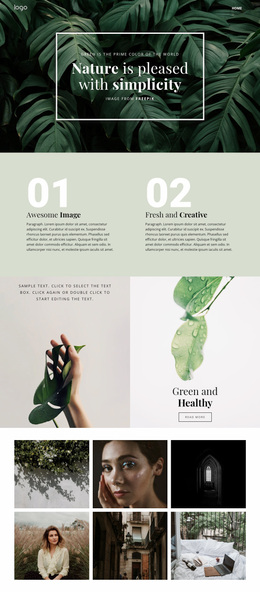
Homepage galleries are most effective when they offer visitors a selective introduction to the work. A studio that wants to lead with one major project may prefer a large image accompanied by smaller views. A maker with several product categories can instead show a balanced set of photographs.
- Featured-image layouts make a signature project recognizable.
- A concise image group gives a first impression without becoming a full portfolio.
- Short captions identify a few examples when their titles matter.
Nicepage's Image Gallery Element works well for this collection. Rather than showing every available image, choose a design that introduces enough variety to encourage visitors to explore further.
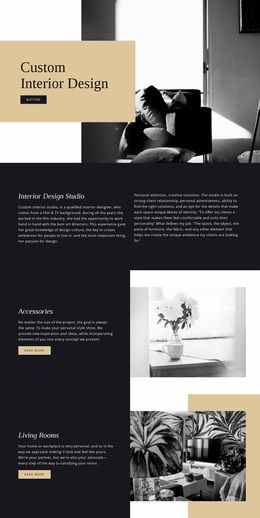
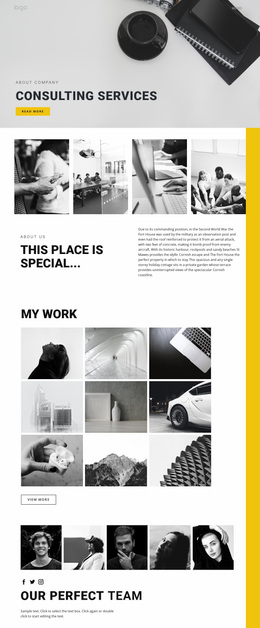
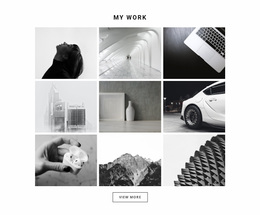
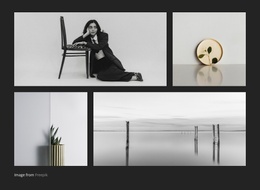
Think of the homepage Gallery as a preview of the strongest visual material, not the whole archive. A layout with one dominant photograph is useful when a studio wants to introduce a signature project. A compact row of equally sized images can show several lines of work without suggesting that one matters more than the others. In both cases, the ready-made composition should make sense from a quick first glance.
Give the Homepage Gallery the Right Prominence
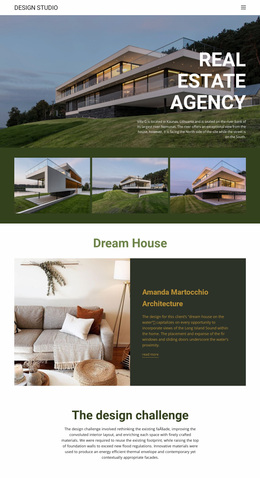
A quiet gallery beneath the hero can provide a brief glimpse of past work, while a larger collection can make photography central to the first page. The best design depends on how much of the homepage the images should occupy. A small group of featured projects often leaves more room for the introduction and a clear next step.
Keep Homepage Galleries Distinct From Other Image Sections
Not every image-led section serves the same purpose. A Gallery focuses on presenting related visual media for browsing, while a Tiles section often emphasizes separate content choices through distinct panels.
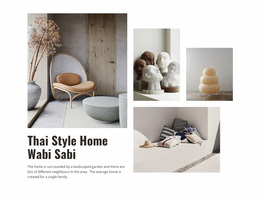
Layered Images provides another alternative. It combines overlapping or offset pictures into one coordinated visual composition. That approach can create a strong focal point, but it doesn't necessarily offer the same collection-oriented browsing structure.
Choose Gallery when visitors should see several representative images together and understand their relationship. Keep the selection purposeful, the captions concise, and the section proportionate to the surrounding homepage content.
Gallery Homepage Design FAQ
Can I create a homepage Gallery section without designing every image individually?
Yes. Nicepage provides an Image Gallery Element that combines multiple images in one element. You can adjust the gallery layout, swap images, and tweak supported presentation settings without adding each photo as a separate page element.
Can Nicepage AI help create a Gallery block for a homepage?
Yes. Nicepage AI Services can generate sites, pages, and blocks. You can use a generated block as a starting point and refine its visual content and arrangement in the Nicepage editor.
Can I adjust a homepage Gallery section for mobile devices?
Yes. Nicepage supports Responsive Modes for desktop, tablet, and phone layouts. You can inspect the gallery on different screen sizes and adjust supported layout properties to keep the presentation clear.
How many images should a homepage Gallery section contain?
There is no universal number. Choose enough images to communicate the main visual themes without making the homepage feel like a complete media archive. A smaller selection of representative images is often more useful for an introductory gallery.
Which homepage Gallery design suits a small creative studio?
A compact selection of standout projects often works well. Choose a featured-image layout for a signature piece or an even collection when several projects deserve attention.
Create a Homepage Gallery That Introduces Your Best Visual Content
Start with a Gallery block design that fits the images you want visitors to see first. In the Nicepage editor, replace sample photographs, refine image spacing, add captions where useful, and review the section across different screen sizes.
Keep the final selection focused on giving visitors an immediate understanding of the featured visual content. A well-placed homepage gallery introduces the collection, supports the page's information hierarchy, and encourages further exploration without overwhelming the opening experience.