Frames of Elegance Template


Edit Template Offline
2. Create new page and search for id 6294378
Edit Template Online
Create Awesome Websites


Free Nicepage Builder
Keywords
Portraits, Landscapes, and Architecture Give the Gallery a Distinctive Range
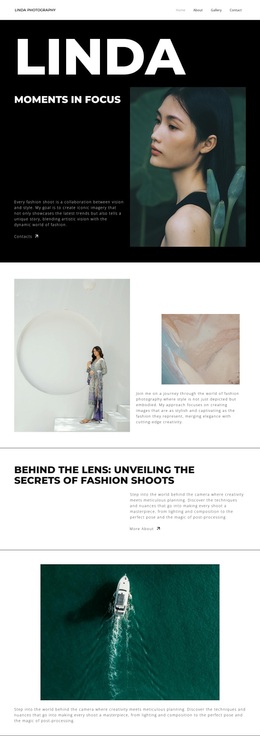
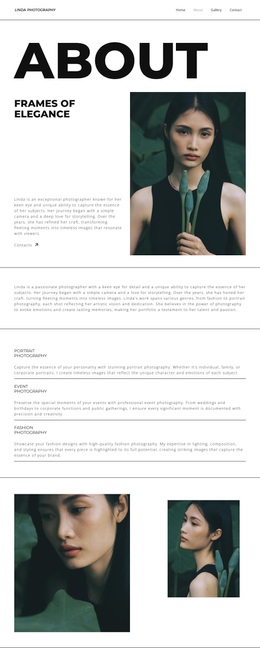
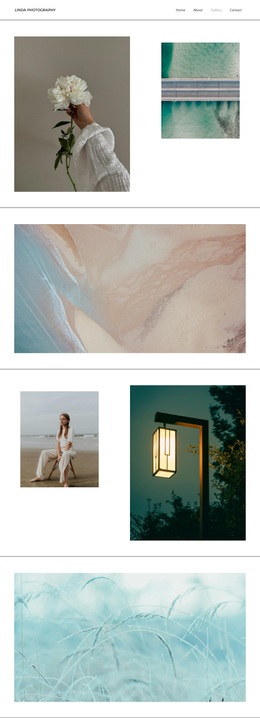
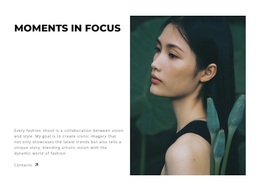
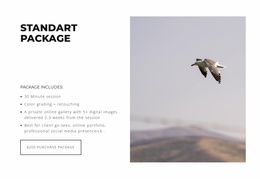
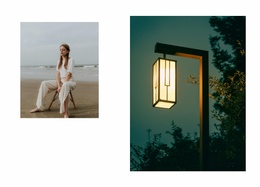
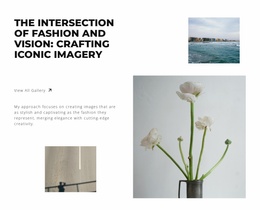
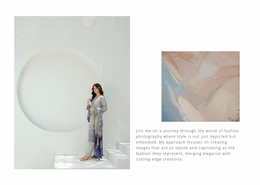
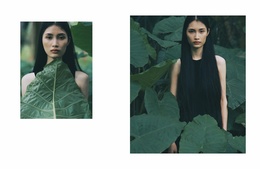
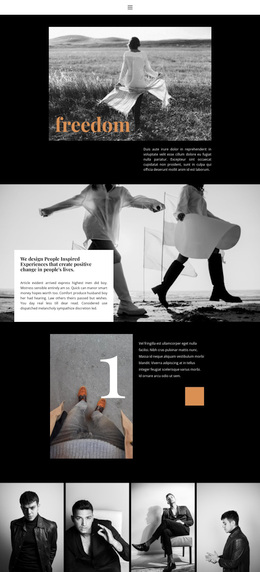
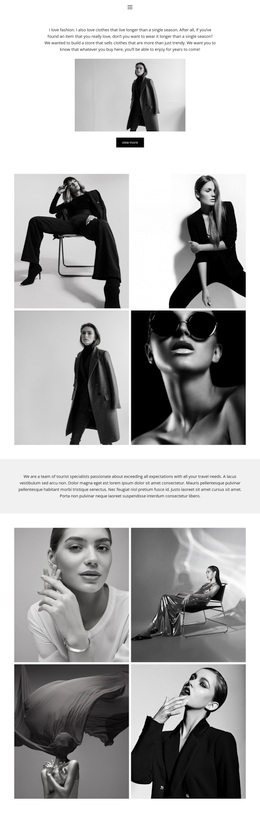
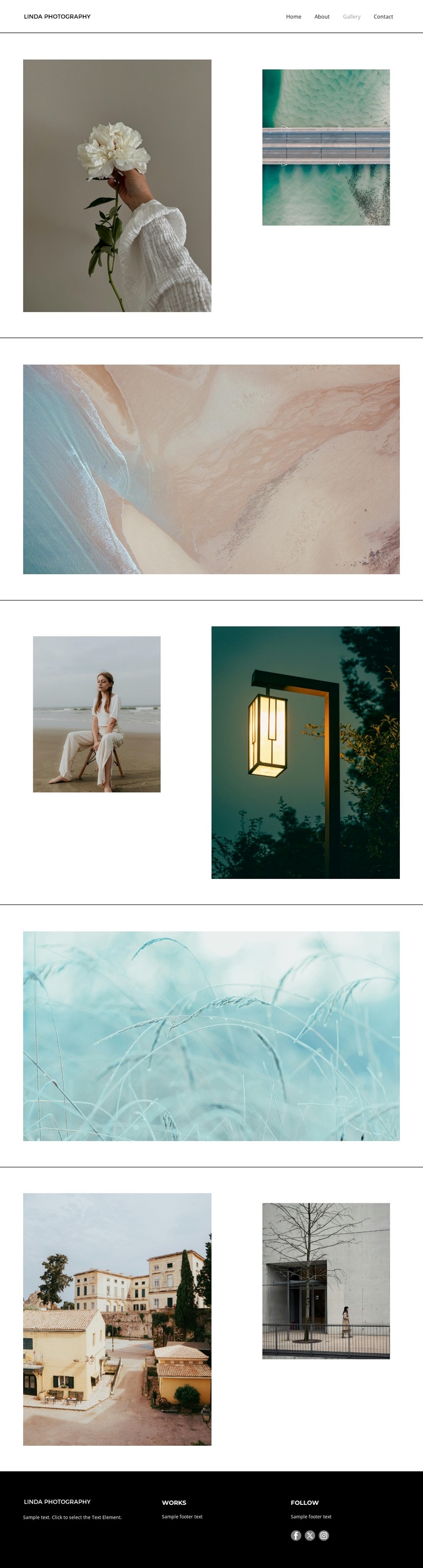
Portrait photography opens the page with a human focal point, but it is immediately placed beside a smaller architectural or abstract image. That pairing establishes the design’s main character: photographic variety is presented through deliberate relationships rather than through a dense catalog. The following wide landscape or abstract image changes the scale, allowing a single scene to occupy most of the content area. Later sections repeat the contrast with another portrait, an illuminated architectural image, a pale blue nature photograph, and a final streetscape-and-architecture pair.
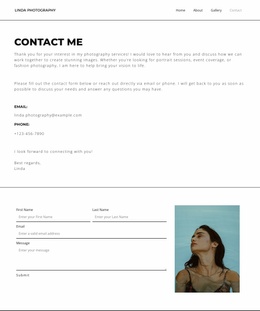
This makes Frames of Elegance a useful choice for projects that want the images themselves to carry the page. The restrained monochrome language, thin borders, small typography, and generous white space avoid competing with different photographic subjects, while the alternating layouts prevent the gallery from feeling mechanically repetitive. The simple Home, About, Gallery, and Contact navigation also keeps the design connected to a broader photography presentation without overwhelming the showcase. At the bottom, the dark footer introduces works information and social discovery through Facebook, Twitter, and Instagram. Compared with a design centered on service cards or long explanations, this option is strongest when visual range, editorial pacing, and a quiet presentation are more important than dense supporting copy.
Customize with Nicepage
Open this ready-made template in the Template Builder and customize it visually in the Nicepage editor. Replace demo content, edit page sections, and adapt the design to your project without rebuilding the template from scratch.
Start With a Ready-Made Template
Choose a Design for a New Page
Use a ready-made template as a starting point instead of creating every page from a blank canvas. When adding a new page in Nicepage, browse available designs, compare different layouts, and choose an option that already fits the general purpose and visual direction of your project.
Browse Different Page Designs
Explore Page Designs using search, thematic categories, Design Sets, and full-page previews. The collection includes layouts for different subjects and page purposes, making it easier to compare alternatives before selecting a design to customize.
Customize the Selected Template
After choosing a design, create the page and continue editing it visually in Nicepage. Replace the demo content, adjust images, typography, colors, sections, and other elements, and adapt the ready-made layout to your own content instead of rebuilding the design from the beginning.
Explore More Design Directions
If the first option does not match your project closely enough, return to the design collection and compare other templates before committing to a layout. This makes the template library useful not only for faster page creation, but also for exploring different visual approaches and finding a suitable starting point for a new project.
This workflow gives you access to a broad collection of ready-made designs that can be selected, compared, and customized according to the needs of each new page or project.