Local curly hair specialists Template


Edit Template Offline
2. Create new page and search for id 6140137
Edit Template Online
Create Awesome Websites


Free Nicepage Builder
Keywords
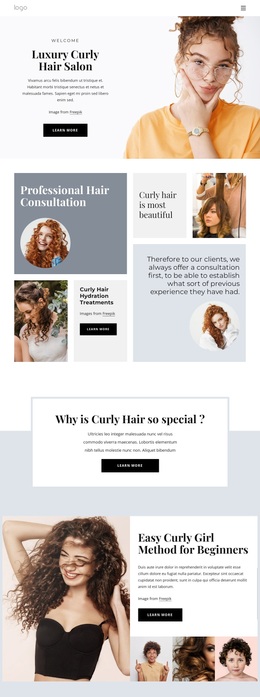
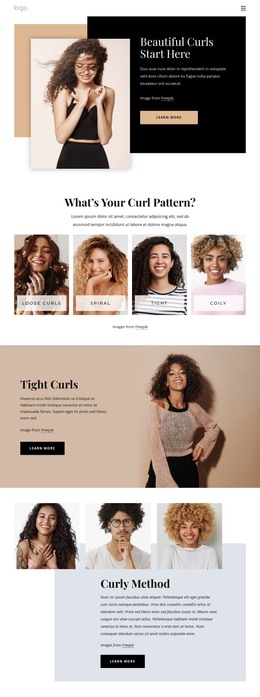
A Gallery-Led Choice for Curly Hair Services
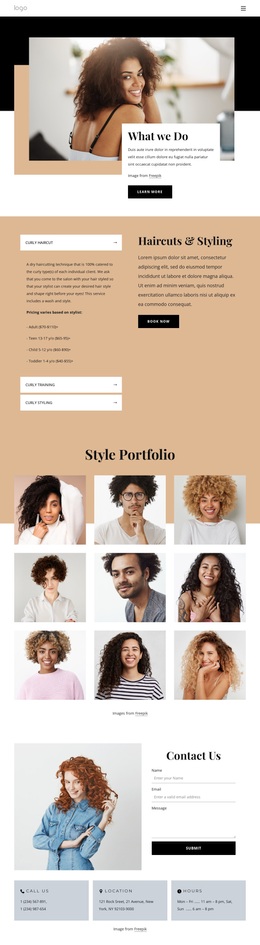
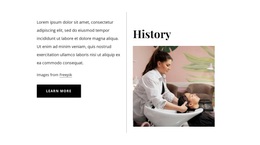
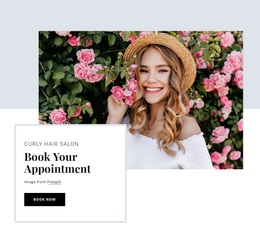
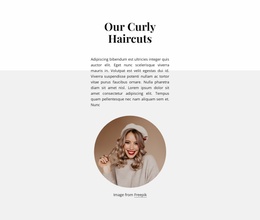
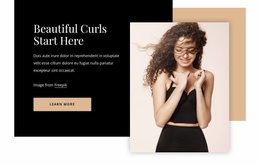
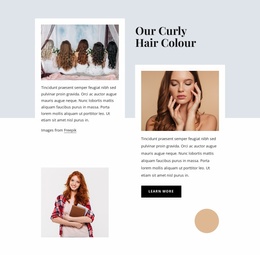
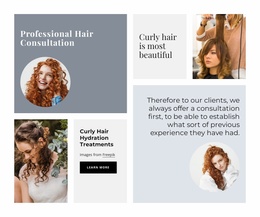
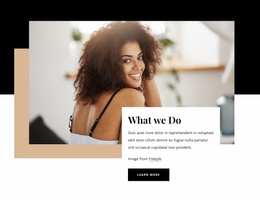
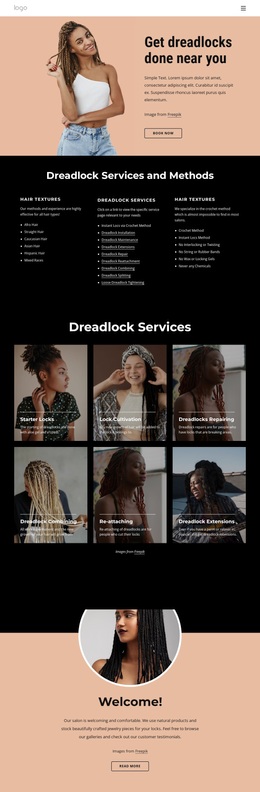
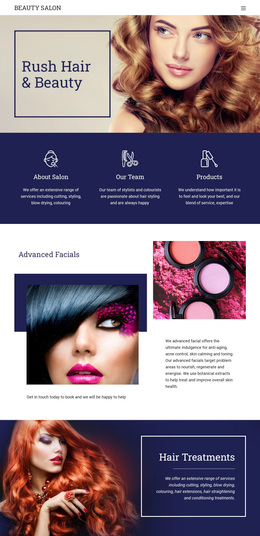
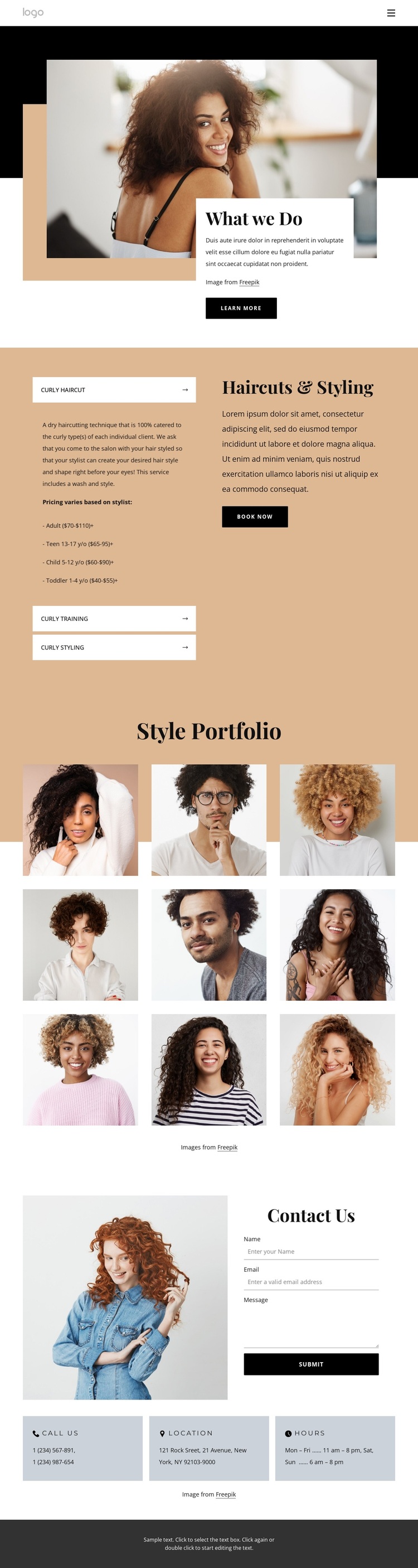
Large hair portraits give this design an immediate visual subject, while the warm beige, muted peach, black, and white palette keeps the salon presentation distinct without overwhelming the imagery. The opening text card adds context beside the portrait, so the page can introduce the service focus before asking visitors to examine specific examples.
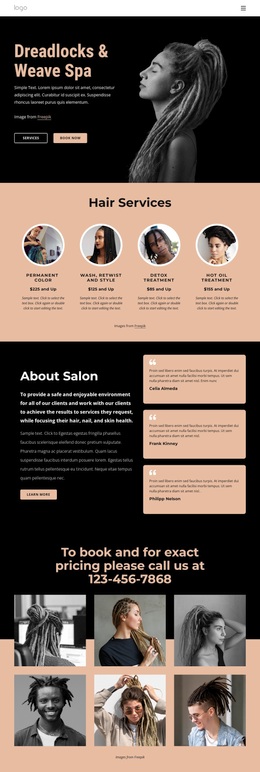
The strongest reason to choose this option is the relationship between its service and portfolio content. Three curly hair categories—Curly Haircut, Curly Training, and Curly Styling—are presented in an accordion, making the offer easy to divide into understandable topics. The nine-image Style Portfolio then provides a dedicated visual response to those services rather than forcing the introduction or service area to carry every example. Hover image treatments add subtle interaction to the compact three-column arrangement.
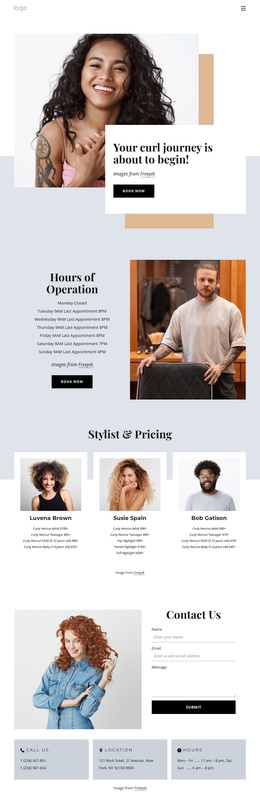
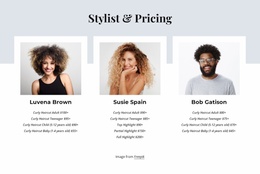
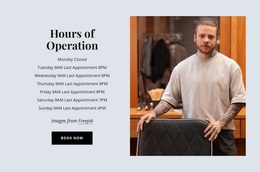
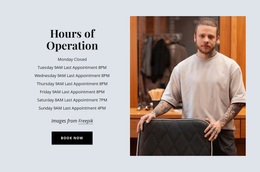
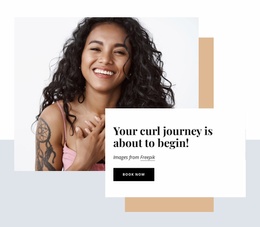
The design also covers the practical end of the visitor journey. Pricing ranges by age group appear in the services area, a Book Now action provides a clear next step, and the closing contact section combines an inquiry form with phone, location, and hours panels. That balance makes the template a useful option for a salon that needs both visual storytelling and actionable service information. Demo copy and contact details remain structural placeholders and should be replaced with verified business content.
Customize with Nicepage
Open this ready-made template in the Template Builder and customize it visually in the Nicepage editor. Replace demo content, edit page sections, and adapt the design to your project without rebuilding the template from scratch.
Start With a Ready-Made Template
Choose a Design for a New Page
Use a ready-made template as a starting point instead of creating every page from a blank canvas. When adding a new page in Nicepage, browse available designs, compare different layouts, and choose an option that already fits the general purpose and visual direction of your project.
Browse Different Page Designs
Explore Page Designs using search, thematic categories, Design Sets, and full-page previews. The collection includes layouts for different subjects and page purposes, making it easier to compare alternatives before selecting a design to customize.
Customize the Selected Template
After choosing a design, create the page and continue editing it visually in Nicepage. Replace the demo content, adjust images, typography, colors, sections, and other elements, and adapt the ready-made layout to your own content instead of rebuilding the design from the beginning.
Explore More Design Directions
If the first option does not match your project closely enough, return to the design collection and compare other templates before committing to a layout. This makes the template library useful not only for faster page creation, but also for exploring different visual approaches and finding a suitable starting point for a new project.
This workflow gives you access to a broad collection of ready-made designs that can be selected, compared, and customized according to the needs of each new page or project.