Learn about dress codes Template


Edit Template Offline
2. Create new page and search for id 23395
Edit Template Online
Create Awesome Websites


Free Nicepage Builder
Keywords
Six Named Garments Turn Product Browsing Into a Fashion Story
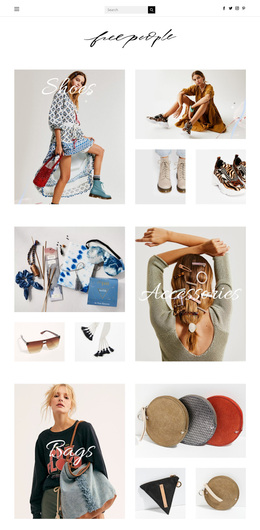
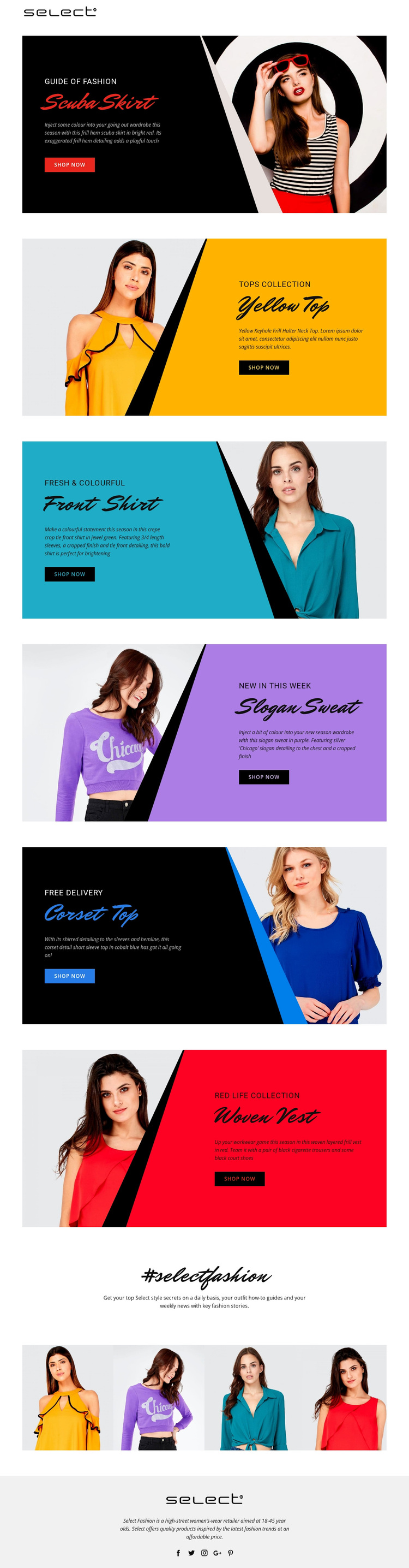
The design stands out through the way it combines a six-item clothing showcase with an editorial fashion identity. The Scuba Skirt, Yellow Top, Front Shirt, Slogan Sweat, Corset Top, and Woven Vest are not displayed as a plain catalog list. Each garment receives a large editorial image, a dedicated color panel, descriptive copy, and a shop now action, giving the collection a sequence of distinct visual moments.
The palette strengthens that choice. Black panels are set against bright red, yellow, cyan, purple, and blue accents, while diagonal geometry, compact display typography, and generous white space create a youthful retail language. The result suits a women’s-wear project that needs product imagery and color to carry as much of the message as written detail.
The page also covers more than immediate shopping. The #selectfashion section introduces daily style secrets, outfit how-to guides, and weekly fashion stories, and a four-image strip continues the emphasis on colorful fashion imagery. Social links in the footer extend the brand presence beyond the product sections. Together, these relationships make the design a useful choice for a high-street retailer seeking a vivid, image-led starting point with merchandise, editorial content, and brand connection in the same presentation.
Customize with Nicepage
Open this ready-made template in the Template Builder and customize it visually in the Nicepage editor. Replace demo content, edit page sections, and adapt the design to your project without rebuilding the template from scratch.
Start With a Ready-Made Template
Choose a Design for a New Page
Use a ready-made template as a starting point instead of creating every page from a blank canvas. When adding a new page in Nicepage, browse available designs, compare different layouts, and choose an option that already fits the general purpose and visual direction of your project.
Browse Different Page Designs
Explore Page Designs using search, thematic categories, Design Sets, and full-page previews. The collection includes layouts for different subjects and page purposes, making it easier to compare alternatives before selecting a design to customize.
Customize the Selected Template
After choosing a design, create the page and continue editing it visually in Nicepage. Replace the demo content, adjust images, typography, colors, sections, and other elements, and adapt the ready-made layout to your own content instead of rebuilding the design from the beginning.
Explore More Design Directions
If the first option does not match your project closely enough, return to the design collection and compare other templates before committing to a layout. This makes the template library useful not only for faster page creation, but also for exploring different visual approaches and finding a suitable starting point for a new project.
This workflow gives you access to a broad collection of ready-made designs that can be selected, compared, and customized according to the needs of each new page or project.