Timeless Captures Template


Edit Template Offline
2. Create new page and search for id 6294373
Edit Template Online
Create Awesome Websites


Free Nicepage Builder
Keywords
Fashion Imagery and Creative Process Give This Design Its Direction
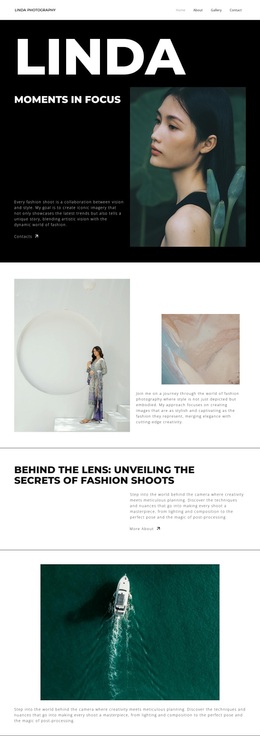
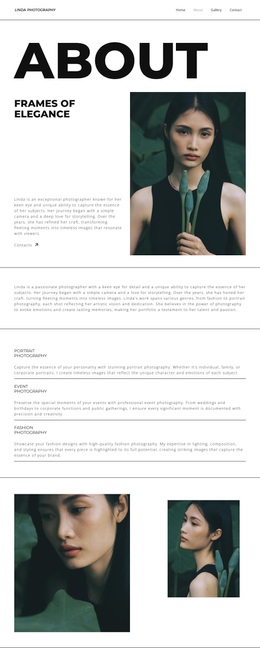
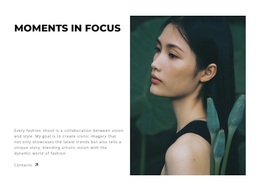
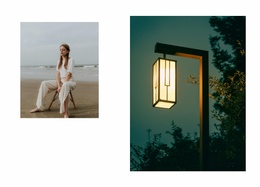
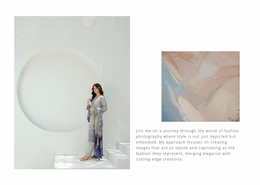
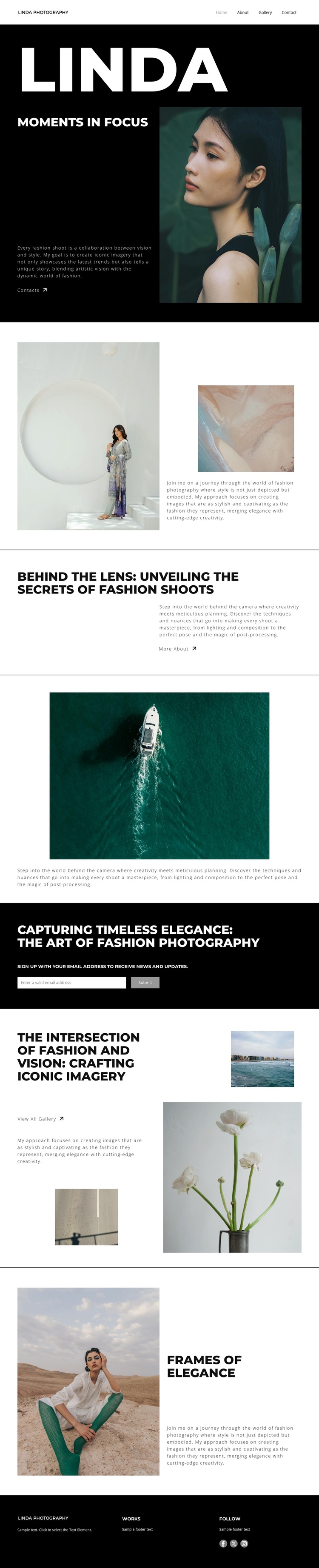
The portrait-led “Moments in Focus” opening immediately establishes photography as the main carrier of the page’s message. Its black background, oversized title treatment, introductory copy, and contact action create a strong editorial entry point, while the following split section broadens the visual story with a large fashion photograph, a smaller supporting image, and descriptive text. The result is a design that communicates through image selection and composition before relying on extended explanation.
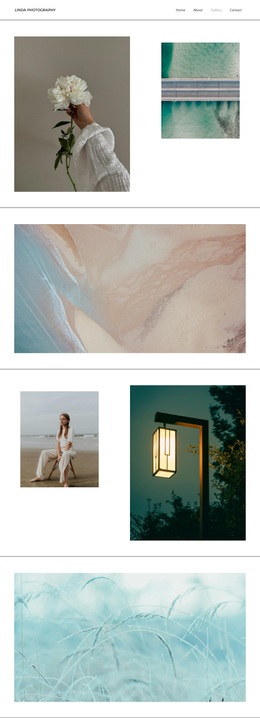
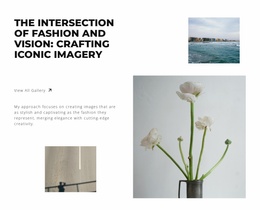
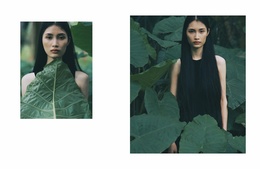
The “Behind the Lens” section makes the option more distinctive by showing that the subject is not only finished imagery. Its discussion of planning, lighting, composition, posing, and post-processing introduces the creative method behind the photographs. That process content leads naturally toward the four-image gallery, where differently sized editorial images and a “View All Gallery” action invite further visual exploration. The subscription callout adds an audience relationship through news and updates, while the closing “Frames of Elegance” statement and social footer maintain the same art-directed tone. These connected content roles make the design a useful choice for a photography portfolio that needs to present visual work, creative thinking, and ongoing audience contact within one recognizable black-and-white direction.
Customize with Nicepage
Open this ready-made template in the Template Builder and customize it visually in the Nicepage editor. Replace demo content, edit page sections, and adapt the design to your project without rebuilding the template from scratch.
Start With a Ready-Made Template
Choose a Design for a New Page
Use a ready-made template as a starting point instead of creating every page from a blank canvas. When adding a new page in Nicepage, browse available designs, compare different layouts, and choose an option that already fits the general purpose and visual direction of your project.
Browse Different Page Designs
Explore Page Designs using search, thematic categories, Design Sets, and full-page previews. The collection includes layouts for different subjects and page purposes, making it easier to compare alternatives before selecting a design to customize.
Customize the Selected Template
After choosing a design, create the page and continue editing it visually in Nicepage. Replace the demo content, adjust images, typography, colors, sections, and other elements, and adapt the ready-made layout to your own content instead of rebuilding the design from the beginning.
Explore More Design Directions
If the first option does not match your project closely enough, return to the design collection and compare other templates before committing to a layout. This makes the template library useful not only for faster page creation, but also for exploring different visual approaches and finding a suitable starting point for a new project.
This workflow gives you access to a broad collection of ready-made designs that can be selected, compared, and customized according to the needs of each new page or project.