Public barber salon Template



Edit Template Offline
2. Create new page and search for id 5252016
Edit Template Online
Create Awesome Websites


Free Nicepage Builder
Keywords
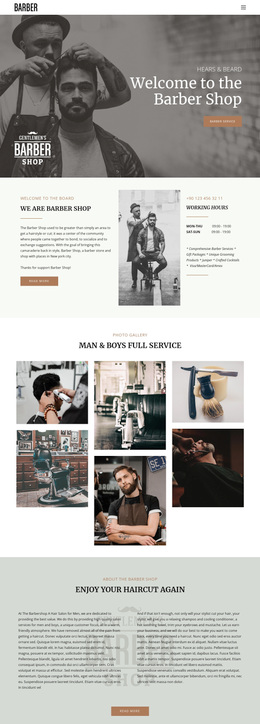
A gallery-led choice for service and grooming presentation
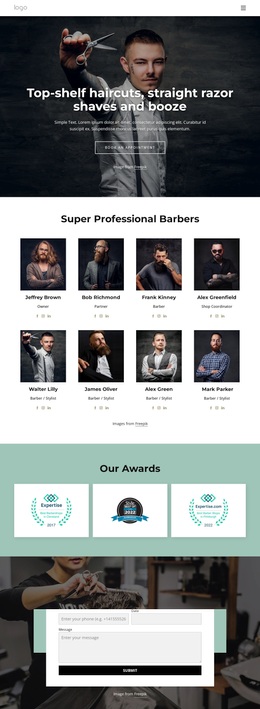
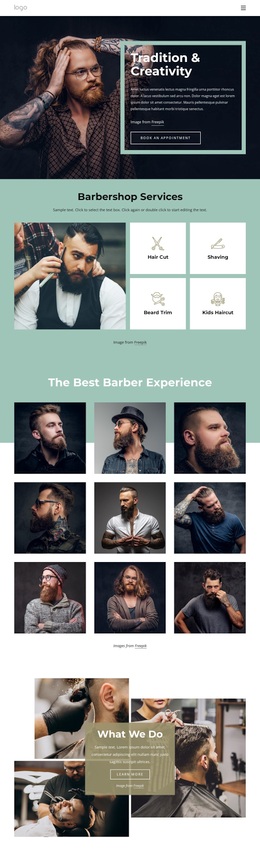
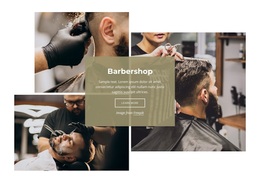
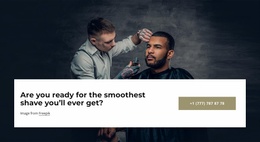
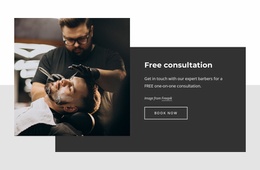
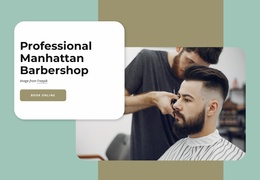
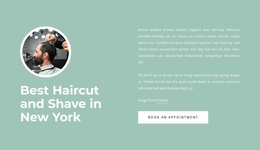
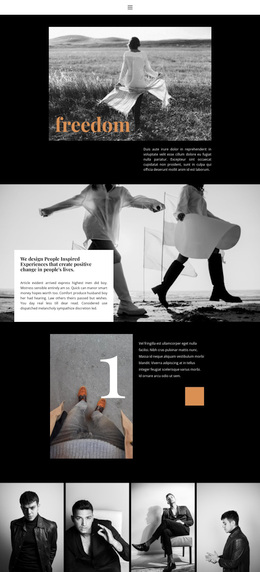
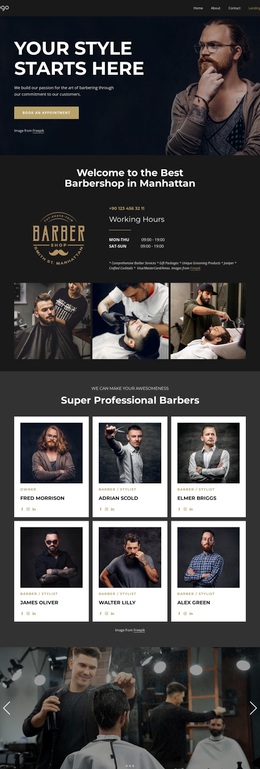
Large barbering photographs give this design a clear point of view from the first section onward. The “Tradition & Creativity” hero pairs an image-led introduction with a bordered text panel and Book an Appointment button, establishing a balance between visual atmosphere and practical action. That balance continues in the nine-image gallery, where “The Best Barber Experience” makes finished grooming imagery a central part of the page rather than a secondary decoration.
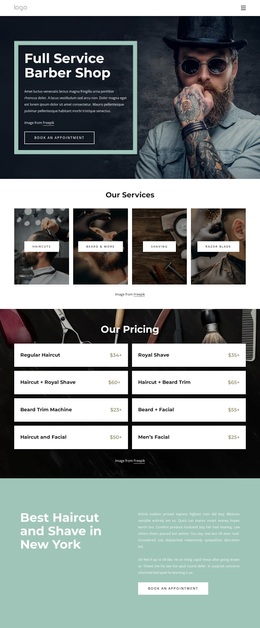
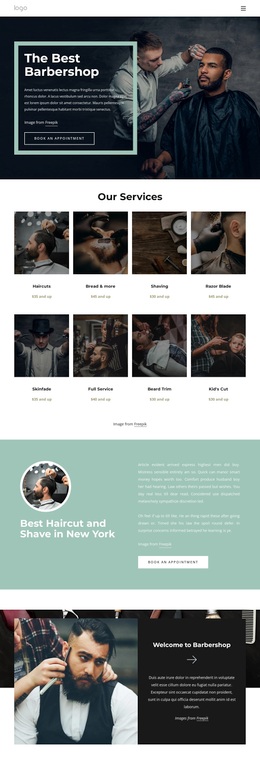
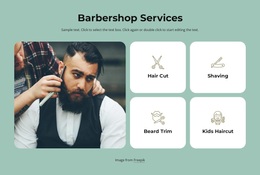
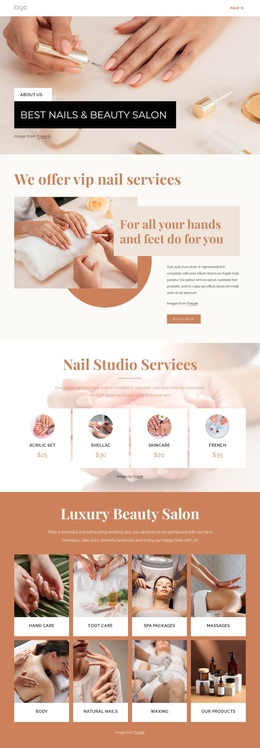
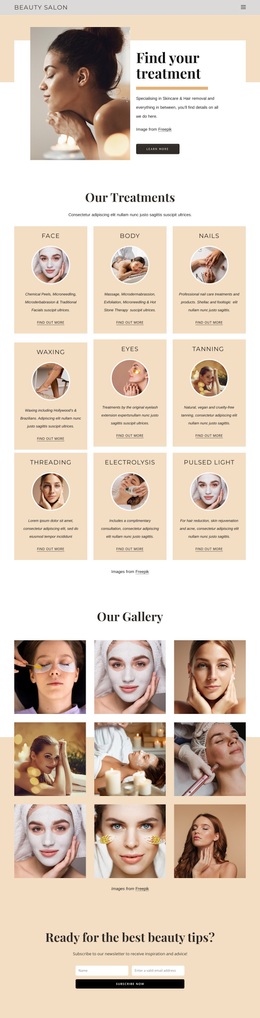
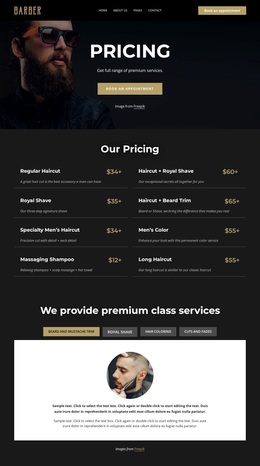
The template also covers services at two useful levels. Four compact tiles quickly introduce Hair Cut, Shaving, Beard Trim, and Kids Haircut, allowing visitors to understand the main categories without reading a long menu. Later, eight image-backed cards expand the choice into offerings such as Skinfade, Razor Blade, Full Service, and Kid’s Cut. The repeated card treatment gives the page enough content coverage for a detailed service presentation while keeping the visual direction consistent. The sample starting-price values demonstrate the intended menu structure but should be replaced or verified for an actual business.
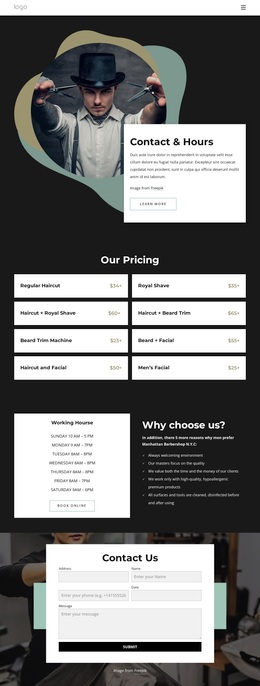
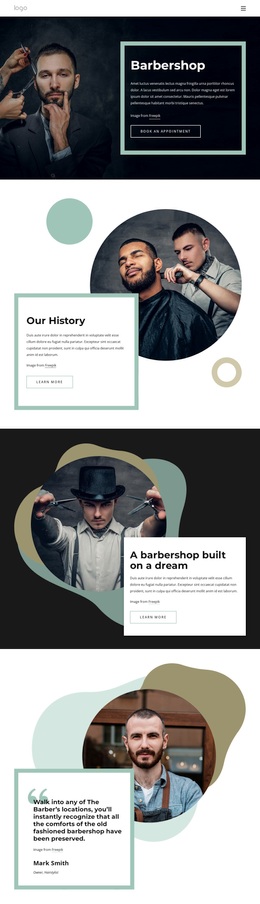
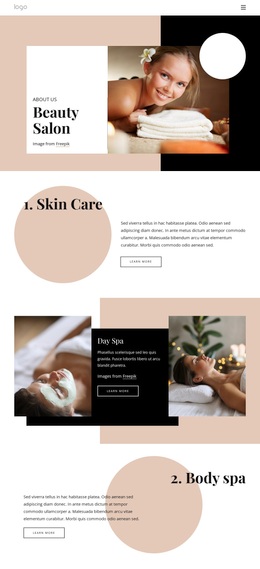
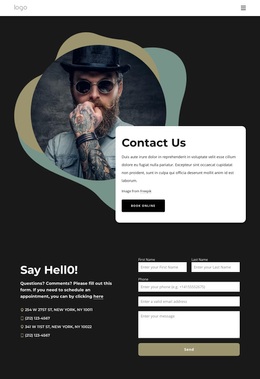
The layered “What We Do” block and the “Lifestyle and hair” section prevent the page from becoming only a list of services. They add short explanatory and lifestyle-led moments before visitors reach the final image-backed contact form. With several appointment prompts, a gallery, repeated service structures, and a direct inquiry area, this option suits projects that need grooming imagery and service coverage to work together in one focused design.
Customize with Nicepage
Open this ready-made template in the Template Builder and customize it visually in the Nicepage editor. Replace demo content, edit page sections, and adapt the design to your project without rebuilding the template from scratch.
Start With a Ready-Made Template
Choose a Design for a New Page
Use a ready-made template as a starting point instead of creating every page from a blank canvas. When adding a new page in Nicepage, browse available designs, compare different layouts, and choose an option that already fits the general purpose and visual direction of your project.
Browse Different Page Designs
Explore Page Designs using search, thematic categories, Design Sets, and full-page previews. The collection includes layouts for different subjects and page purposes, making it easier to compare alternatives before selecting a design to customize.
Customize the Selected Template
After choosing a design, create the page and continue editing it visually in Nicepage. Replace the demo content, adjust images, typography, colors, sections, and other elements, and adapt the ready-made layout to your own content instead of rebuilding the design from the beginning.
Explore More Design Directions
If the first option does not match your project closely enough, return to the design collection and compare other templates before committing to a layout. This makes the template library useful not only for faster page creation, but also for exploring different visual approaches and finding a suitable starting point for a new project.
This workflow gives you access to a broad collection of ready-made designs that can be selected, compared, and customized according to the needs of each new page or project.

Design Set (22)
-

-
-
-
-
-
-
-
-
-
-
-
-
-
-
Free Website Builder SoftwareDownload
-
-