Mountain hiking travel Template


Edit Template Offline
2. Create new page and search for id 32104
Edit Template Online
Create Awesome Websites


Free Nicepage Builder
Keywords
Mountain Photography Carries the Tour Story From Hero to Gallery
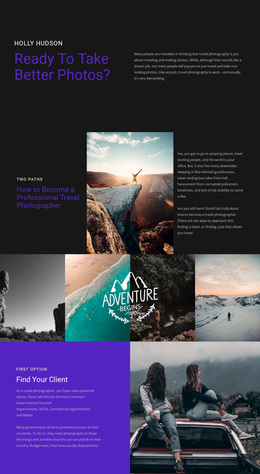
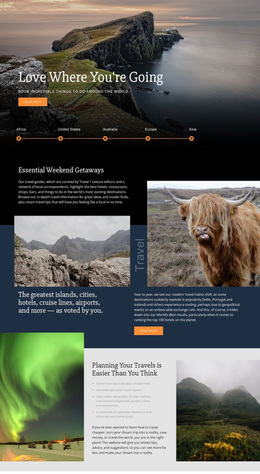
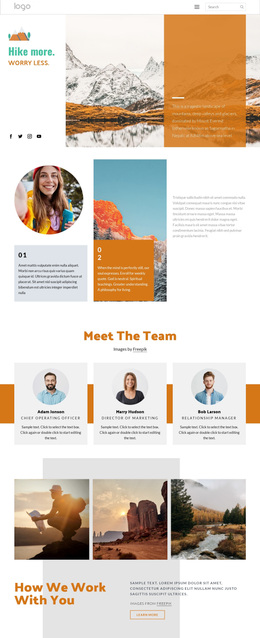
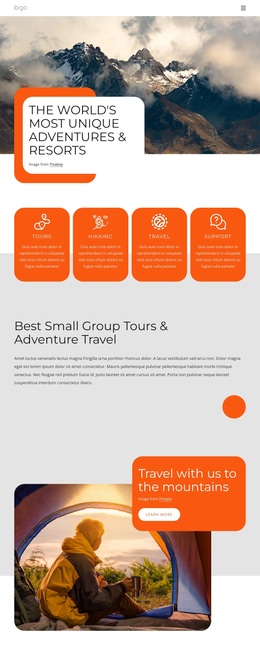
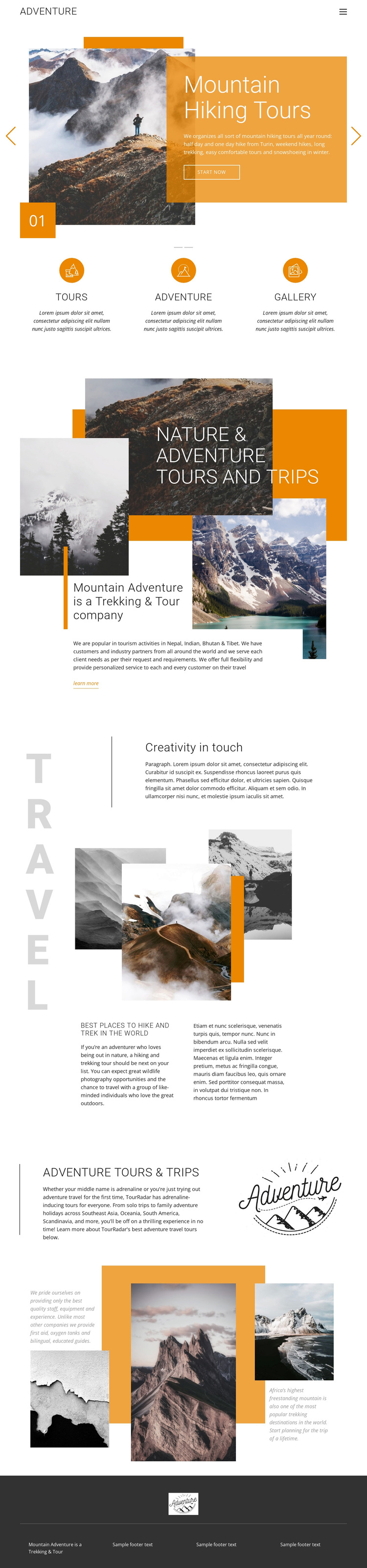
Mountain photography is the strongest reason to consider this design as a ready-made option for an outdoor travel project. The opening carousel places a large landscape beside an orange panel for Mountain Hiking Tours, so the subject is communicated through both visual scale and concise tour-oriented content. That combination gives the design a more editorial and destination-led character than a layout centered primarily on dense service cards or pricing tables.
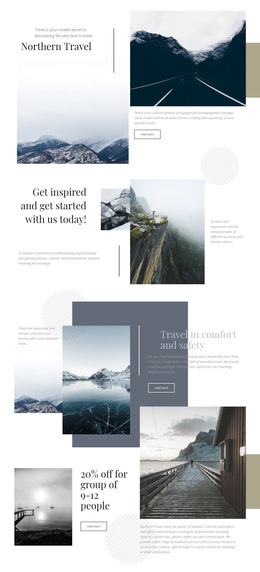
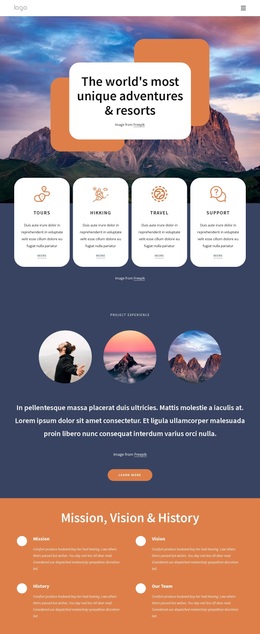
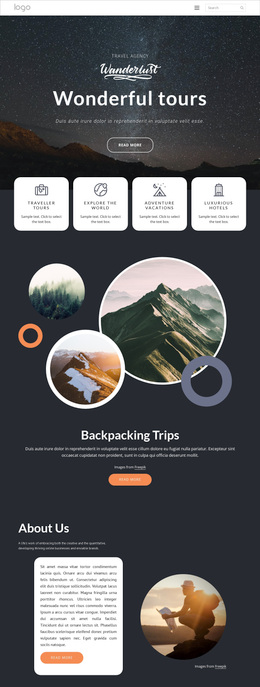
The page also covers several useful content roles without losing that visual direction. Tours, Adventure, and Gallery provide three simple categories, while Nature & Adventure Tours and Trips introduces the broader travel offering. The section about the best places to hike and trek in the world adds destination storytelling through layered imagery and supporting text. Adventure Tours & Trips then gives the offer another focused statement, and the closing three-image collage returns to the visual appeal of mountain environments.
This combination suits a hiking company, trekking organizer, or adventure travel project that needs imagery to establish interest before detailed explanation. References to departures from Turin and regions including Nepal, Bhutan, Tibet, Scandinavia, and South America show how the structure can accommodate geographic content, although sample wording should be replaced with verified project information. The design is worth choosing for its balance of tour introduction, destination context, editorial spacing, and repeated mountain imagery.
Customize with Nicepage
Open this ready-made template in the Template Builder and customize it visually in the Nicepage editor. Replace demo content, edit page sections, and adapt the design to your project without rebuilding the template from scratch.
Start With a Ready-Made Template
Choose a Design for a New Page
Use a ready-made template as a starting point instead of creating every page from a blank canvas. When adding a new page in Nicepage, browse available designs, compare different layouts, and choose an option that already fits the general purpose and visual direction of your project.
Browse Different Page Designs
Explore Page Designs using search, thematic categories, Design Sets, and full-page previews. The collection includes layouts for different subjects and page purposes, making it easier to compare alternatives before selecting a design to customize.
Customize the Selected Template
After choosing a design, create the page and continue editing it visually in Nicepage. Replace the demo content, adjust images, typography, colors, sections, and other elements, and adapt the ready-made layout to your own content instead of rebuilding the design from the beginning.
Explore More Design Directions
If the first option does not match your project closely enough, return to the design collection and compare other templates before committing to a layout. This makes the template library useful not only for faster page creation, but also for exploring different visual approaches and finding a suitable starting point for a new project.
This workflow gives you access to a broad collection of ready-made designs that can be selected, compared, and customized according to the needs of each new page or project.