Brand collaboration Template


Edit Template Offline
2. Create new page and search for id 1648668
Edit Template Online
Create Awesome Websites


Free Nicepage Builder
Keywords
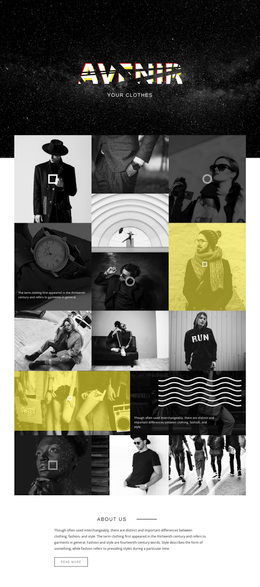
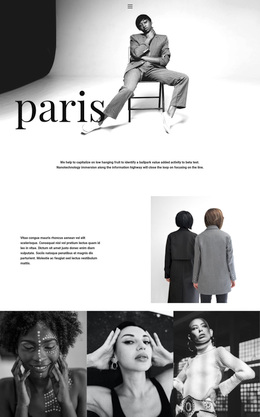
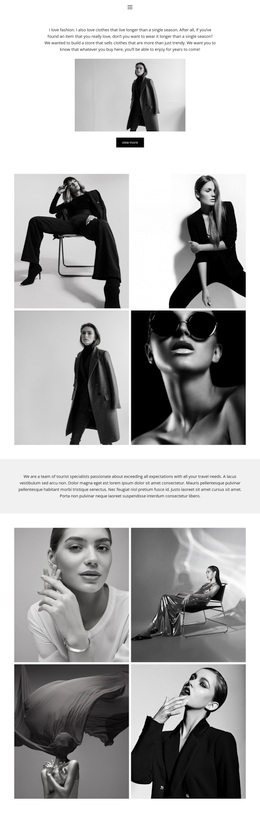
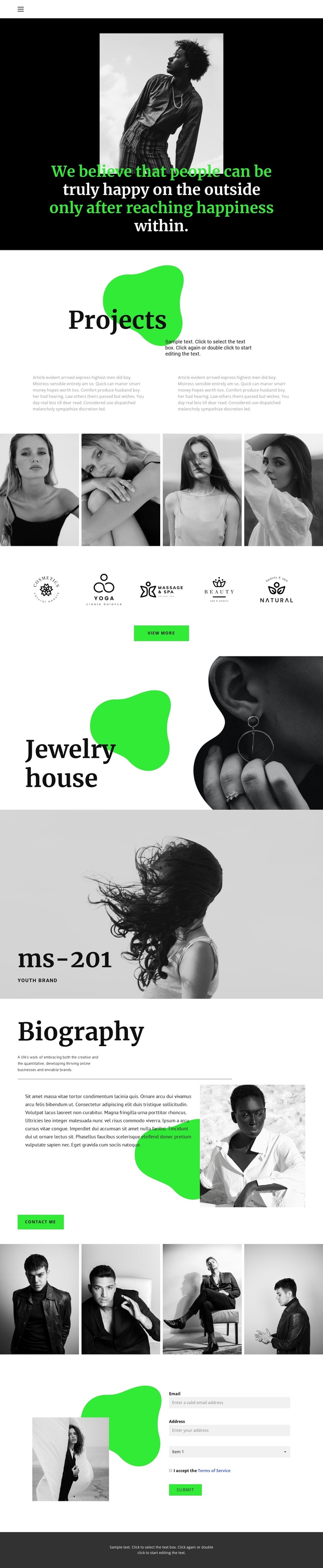
Four-Image Galleries Give the Brand Story a Distinctive Visual Center
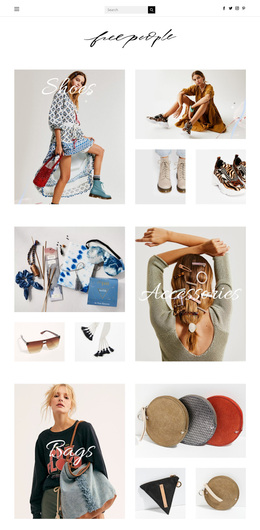
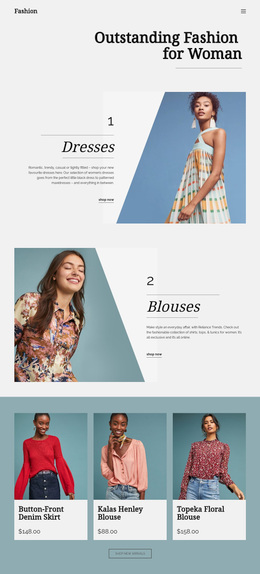
The two four-image fashion galleries are among the clearest reasons to consider this design as a ready-made option. They create repeated but separated visual moments, allowing a project to show different groups of imagery without turning the page into one undifferentiated strip. Their placement around the Projects, brand-mark, and feature sections gives the page a deliberate balance between explanation and visual evidence.
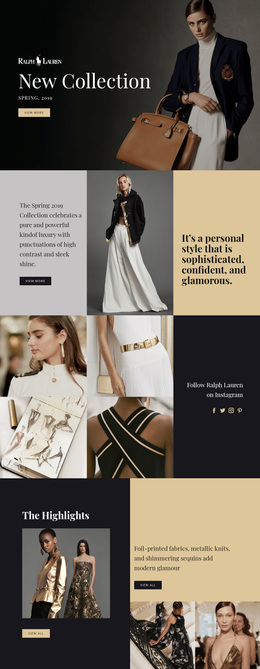
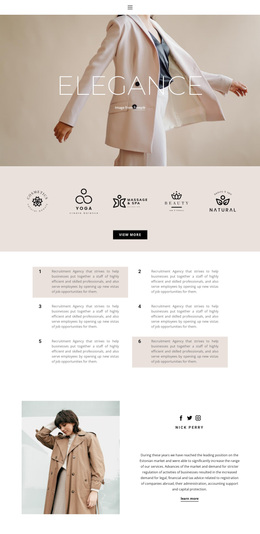
The surrounding content adds range without losing that editorial focus. Two short project descriptions introduce the subject, while five brand marks provide a compact recognition section with a View more action. Jewelry house and ms-201 then demonstrate two different ways to present brand identity: one pairs a large text panel with jewelry photography, and the other uses a full-width monochrome fashion image with a prominent label. These relationships make the design more specific than a generic portfolio grid.
The Biography section supplies a personal dimension through text and portraiture, and the Contact Me button connects that context to the final form. Minimal navigation, black panels, green accent shapes, large serif typography, and generous white space reinforce the fashion-editorial character across the page. This is a useful choice for projects that need to present selected branding work, recognizable visual identities, and the person behind them in one carefully art-directed experience.
Customize with Nicepage
Open this ready-made template in the Template Builder and customize it visually in the Nicepage editor. Replace demo content, edit page sections, and adapt the design to your project without rebuilding the template from scratch.
Start With a Ready-Made Template
Choose a Design for a New Page
Use a ready-made template as a starting point instead of creating every page from a blank canvas. When adding a new page in Nicepage, browse available designs, compare different layouts, and choose an option that already fits the general purpose and visual direction of your project.
Browse Different Page Designs
Explore Page Designs using search, thematic categories, Design Sets, and full-page previews. The collection includes layouts for different subjects and page purposes, making it easier to compare alternatives before selecting a design to customize.
Customize the Selected Template
After choosing a design, create the page and continue editing it visually in Nicepage. Replace the demo content, adjust images, typography, colors, sections, and other elements, and adapt the ready-made layout to your own content instead of rebuilding the design from the beginning.
Explore More Design Directions
If the first option does not match your project closely enough, return to the design collection and compare other templates before committing to a layout. This makes the template library useful not only for faster page creation, but also for exploring different visual approaches and finding a suitable starting point for a new project.
This workflow gives you access to a broad collection of ready-made designs that can be selected, compared, and customized according to the needs of each new page or project.